Homekit, Apple’s smart home framework that users can use to control their smart accessories, has run into some problems after the iOS 26 update. According to user reports, the accessories are not syncing or not even showing up on the HomeKit page on their iPhones after updating to iOS 26. Even while the devices are working correctly in their respective ecosystems, it is frozen on the Home app. Reorganizing the devices in the Home app or changing the primary Home device should fix this problem.
Fix 1 – Reset the entire Hub
Disconnecting all the hub devices and including them one-by-one seems to have resolved the issue for many users.
Step 1 – Unplug all the HomePods and Apple TV at your house.
Step 2 – Now, wait for 10 minutes.
Step 3 – Next, plug in the most recent Apple TV (preferably connected via Ethernet, if possible). Don’t plug in your other devices yet.
Step 4 – Wait for 5 minutes for this Apple TV to become the Primary hub controller.
Step 5 – Then, reconnect all your remaining devices.
This is a simple refresh process that should help in syncing the accessories problem in HomePod.
Fix 2 – Refresh the Location Privacy
The broken location-sync chain between the iPhone and the smart devices included in the Home hub may lead to such issues.
Step 1 – Proceed to the Settings console on the iPhone. Then, open up the Privacy & Security tab.
Step 2 – Open up the Location Services page.
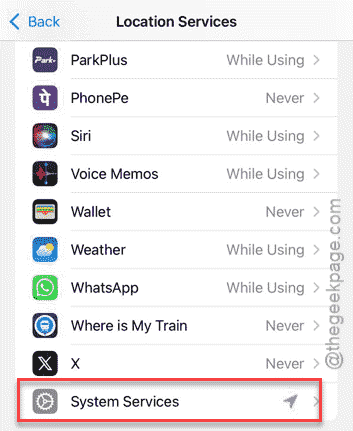
Step 3 – Scroll down and open the System Services menu.
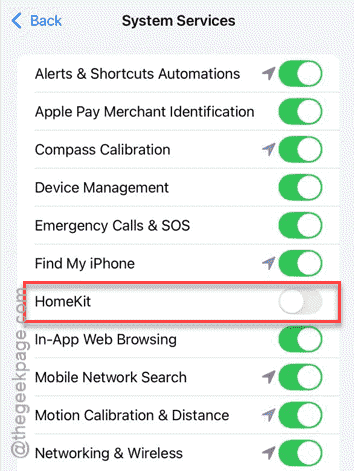
Step 4 – Find the HomeKit toggle. Turn it Off.
Step 5 – Next, restart the iPhone. After this, toggle the HomeKit toggle to On mode.
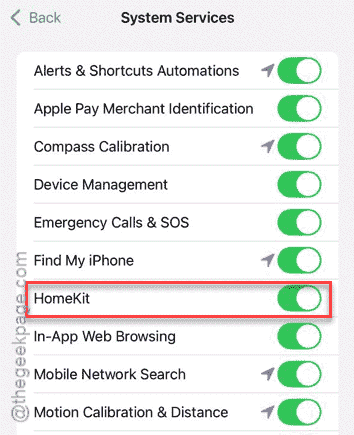
Try checking the HomePod once again. Check whether the devices are appearing there or not.
Fix 3 – Set the Primary Controller Correctly
The automatic hub selection in the Home app automatically assigns a primary controller, which may lead to sync issues or other problems.
Step 1 – Open the Home App. Then, tap the three-dot button and tap Home Settings.
Step 2 – Proceed to the Home Hubs & Bridges.
Step 3 – Turn off the Automatic Selection feature.
Now, you can choose any of the Apple TV or HomePod as your primary controller.
Step 4 – Set a reliable Apple TV as the primary controller.
Check whether all the devices are showing up and syncing properly.
Fix 4 – Delete Ghost or Unresponsive Devices
Sometimes, you may see ghost or unresponsive devices in the Home Hub. The duplicate entries can fail the sync chain.
Step 1 – Load up the iPhone Settings.
Step 2 – Next, go to the General tab. Proceed to the Matter Accessories settings.
There will be a list of accessories that is connected to the HomePod.
Step 3 – If any of the listed devices show up as ‘Unresponsive’, you can just tap it and use Remove from Services.
Step 4 – Repeat the same steps for all such duplicate entries from there.
Once you do that, the actual devices will automatically get listed in the Home app. The sync problem will also get resolved in the due process.