The automatic channel scrolling bug in the Microsoft Teams client, where the channels jump to the top or the bottom without any user input, is usually caused by a Microsoft Teams glitch. But there are some internal Teams settings or Teams corrupted local cache that may lead to such issues as well. Here are step-by-step instructions to remediate this problem.
Quick Fix Guide –
| Issue | Recommended Fix |
| Jumps to bottom on click | Fix #2: Toggle New Posts setting |
| Jittery/Stuttering scroll | Fix #3: Disable the GPU acceleration |
| Loops while reading | Fix #4: Type and backspace in chat |
Fix 1 – Reset the Zoom and Disable High DPI Scaling
If the Microsoft Teams UI is zoomed in, the app may lose its anchor. You can fix this issue changing the high DPI scaling feature.
Step 1 – In the Microsoft Teams client, press the Ctrl+0 buttons to reset the zoom level to default level.
Check if this resolves the issue.
Step 2 – Otherwise, proceed to this location to find the Teams app there –
C:\Users\%username%\AppData\Local\Microsoft\Teams\Current\Teams.exe
Step 3 – Then, right-click the Teams executable, and tap Properties.
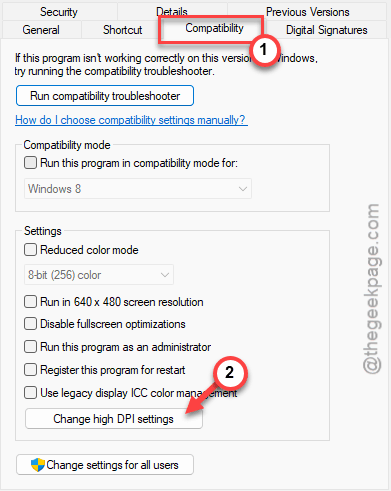
Step 4 – Proceed to the Compatibility tab. Use the Change high DPI settings.
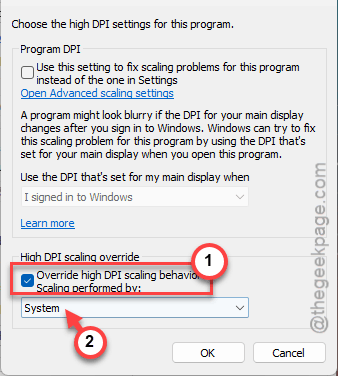
Step 5 – Tick the Override high DPI scaling behavior and choose System from the drop-down list.
Step 6 – Save the changes there.
Restart the Teams client.
Fix 2 – Toggle the New Posts Layout
Sometimes the updated Teams app may struggle to load up the new posts layout.
Step 1 – Tap the three-dot button next to profile picture and tap Settings in MS Teams.
Step 2 – Then, go to the Appearance and accessibility settings.
Step 3 – Find the New posts at top or bottom setting. Change it to Top or Bottom (vice versa).
Finally, close and relaunch the Teams client. Now, return to your preferred setting.
Fix 3 – Disable the GPU Hardware Acceleration Feature
The automatic scrolling issue can be linked with the hidden graphics acceleration feature active on the new MS Teams client. Running the Teams client in power saving mode should resolve the issue.
Step 1 – Open the Windows Settings. Head on to the System settings.
Step 2 – Go to the Display tab. Open the Graphics settings.
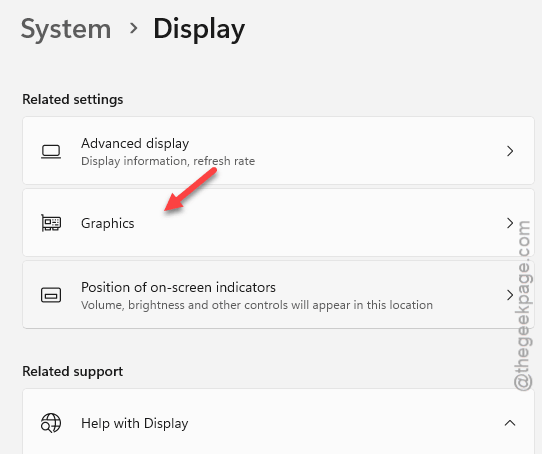
Step 3 – In the Graphics settings, tap Add an Microsoft Teams app, and choose Microsoft Teams to add it.
Step 4 – Once you have added it, set the GPU Preference to Power Saving mode.
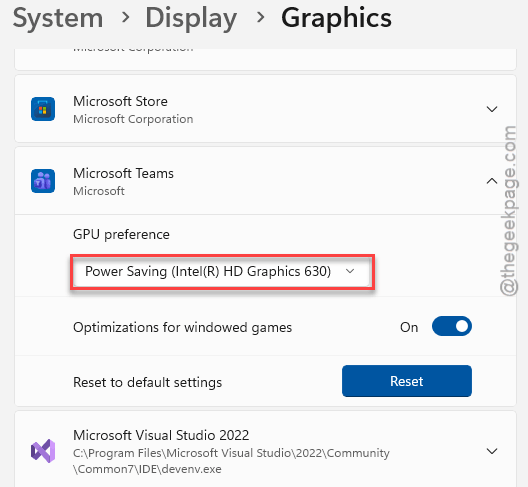
This way, the rendering load will decrease on the system, and there will be no such automatic scrolling issue.
Fix 4 – Try the Character Entry Reset
There is a weird but working workaround to this where the scrolling loop can be solved by typing a simple character and deleting it from the Teams console.
Step 1 – Click the message reply box of the problematic channel.
Step 2 – Just type a single character (e.g., f)
Step 3 – Wait for 1 second.
Step 4 – Then, press the Backspace to delete that character.
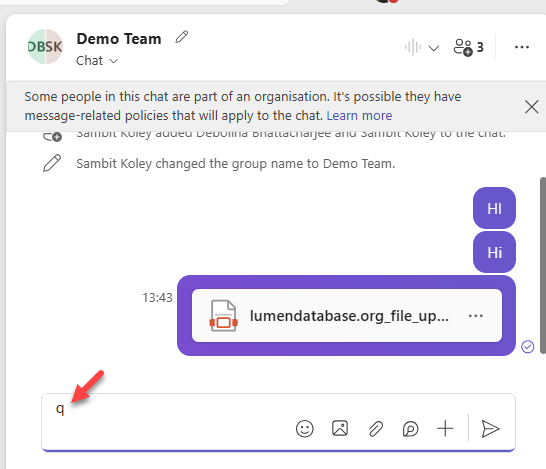
This often forces the Teams client to fix the automatic scrolling bug.
Fix 5 – Clean up the MSTeams Local Cache
If the bug is present across all the Teams channels, clearing the Microsoft Teams local cache should resolve it.
Step 1 – Quit the Microsoft Teams app completely. Right-click the Teams icon in the taskbar and tap Quit Teams.
Step 2 – Hit the Win+R keys together. Paste it in the Run box and click OK.
%localappdata%\Packages\MSTeams_8wekyb3d8bbwe\LocalCache\Microsoft\MSTeams
Step 3 – Select everything in this folder and press the Delete button to clean it up.
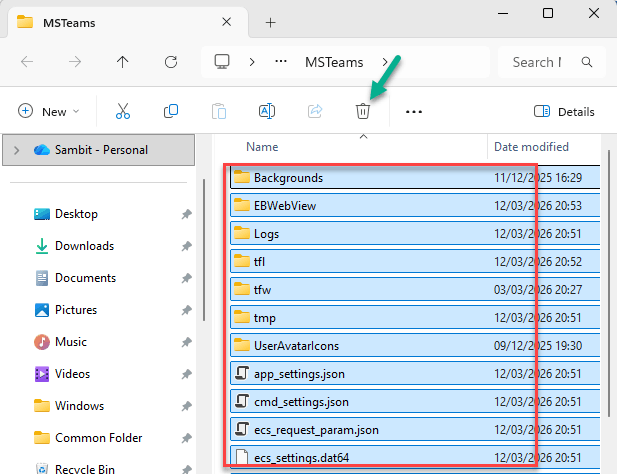
Later, relaunch the Teams client. The app will rebuild the cache as soon as you sign in using your account credentials.
This should have resolved your issue.