Does the Spotlight search results are leading to wrong apps or completely unrelated results? Some users have escalated this problem to multiple support forums, where the Spotlight search results are not taking them to proper apps. This can happen due to corrupted metadata index or a conflict in the Smart Suggest feature. Follow these tips to locate the cause of this issue, and remediate it.
Fix 1 – Re-Index the iPhone
Changing the language of the iPhone to a different language to and fro does re-indexes the contents on the device.
Step 1 – Load up the iPhone Settings and go to the General tab.
Step 2 – Proceed to the Language & Region section.
Step 3 – Next, choose a different version of language that you are currently using, like if you are on English (United States), pick the English UK.
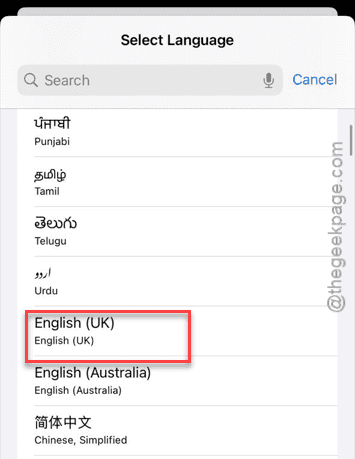
Step 4 – Wait for the iPhone to implement this change throughout the interface.
Step 5 – After this, just revert to the original language from the same settings page.
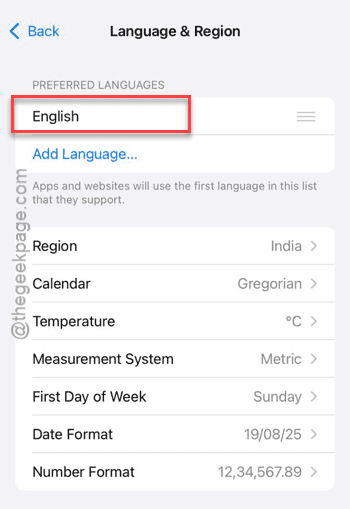
Finally, put the iPhone on charge for 10 minutes and do no touch it. Later, try to search again and check it out.
Fix 2 – Refresh Search Settings for Particular Apps
Enabling the Show App in Search should fix this problem.
Step 1 – In the iPhone Settings page, load up the Siri & Search settings.
Step 2 – Next, proceed to find the app that is not responding correctly in the Spotlight.
Step 3 – Tweak the Show App in Search and Show Content in Search option for the apps to Off mode.
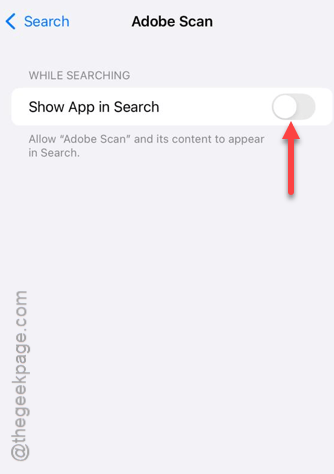
Step 4 – Restart the iPhone.
Step 5 – Next, return to the same menu page and tweak both of these settings to On mode.
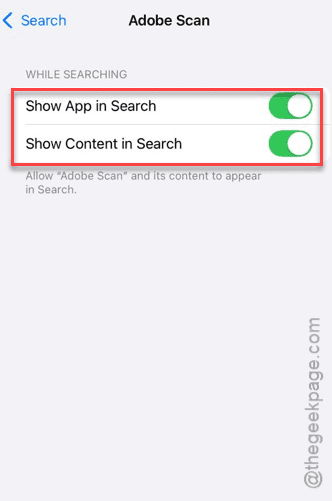
Try to search something related to that app once and check whether the search results are working or not.
Fix 3 – Turn On the Show In App Library feature
It seems that a bug on the iOS 26 prevents the application from appearing in the Spotlight.
Step 1 – Get to the iPhone Settings. Proceed to the Home Screen & App Library.
Step 2 – In the Search section, turn On the Show in App Library feature.
Step 3 – If it is already on, turn it Off and then On.
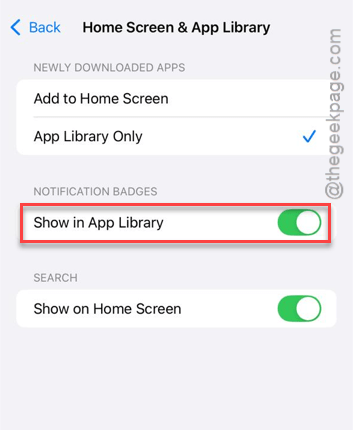
After this refresh, try searching the same thing.
Fix 4 – Reset the Siri Suggestions
After a major update such as iOS 26 or even the patches of iOS 26, you should perform a hard reset on the Siri Suggestions to get it ready it for the latest version of iOS.
Step 1 – Go to the Siri & Search settings once on your iPhone.
Step 2 – Next, find the Before Searching section, and toggle the Show Recents and Show Suggestions to Off mode.
Step 3 – Wait an entire minute. Then, toggle both those settings to On mode.
This will refresh the Siri suggestions on the device. Check whether this works out.
Fix 5 – Reset All the Settings on iPhone
Finally, if everything else fails, you should just reset all the iPhone settings.
Step 1 – Proceed to the iPhone Settings. Next, load up the General tab.
Step 2 – Tap the Transfer or Reset iPhone.
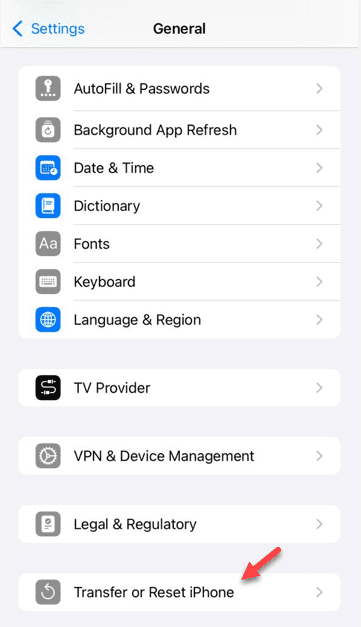
Step 3 – Click the Reset button.
Step 4 – Tap the Reset All Settings button there to reset all the iPhone settings.
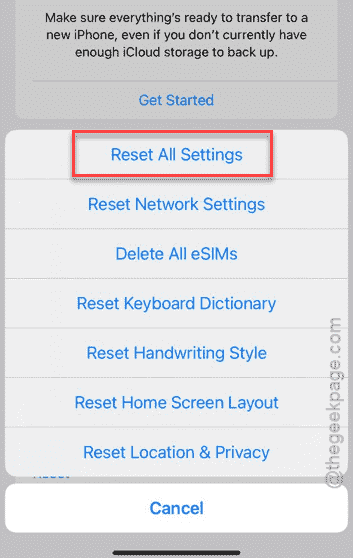
Resetting the iPhone’s settings won’t delete any of your personal data from the device. Later, you can just search items on Spotlight, check whether those are working.