Crashes in games are nothing new. But, when fast online games like Call of Duty crashes continuously, it can ruin the fun of the game very quickly. While the COD actually used to crash sometimes, the recent reports from the gamers suggests that the problem number of crash reports have just spiked up. We have the solutions that will help you troubleshoot the issue for almost all the live Call of Duty games, installed
Fix – Delete the configuration files and restart the shaders
This problem can be directly linked to the user configuration files associated to the Call of Duty game.
Step 1 – Close any Call of Duty games running on the system. Later, close Battle.NET or Steam client as well.
Step 2 – Now, you have to locate the cod24 files on your local folder. The standard location of those files are in the Players folder, located in your Documents header –
C:\Users\%usersname%\Documents\Call of Duty\players
If you are having finding this location, paste this entire address in the Run box and hit Enter.
Step 2 – Once you are there, you will find several of these cod24 files. Delete all of them.
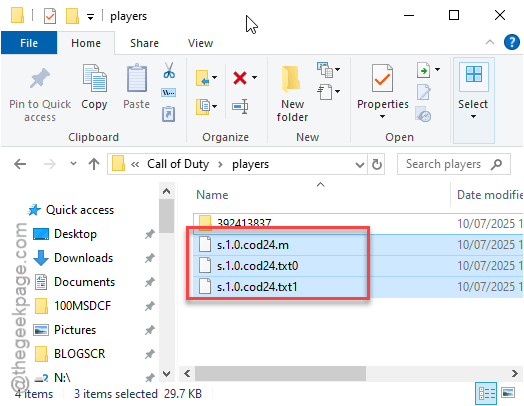
Step 3 – Now, relaunch the Call of Duty from the default launcher (Steam or Battle.NET).
Step 4 – Navigate to the Graphics tab. Reset all the graphics modifications to their default settings.
Step 5 – Set the Graphics preset to Quality mode.
Step 6 – Now, restart the shader cache of your game.
Step 7 – This should restart your game automatically. When the game relaunches, it will start to rebuild the game shader cache.
Step 8 – Once it does that, it should be ready for play once again.
Check if this is working by giving it a go. Try the multiplayer mode.
Fixes for Battle.NET version –
Fix 1 – Scan and repair the game files
If you have got the game directly from Battle.NET launcher, scanning and repairing the game files should do the trick.
Step 1 – On the Batte.NET launcher, go this way –
Games > Call of Duty
Step 2 – Find the Call of Duty game. Tap the ⚙button next to the game and tap Scan and repair to scan and repair the game files.
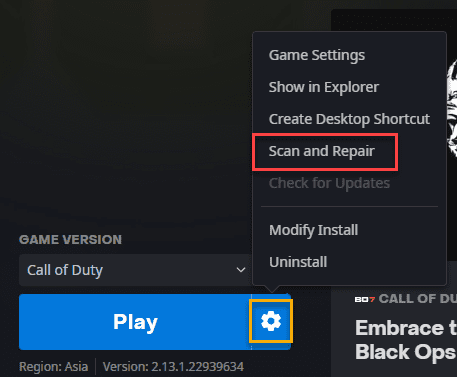
Once all the files are checked and the corrupted ones are replaced, you won’t get the license issues again.
Fix 2 – Force recheck the game files
You are going to uninstall the game and reinstall it. But, given the size of the COD games is quite large, a couple of hundred GBs in size, we have shown you a shortcut approach.
Step 1 – On the Battle.NET launcher, tap the settings icon beside the COD game. Then, use the Show in Explorer option to reach the installation folder.
Step 2 – Next, go one step back from the navigation bar to view the COD folder there.
Step 3 – Now you must rename the folder, like add some phrase (such as- New) at the end of the name, – Call of Duty New.
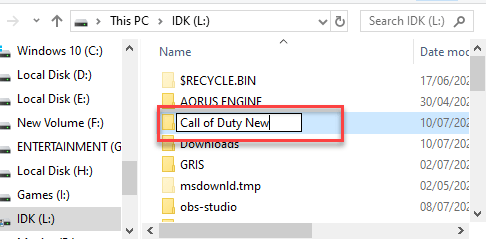
Step 4 – Now, close the Battle.NET Launcher and relaunch the same.
The launcher won’t recognize the installed game.
Step 5 – So, you will get the Install option there. Tap it once.
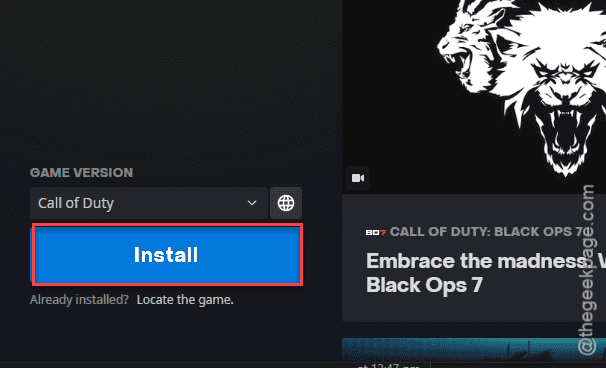
Step 6 – Tap the Change folder option. Then, select the folder where the COD game files are installed (that you have renamed before).
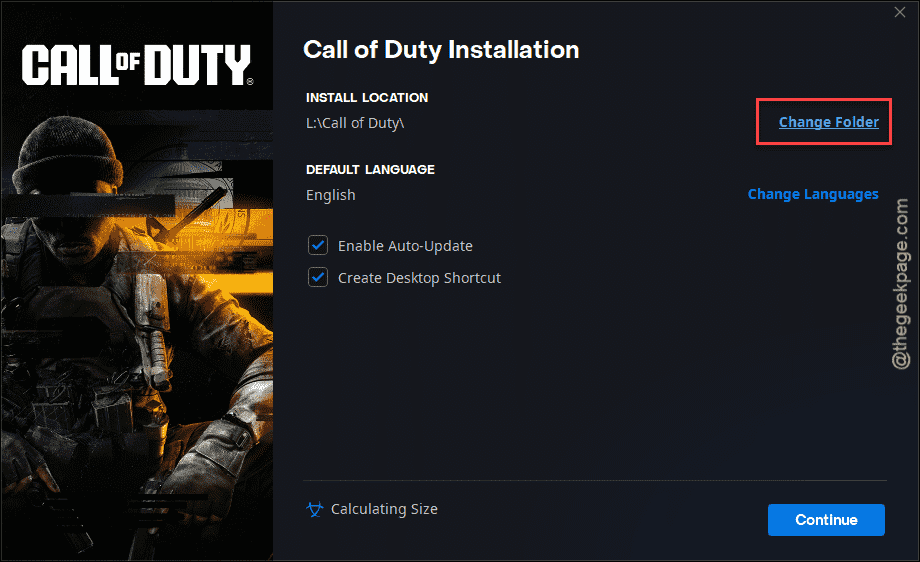
Now, the Battle.NET launcher will recognize the game files, validate them and complete the whole process.
Once the process is complete, the game will be ready to play. Check if this works out for you.
Fixes for Steam version –
Fix 1 – Disable the Steam Overlay
Turning off the steam overlay that appears on the live game should fix the problem.
Step 1 – On your Steam client, tap the Steam option and load up the Settings console.
Step 2 – Go to the In-Game tab.
Step 3 – Finally, turn off the Enable the Steam Overlay while in-game option.
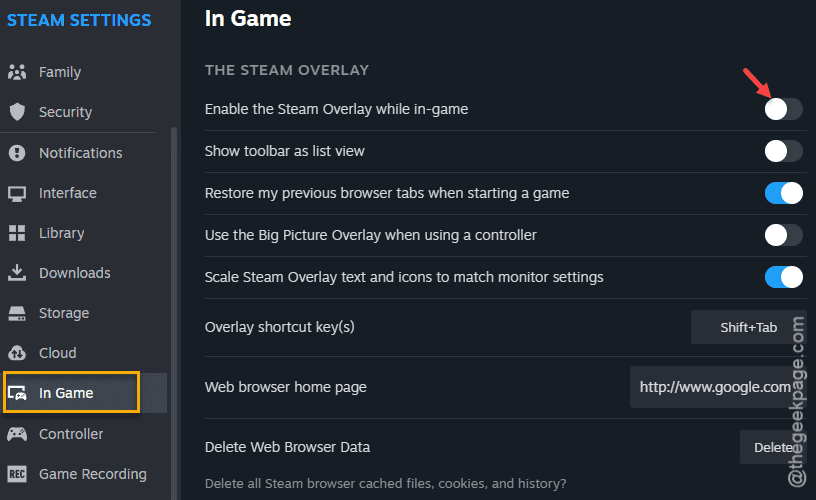
After turning off the Steam overlay, retry playing Call of Duty. Check if this works.
Fix 2 – Verify the COD games files integrity
Do an integrity check on the installed Call of Duty game files.
Step 1 – Go to your Steam client and open up the Library section.
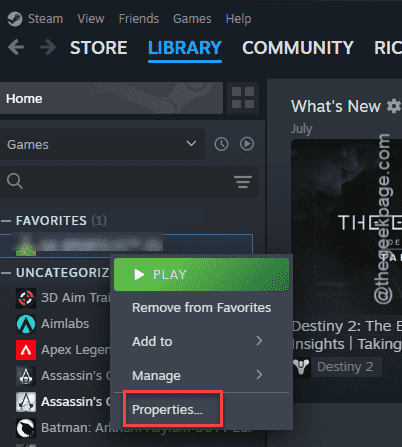
Step 2 – Then locate the Call of Duty that is giving you this problem. Right-click on the game from the left-hand side, and tap Properties to open the game properties window.
Step 3 – Go to the Installed files tab on the left pane.
Step 4 – Click the Verify game files for integrity option to start an integrity check on all the game files installed on your local drive.
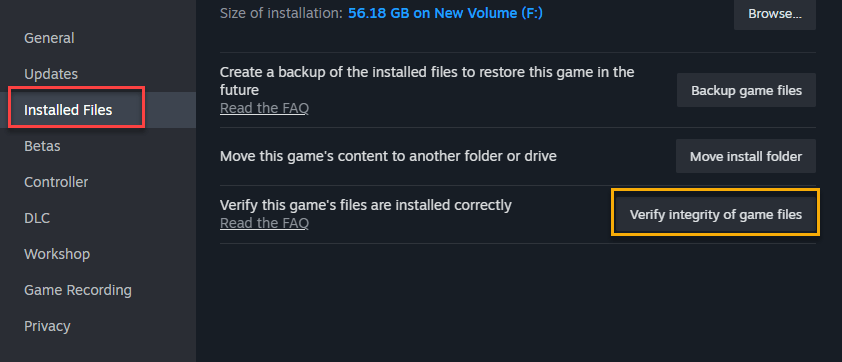
After running this check, the game should be operational once again.
Fix 2 – Uninstall and reinstall (easy way)
We are going to uninstall and reinstall the Call of Duty game. But, don’t worry. We will be using the folder swapping method so that you don’t have to get into painstaking wait for downloading the game files.
Step 1 – To do, this, go to the Steam client. Reach the Library part of the client and locate the Call of Duty from the left pane.
Step 2 – Next, right-tap the game and click Properties.
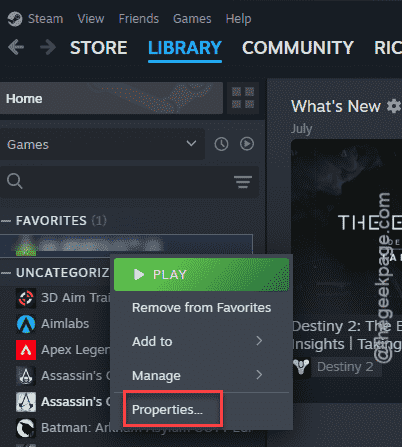
Step 3 – Get to the Installed Files tab. Tap the Browse option.
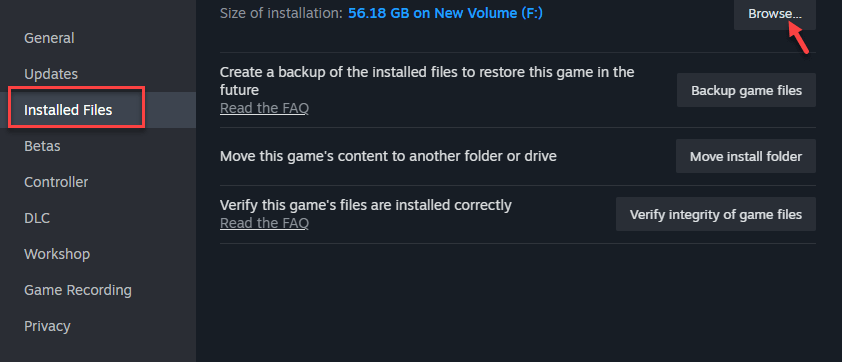
This will take you to the installed game files location.
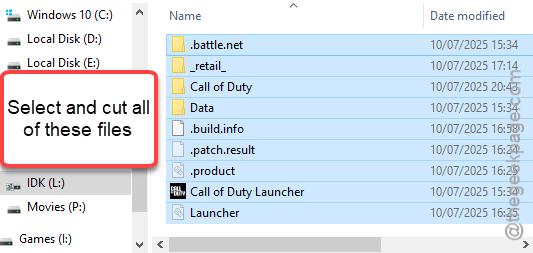
Step 5 – Find the overhead folder of the Call Of Duty. If you have any doubt, you can directly check the size of the folder.
Step 6 – Select everything from there and press Ctrl+X to cut all of them.
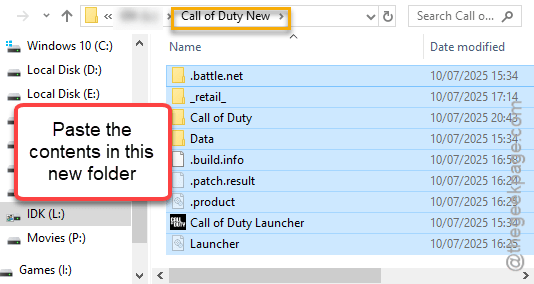
Step 7 – Now, in the same drive, create a new folder. Name it whatever you want it (like – COD New).
Step 8 – Paste the entire contents that you have copied before in this new folder.
[NOTE – Remember the path of this new folder where you are putting the game files. You will need it later. ]
Step 9 – Now, go back to the previous folder where the games files were actually installed.
Step 10 – Delete that folder from your system.
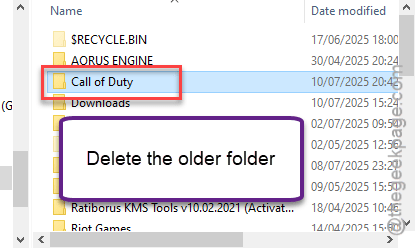
Step 11 – Finally, return to the Steam client once again.
Step 12 – Go to the Call of Duty game. Go this way –
Manage > Uninstall
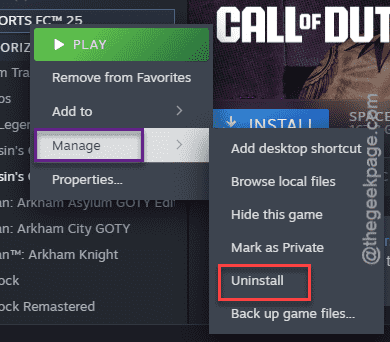
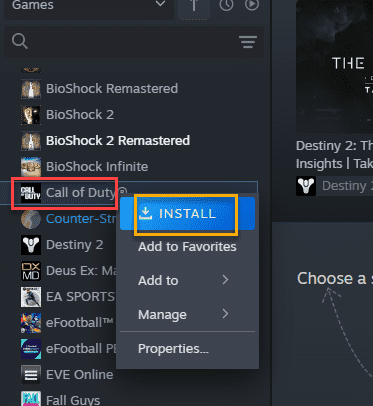
Step 13 – Now, tap the Install button once to begin installing the game.
Step 14 – Just as soon as the game begins installing, tap the Pause button there to pause it.
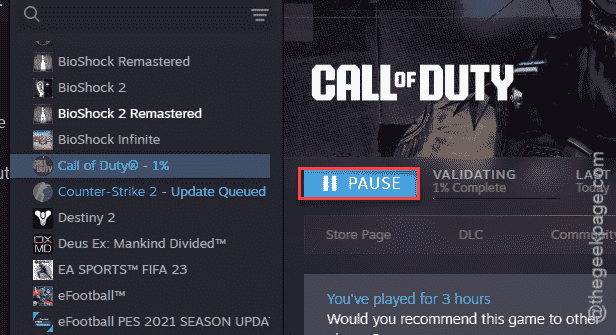
Step 15 – Return to the same installation folder once again. You will see that Steam has created a fresh new COD folder to install the game.
Step 16 – What you need to do is to open up the folder that you have created earlier (COD New) and copy all the contents from there and move it to the folder Steam has created.
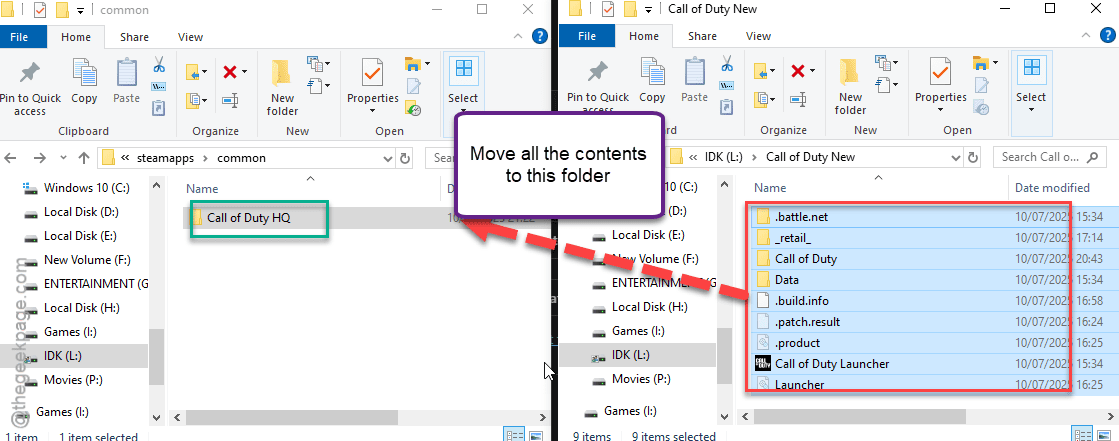
Step 17 – Finally, just return to Steam and Download the game to continue the downloading process.
Steam will now check and find all the game files already installed in that folder. So, it will just validate them and the whole process will be completed in no time at all.
Once the entire process is completed, the game will be ready to play. Try the multiplayer or Zombie mode on the COD.
This will fix the crash issues for the Call of Duty game for sure.