Third-person shooters like Call of Duty Modern Warfare 2 offers the best experience when you play the game in full screen mode. Almost every game offers several display options to the gamers. You can play COD Modern Warfare 2 in borderless, exclusive full screen or windowed mode. But, some of the effected users can’t seem to find the full screen option in the COD MW2 in-game settings. These solutions will be helpful in solving this problem.
Fix 1 – Quit or minimize the NZXT CAM tool
Gamers often use multiple tool in the background for various purposes. One of such tools is NZXT CAM that monitors different aspects of CPU, SSD speeds. You can just run the tool in mini mode, instead of running the tool in complete full screen mode.
Sometimes, running the NZXT tool in the minimized mode or mini mode is not enough. So, quit the app and relaunch COD MW2 and check it out yourself.
Fix 2 – Close MSI Afterburner/ Dragon Center tool
External applications like MSI Afterburner or Dragon Center tool can come into the way of the COD MW2 full screen mode. Close these applications, or you can even uninstall any of these.
Clip or video capturing tools, like Medal, can also cause this sort of the problem on COD MW2 full screen mode. So, we recommend you close any such apps on your system before launching the game.
NOTE – The list of apps that has caused this issue for various users goes like this –
Steam
Microsoft PowerToys
Overwolf/Outplayed
Steelseries.GG
Closing these applications should help.
Fix 3 – Use NVIDIA app to launch in full screen
You may use the NVIDIA application to force the game to run in the full screen mode.
Step 1 – Load up the NVIDIA App.
Step 2 – Go to the “Graphics” tab.
Step 3 – On the right-hand tab, you will see all the installed apps there. Find the “Call of Duty: Modern Warfare 2” game.
Step 4 – If the game is not already optimized, tap the “Optimize” option.
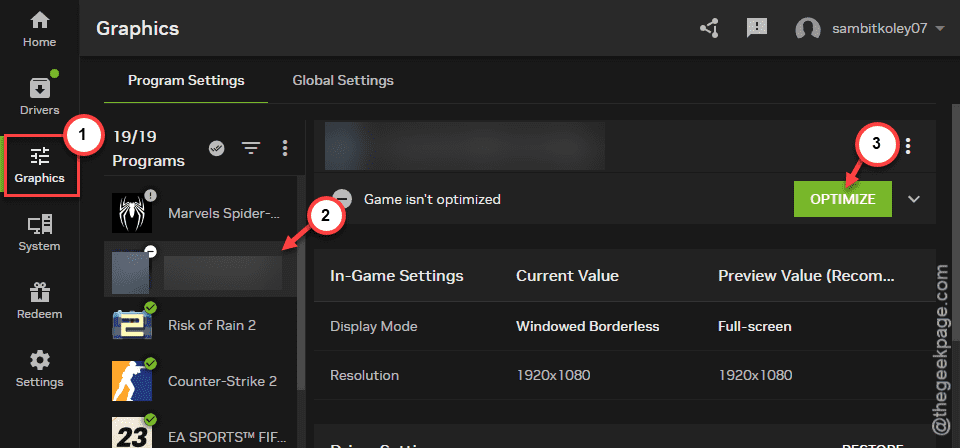
Step 5 – Tap the small arrow button to expand the Nvidia App panel.
Step 6 – Set the “Display Mode:” to “Full-screen (recommended)” settings in there.
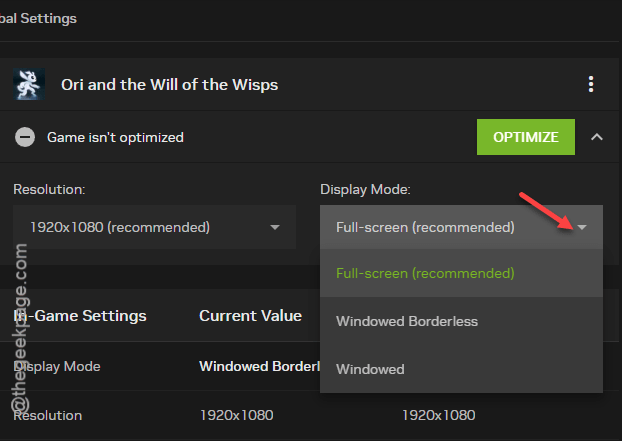
Once you have set this, you can enjoy COD MW2 in full screen mode. The game will be launched in full screen mode as well.
Fix 4 – Disable the startup of unnecessary apps
Some of the third-party apps with auto-start capability can come in the way of the COD MW2 game. Disabling those may help.
Step 1 – At first, press the Ctrl+Shift+Esc three keys together.
Step 2 – This will launch the Task Manager. Once it loads up, go to the “Startup” tab.
Step 3 – Disable any app that feels unnecessary to you or to the game.
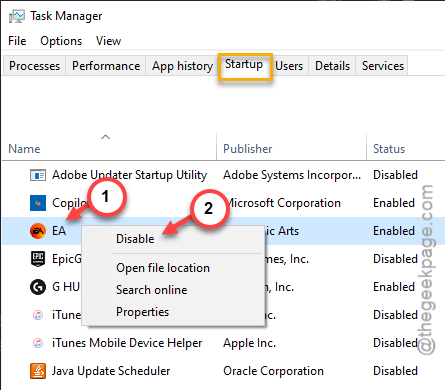
Restart the system once and launch the game again. This time, you won’t face any problem launching the game in full screen mode.
Fix 5 – Update the graphics driver on NVIDIA App
You must use the latest version of the graphics driver from the NVIDIA App.
Step 1 – Open up the NVIDIA App on your device.
Step 2 – Once it is enabled, go to the “Drivers” tab.
Step 3 – If a graphics driver update is pending, tap the “Download” button to download the latest version of the GPU driver.
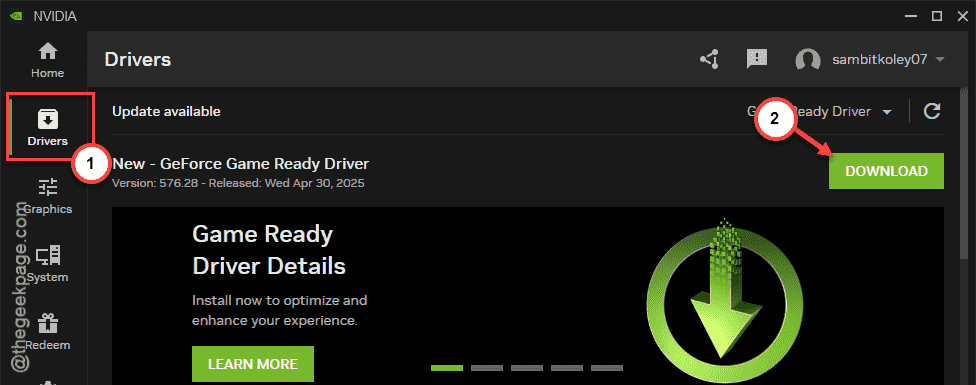
After installing the driver, you can relaunch the Call of Duty MW2 on your computer.
Try to enable the full screen mode from the in-game settings.