Getting the E_FVE_TPM_NOT_DETECTED message while using the BitLocker on your Windows 11 device? The device, secured with the BitLocker, demands the BitLocker key during the signing in process. But, if the TPM is disabled on the Windows machine, it may incur E_FVE_TPM_NOT_DETECTED with or without a Blue Screen of Death situation. We have taken a deep look into this and found the TPM to be responsible for this issue. Here are some fixes that should help you fix the E_FVE_TPM_NOT_DETECTED error at your end.
Fix 1 – Turn On the TPM feature
BitLocker can be enforced further with TPM protection where it stores the encryption keys. So, you must turn on the TPM on your Windows 11 machine, if you have not done that.
Step 1 – At first, go to the Settings console. Next, go to the System settings.
Step 2 – Next, reach the Troubleshoot settings.
Step 3 – Find the Advanced Startup settings and tap Restart next to access the Advanced Startup page during boot.
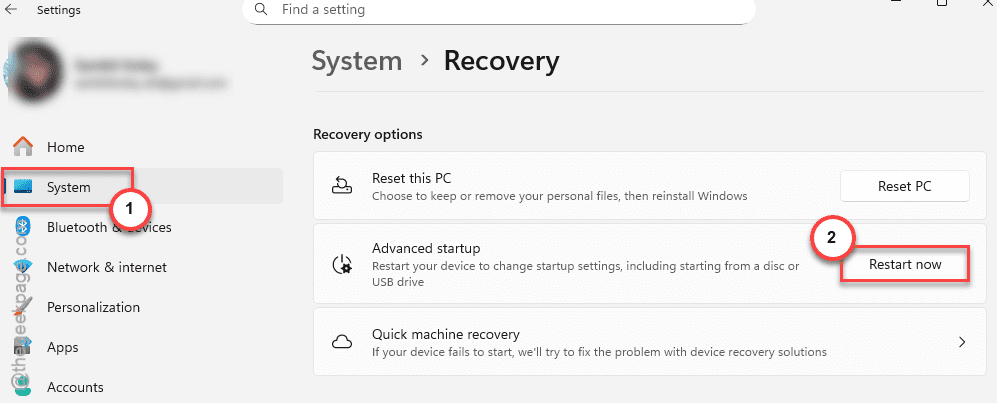
Wait for the device to restart.
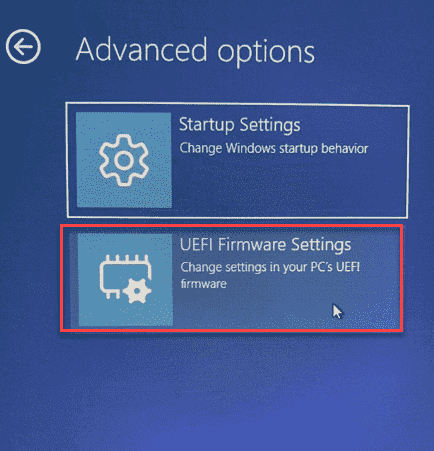
Step 4 – Next, go this way –
Troubleshoot ⇾ Advanced Options ⇾ UEFI Firmware Settings
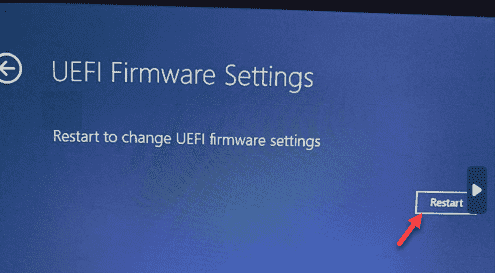
Step 5 – Finally, tap the Restart option in the UEFI Firmware settings to boot into your system BIOS.
Step 6 – Proceed this way* –
Security → Advanced → Trusted Computing
Step 7 – Find the TPM, fTPM(AMD), PTT(Intel) – any of these settings in there and turn it On.
[*NOTE – The actual placement of the TPM setting might be different on your system. Look for it in the system BIOS settings or, search it online using the device model type.]

Step 8 – Save the changes on your system.
Step 9 – Get out of the BIOS mode and restart your system normally.
After the device reboots, the BitLocker Encryption should function properly. Just use the BitLocker password and get access to the device.
Fix 2 – Allow the BitLocker without a compatible TPM
It is not mandatory for the BitLocker Encryption to use a compatible TPM on the machine.
Step 1 – At first, press the Win+R shortcut to load up a Run panel.
Step 2 – Type the gpedit.msc Run code to open the Local Group Policy.
Step 3 – Once you have reached the Local Group Policy page, follow this path to reach the Operating System Drives panel –
Computer Configuration ⇾ Administrative Templates ⇾ Windows Components ⇾ BitLocker Drive Encryption ⇾ Operating System Drives
Step 4 – Double tap the Require additional authentication at startup policy to access it.
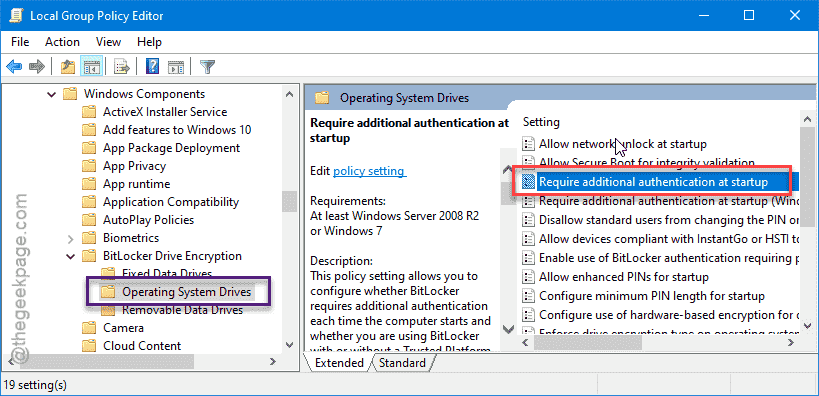
Step 5 – Set this to Enabled mode, first.
Step 6 – Then, check the Allow BitLocker without a compatible TPM (requires a password or startup key on a USB flash drive) module.
Step 7 – Save the changes in there.
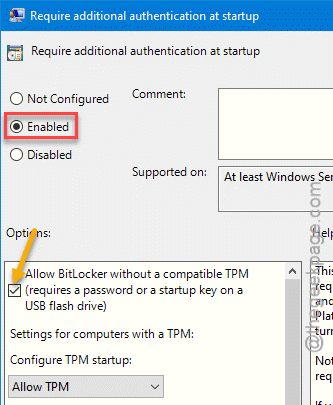
The BitLocker Encryption won’t give out E_FVE_TPM_NOT_DETECTED error prompt.
Fix 3 – Clear the TPM configuration
WARNING – TPM primarily stores the BitLocker Encryption keys, recovery keys, log in PINs and other security keys. Make sure to back up those keys before clearing the TPM.
Corrupted TPM configuration can cause this problem. Clear the current TPM configuration and rebuild it.
Step 1 – Hold the Win+R buttons briefly to load up Run panel.
Step 2 – Type tpm.msc there and hit Enter.
Step 3 – Later, select the TPM Management from the left tab. In the Actions console, run the Clear TPM action.
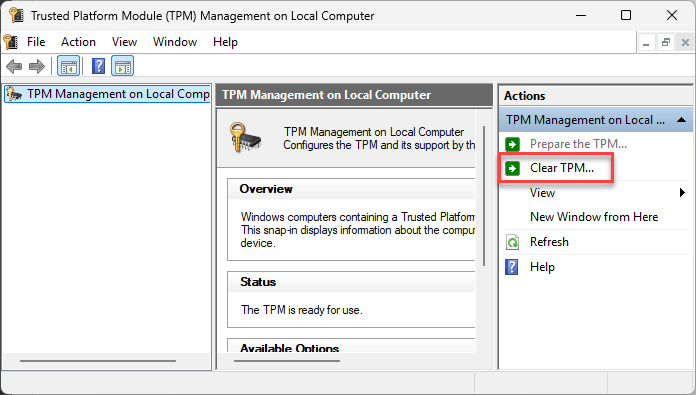
Step 4 – Tap the Restart function to restart the machine and begin clearing the TPM keys from the system.
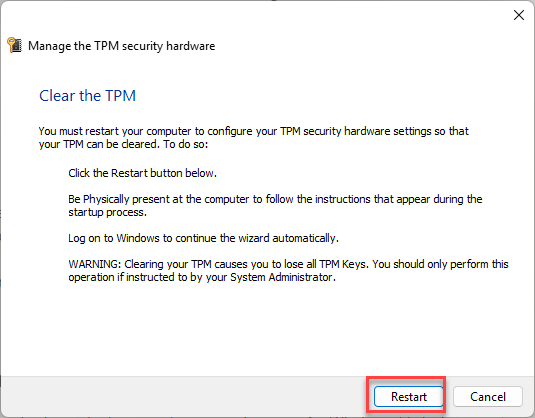
After the device restarts, there won’t any such issues like E_FVE_TPM_NOT_DETECTED again.
Fix 4 – Disable the BitLocker
One of the other workarounds that you can apply is to deactivate the BitLocker Encryption on your system.
NOTE – You will need the BitLocker Recovery Password for this method. It is a 48-digit recovery code that gets generated during the first BitLocker Encryption process. You will find it in a text file.
Step 1 – You have to do this in Recovery Mode. So, open the Settings and proceed this way~
System ⇾ Recovery ⇾ Advanced Startup
Step 2 – Tap the Restart option there.
Strep 3 – Once this loads up the Recovery Environment, proceed this way –
Troubleshoot ⇾ Advanced Options ⇾ Command Prompt

Step 4 – You may need to input your password to access the CMD console.
Step 5 – Once you are there, write this code and use the recovery password properly to unlock the drive.
manage-bde -unlock C: -rp <recovery password>
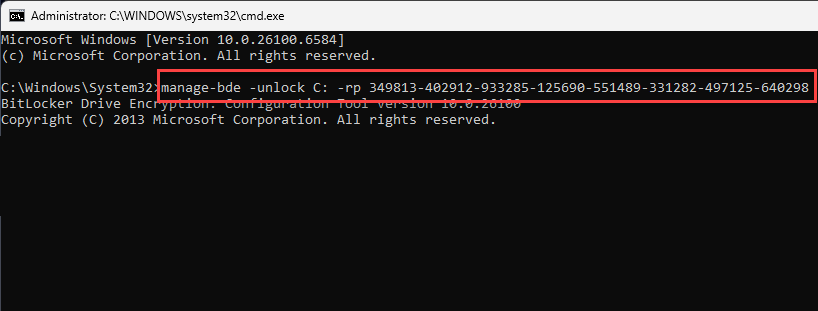
Replace the <recovery password> with the BitLocker recovery password in the terminal.
After running these two commands, the BitLocker Encryption will be turned off for the drive.
Fix 5 – Reset the BIOS Settings to Default mode
Resetting the BIOS settings to the default value should fix the issue.
Step 1 – Restart the system and while the system is booting up, press the associated key (such as F2, Delete, Esc, F10) to load up the BIOS on your system.
Step 2 – Now, while you are in the BIOS page, use the Restore default/Setup Default or Restore Default settings option to restore the BIOS to the default settings.
Step 3 – After doing this, the PC will be restarted. After restarting the device, check if the issue still persists.
FAQs –
1. Is it Safe to Reset the TPM on a Windows device?
Resetting TPM is generally considered safe on a Windows device. Consider TPM to be a container to store the security keys, like Encryption password, log in PINs, etc. Clearing or resetting the TPM does remove all the stored credentials from it. However, removed credentials can not be recovered once the TPM has been reset.
2. Is TPM mandatory for Windows 11 devices?
Yes. TPM and Secure Boot both are the key mandatory requirements for Windows 11 devices. Your system needs TPM 2.0 or above to install and run Windows 11 natively. While users can bypass the TPM requirements to install or upgrade older devices to Windows 11, it is not recommended due to security and stability issues.