Having some problem with the Delay Delivery (Schedule Send) option on your Outlook client? The absence of the Delay Delivery option can affect the entire email communication system. Usually, certain rules may conflict with the Outlook client, causing the malfunction of the Delay Delivery (Schedule Send) option. The resolution to this is quite simple. So, you should just stick to these steps to fix the delay delivery in Outlook.
Basic Tips –
1. Check the date and time on your machine. Incorrect date, time or timezone settings on the PC can affect the Delay Delivery function.
2. You must keep the device online and Outlook running for the Delay Delivery or Send Later to function properly.
Position of Delay Delivery/Schedule Send in the New Outlook –
The usual placement of the Delay Delivery system in the Outlook 2016, 2019 or Classic version has changed in the new Outlook app. Many users are confused about this. So, here are the steps where you can find and use delay delivery system on the New Outlook ~
Step 1 – Open up the new Outlook client. Now, tap the New button and select Email to write up a new email message.
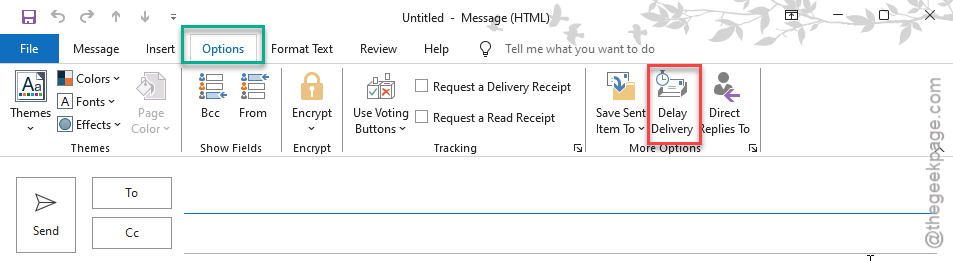
Step 2 – Once you are done, tap the Options tab in the Outlook ribbon. Tap the Delay Delivery option there, in the Delivery Options tab.
Step 3 – Next, in the Properties console, check the Do Not Deliver before checkbox. Now, choose the date and time that you want to deliver the message.
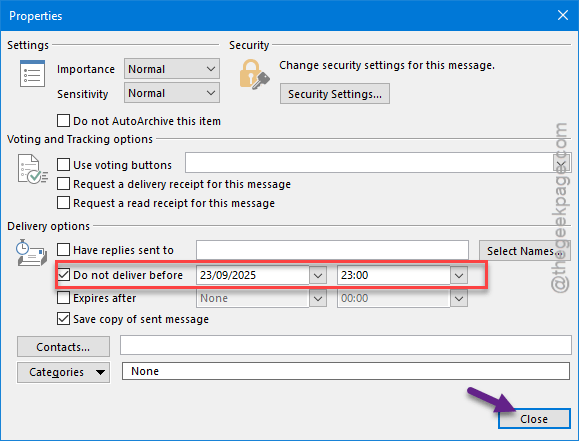
Step 4 – Tap Close to complete the whole setup process.
This way, Outlook will deliver the email message in correct preset date, time.
Fix 1 – Remove any Conflicting Rules from Microsoft Outlook
There is a possibility that any conflicting rules in the Microsoft Outlook is blocking the delay delivery function.
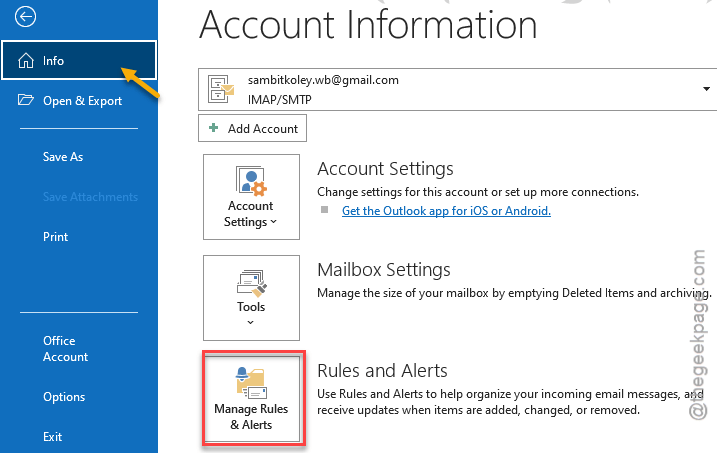
Step 1 – On the Outlook client, go to the File menu, and tap the Manage Rules & Alerts option.
Step 2 – In the Rules and Alerts page, get to the Email Rules category.
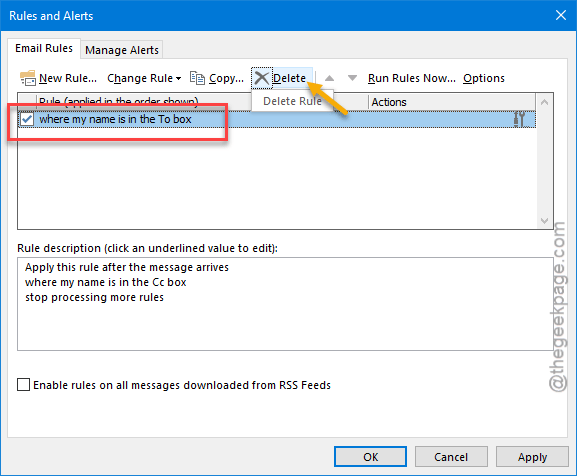
Step 3 – Look for any specific email rules that can conflict with the Delayed delivery or Send Later function. The rules with ‘defer delivery’ privileges can conflict with the delayed send system.
Step 4 – If you can find any such rule in the Rules page, select that and tap Delete option to remove that rule.
After deleting such rules, there won’t be any further issues with the Delay delivery function on Outlook.
Fix 2 – Check the Delay Delivery Settings
You should configure the Delay Delivery settings properly for it to deliver on time.
Step 1 – Open the draft of the email that you are trying to send in the Outlook client.
Step 2 – Now, in the More Options category, make sure the Do Not Deliver before checkbox is checked.
Step 3 – Check the date and time that you want to deliver the message. Rectify it, if needed. Tap the Close button to complete the setup process.
This way, your delay delivery system should function should work just fine.
Fix 3 – Account type restrictions for Outlook
This Delay Delivery or Send Later only works with Exchange type of accounts. Outlook does not support the Delay Delivery for any IMAP, POP email accounts (Google, Yahoo, iCloud, etc). So, the Delay Delivery function won’t be available if you are not using any Exchange accounts such as Microsoft or Outlook account.
Fix 4 – Create a New Outlook Profile
Create a new Outlook profile on your system and set up the delay delivery system from there.
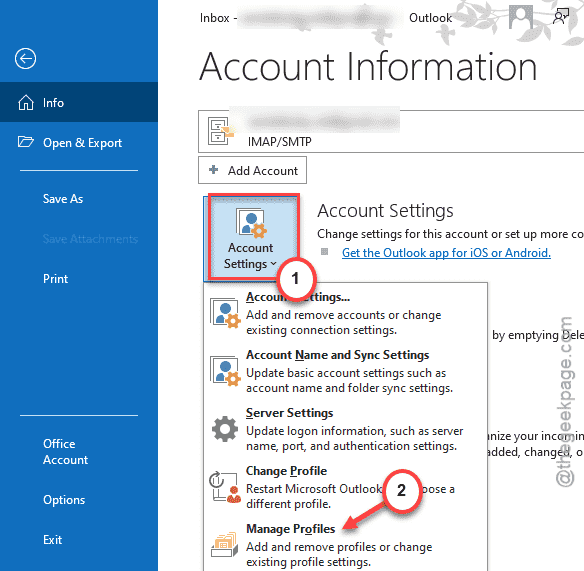
Step 1 – To do this, tap the File menu and click the Account Settings on the right-hand console.
Step 2 – Select the Manage Profiles option from the drop-down list.
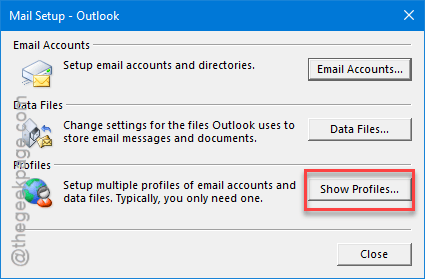
Step 3 – Tap the Show Profiles option there.
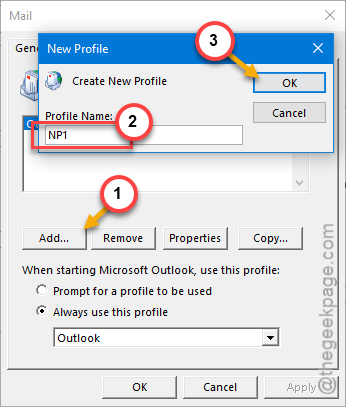
Step 4 – In the Mail window, tap the Add option there.
Step 5 – Give a profile name for this new profile that you are creating and tap OK.
Step 6 – Now, input your email account details and set it up as you have done for the first time. You have to log in using your account credentials.
After setting it up, use this new profile and check whether you the Delayed Delivery is working or not.