In iOS 26, many users have reported that their iPhone’s screen is automatically dimming and locking even before the preset lock timer. There are even some reports of the iPhone getting automatically locked in ten seconds. There are several bugs in iOS 26 that can cause such issues and force the iPhone to get locked before the preset auto-lock timer. Turning off the Attention Aware Features and/or modifying the Screen Distance Sensors should fix the issue.
Fix 1 – Reconfigure the Lock Timer
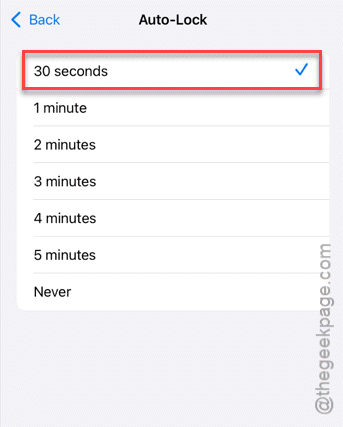
It seems that if the lock timers of any iPhone is tweaked to 2 or 5 minutes but the user is locking early, this can happen. Switching it to 30 seconds and refreshing it should help.
Step 1 – Open the Display & Brightness tab on the iPhone.
Step 2 – Next, go to the Auto-Lock function. Set it to 30-second mode.
Step 3 – Do the force-restart procedure on the iPhone –
Step 4 – Quickly press the Volume Up button.
Step 5 – Next, hit the Volume Down button.
Step 6 – Then, press and hold the Power button of the iPhone until the iPhone restarts.
After the iPhone restarts, go back to the Auto Lock tab again and adjust the auto lock according to your choice.
Fix 2 – Turn Off the Attention Aware Features
If you are looking away from your iPhone for too much time, the attention-aware feature can auto-lock the device too quickly.
Step 1 – Open the Face ID & Passcode in iPhone Settings.
Step 2 – Input your passcode to proceed. Find the attention-aware features there.
Step 3 – Turn it OFF.
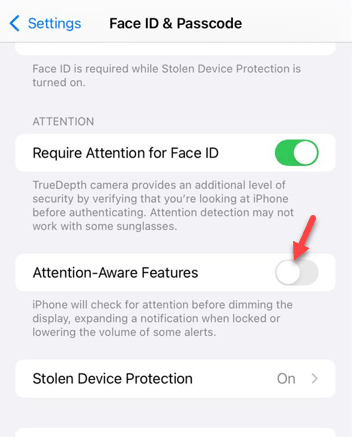
This will prevent the iPhone from automatically locking too quickly.
Fix 3 – Reset Screen Distance Sensors
The ‘Screen Distance’ feature of iPhone can lock the device if it detects the device is too close to your face.
Step 1 – Open the Screen Time settings on the iPhone.
Step 2 – Go to the Screen Distance settings.
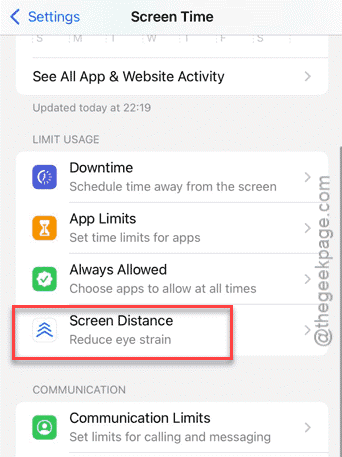
Step 3 – Turn it OFF from there.
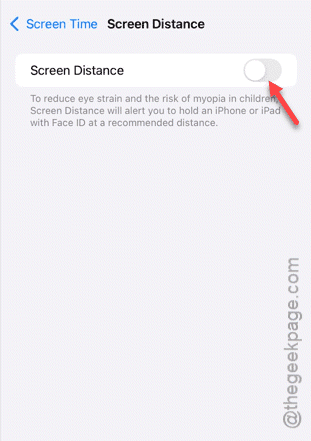
After turning off the screen distance feature, hold the iPhone normally and continue to use it. It won’t automatically lock within a predefined time.
Fix 4 – Turn OFF the Low Power Mode
The Low Power mode of iOS 26 may put the devices on 30-second auto-lock mode. However, a certain bug has been reported by users that can even force a fully charged iPhone to get stuck in Low Power Mode.
Step 1 – Go to the Battery settings on iPhone.
Step 2 – Turn the Low Power Mode to ON mode.
Step 3 – Wait for 10 seconds or so, and then turn off the Low Power Mode.
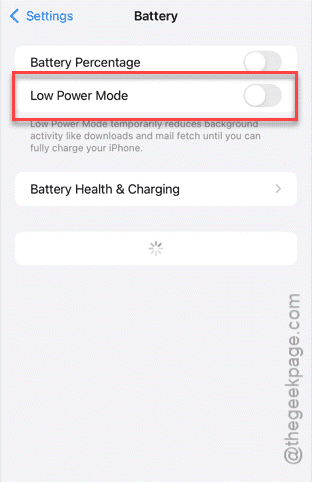
Check whether you can adjust the auto-lock timer or not, which was stuck before to 30 seconds.
Fix 5 – Remove Management Profiles
If your iPhone is a part of a management profile from a work or school account that enforces the 30-second automatic lock function, it can cause such issues.
NOTE – If your iPhone is a part of any organization or moderated by your office/school, consult them first before you enact these steps. This may remove access to certain work emails.)
Step 1 – Go to the General settings on iPhone.
Step 2 – Open the VPN & Device Management tab.
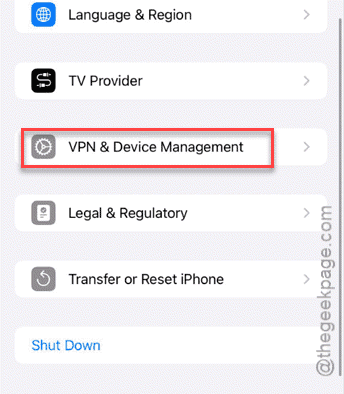
Step 3 – Look for any ‘Configuration Profiles‘ from your work or school or any other management tool.
Step 4 – Tap such a profile and use Remove Management to remove it.
Once you have removed the profile, this auto-lock issue will be fixed.
Hope these fixes have helped you!