Some Microsoft Word users have expressed their concern over some issues related to the Track Changes. The affected individuals have complained that either their track changes are not applied properly in Word, or there are some reports of comments not getting deleted correctly from the document. It usually happens due to a conflict between the Reviewing Pane, hidden formatting marks, or a hidden Word setting that can cause such issues.
Quick Fix Table –
| Issue | Recommend Fix |
| Comments won’t disappear | Use the Reviewing Pane to delete them |
| Edits won’t show up | Toggle the All Markup view |
| Buttons are grayed out | Enable the Lock Tracking feature |
Fix 1 – Toggle the All Markup View
Sometimes, the document may show up in Simple Markup view that hides all the comments and other redlines from the document.
Step 1 – In the Microsoft Word document, go to the Review tab.
Step 2 – In the Tracking group, tweak the Simple Markup to All Markup.
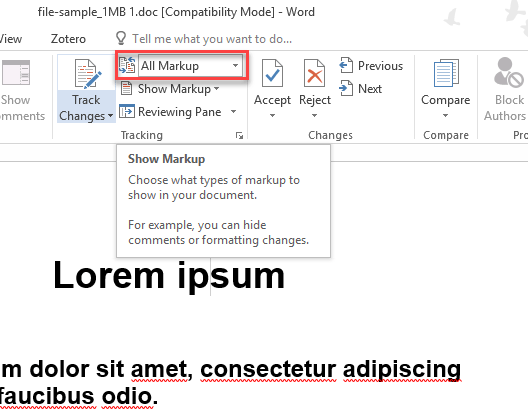
After tweaking this markup view, all the hidden edits and comments will show up in the document. You can then manually fix it.
Fix 2 – Mass Delete the Fixed Comments
You may find some stubborn comments in the document. In that case, using the X button to delete them may not work.
Step 1 – Proceed to the Review tab.
Step 2 – Tap the arrow under the Delete button in the Comments section.
Step 3 – Then, choose the Delete All Comments in Document.
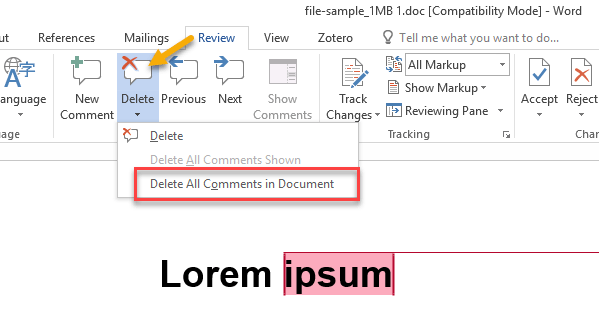
This option will delete all the comments from that Word document.
Step 4 – If the comments still do not go away, the document might be in ‘Protected’ mode.
Step 5 – In that case, go to the Review tab. See if the Restrict Editing function is active. You may need to use a password to edit the document.
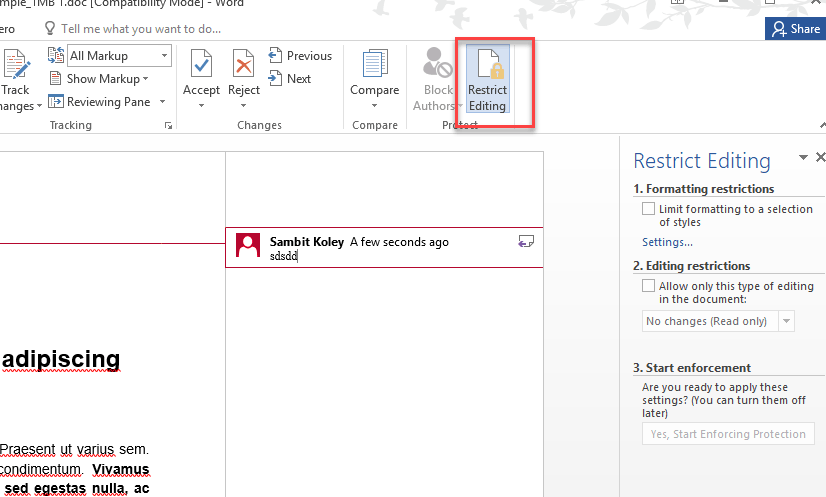
Check whether this works.
Fix 3 – Use Accept All Track Changes
If the Track Changes are still not applying in the document, you should accept all the track changes and opt to save changes.
Step 1 – Save a backup copy of the document.
Step 2 – Go to the Review tab. Next, proceed to the Accept option. Choose the Accept All Changes and Stop Tracking option.
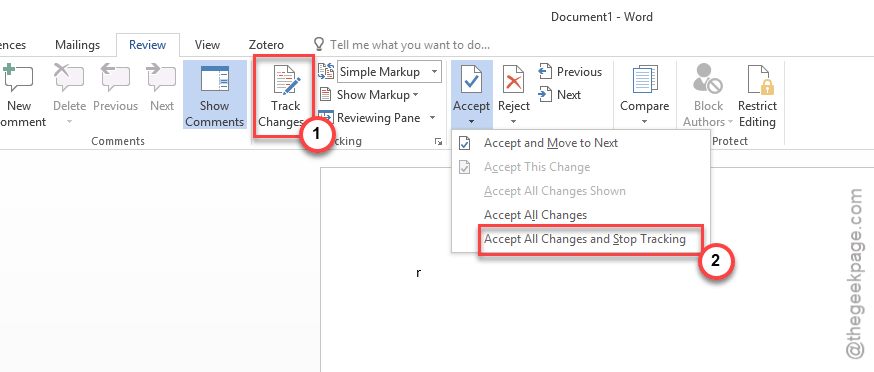
Step 3 – Delete all comments manually from the document.
Step 4 – Re-enable the Track Changes option.
After this, check whether the track changes are applied correctly or not.
Fix 4 – Inspect the document for hidden metadata
If the deleted comments keeps resurfacing, you should take a detailed look at the document for hidden revisions.
Step 1 – Go to the File tab. In there, open the Info tab.
Step 2 – Choose the Check for Issues feature, and tap Inspect Documents from there.
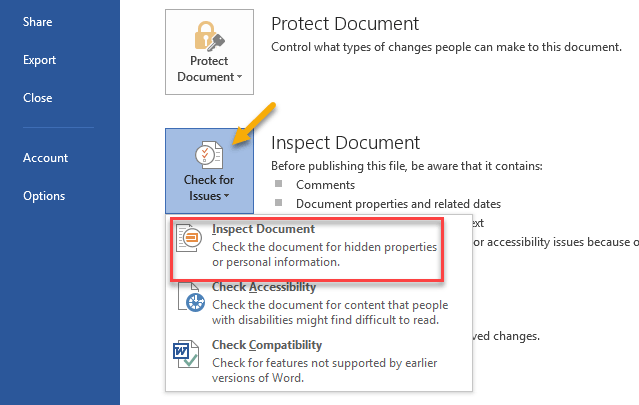
Step 3 – Make sure the Comments, Revisions and Versions option is checked. Tap Inspect.
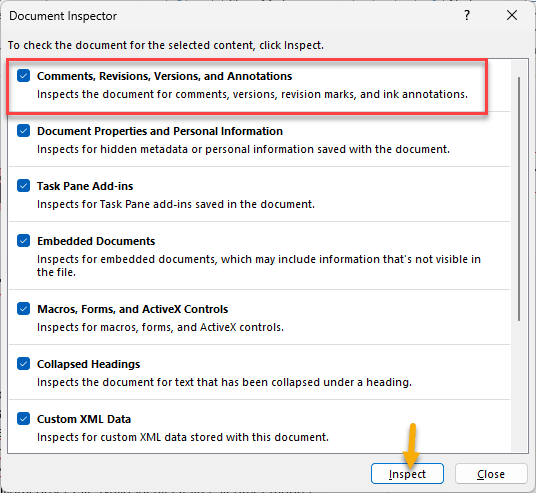
Step 4 – If this can find items there, tap Remove All to remove them from there.
This should resolve the issue.
Fix 5 – Disable Lock Tracking
If you can’t track the changes or accept and save them in the document, you should disable the lock tracking and save the changes.
Step 1 – Go to the Review tab once more.
Step 2 – Then, tap the bottom button in the Track Changes section.
Step 3 – See if the Lock Tracking feature is active. If it is, tap it once to disable that.
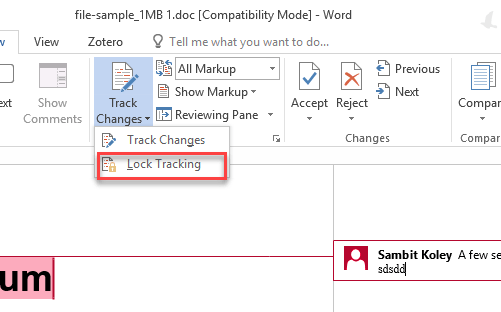
After disabling the lock tracking feature, this issue will be fixed.