Can’t find the water lock button in the Control Center on your Watch? Some Watch users have recently complained about this issue, where the lock button seem to have disappeared from the Control Center of their watch. This issue has started just after getting the watchOS 16 beta versions on their watches. If you are also affected by this problem, don’t worry. There are multiple ways of getting back the Water lock button on the Control Center on your Watch.
Why the Water Lock button has disappeared from Control Center?
With the introduction of the watchOS 26, Apple has changed many things in the watchOS. The icons of the utilities in the Control Center has been changed as well. So, the water lock button is removed from the default Control Center page. But, even if it is hidden, it is present in the main list of utilities of the watch.
You can just add the lock button to the Control Center very easily. Users should also keep in mind that watchOS 26 is still in the development phase (Beta stage). Crucial features like water lock
Fix 1 – Add the Lock button in Control Center
You can easily add the Water Lock button back to your Watch’s Control Center.
Step 1 – To do this, simply swipe down to reach the Control Center on your watch.
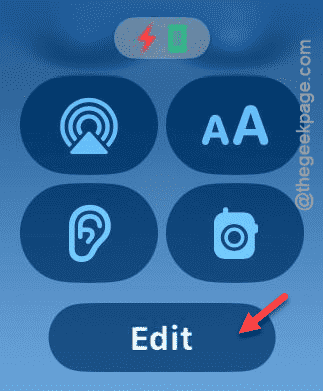
Step 2 – Next, scroll down to the bottom of the list and tap Edit to reveal all the hidden Control Center buttons.
Step 3 – You will find the Water Lock icon there. Tap the small plus button next to it to add to the Control Center.
Step 4 – Once you are done, tap Done to save the changes.
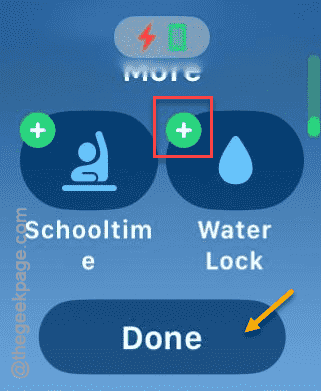
That’s it! You will have the Water Lock button once again on the Control Center of your Apple Watch.
Fix 2 – Return to iOS standard updates
We have already mentioned that the watchOS 26 is not rolled out for the users, yet. Either install the latest version of the beta update, or, simply turn off the beta updates for the watch.
Step 1 – Open the Watch app at once.
Step 2 – Then, make sure that you are in My Watch section. Go this way ~
General > Software Update
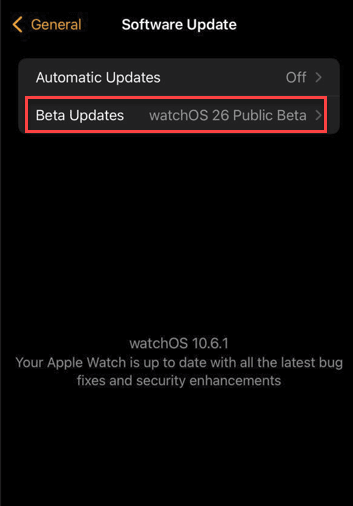
Step 3 – Look for the Beta Updates section. Open it up.
Step 4 – Choose to turn it Off.
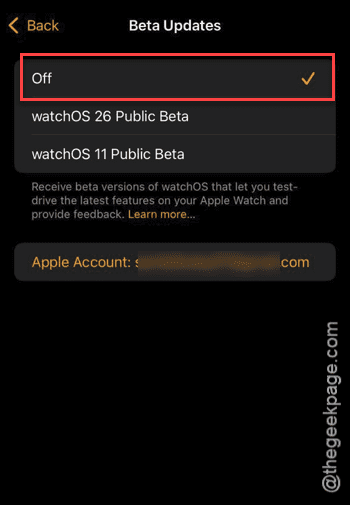
This way, your Apple Watch will come back to the mainstream watchOS update. This will fix the problem for you.