Can’t view your photos on your Apple Watch? The affected users have reported this problem where they can’t view the photos from the iCloud directly on the watch. The solution to this problem is listed below. We recommend you enact these fixes to solve the problem on your Apple Watch.
Fix 1 – Turn on the Syncing features on Photos app
You must turn on the synchronization feature on the photos utility on your Apple Watch.
Step 1 – Load up the “Watch” app using the search box.
Step 2 – Open up the Watch app from there.
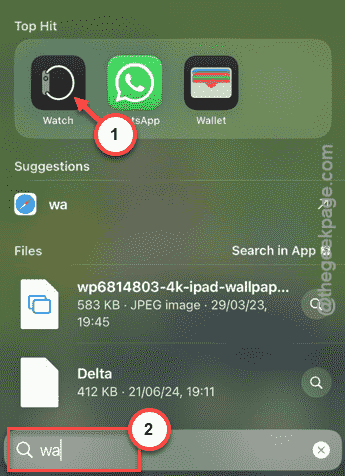
Step 3 – Once you have opened it up, go to the “My Watch” section.
Step 4 – Scroll down and open up the “Photos” panel.
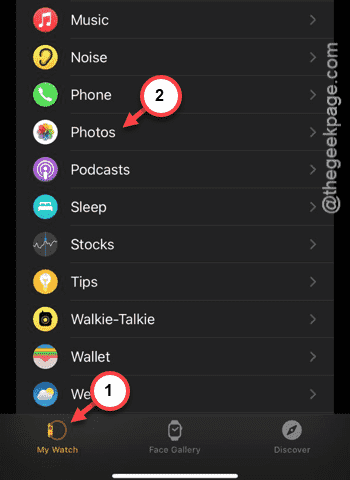
Step 5 – Find the “Photo Syncing” feature in there and turn it on.
Step 6 – Later, re-enable the “Sync Memories” and “Sync Featured Photos” item.
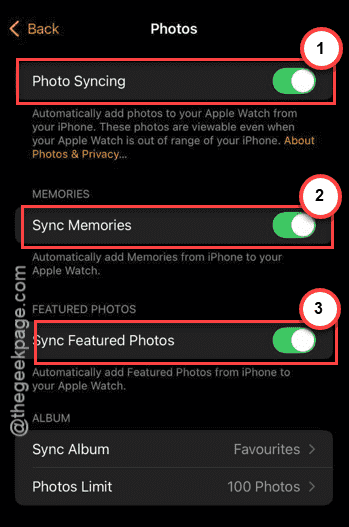
While these features are turned on, you can see your photos directly on the Watch.
Fix 2 – Sync your preferred albums
Your Apple Watch shows up only the albums that you have selected. It shows the pictures from the ‘Favorite’ album. So, the pictures that you have there shows up on the Apple Watch.
Step 1 – Open up the Watch app on the iPhone.
Step 2 – Then, get to the “My Watch” tab.
Step 3 – Later, go to the “Photos” tab.
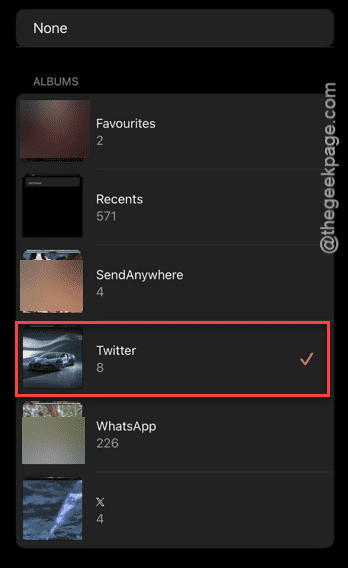
Step 4 – Go to the ‘Album’ section and tap the “Sync Album” panel.
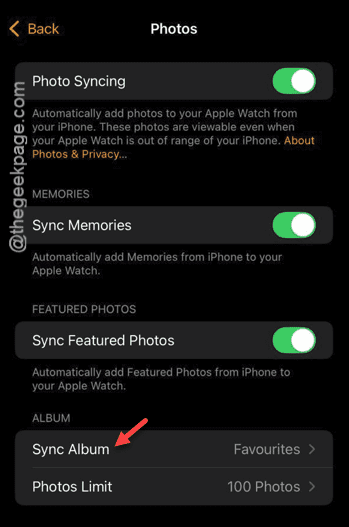
Step 5 – You can control photos from which albums to show up from here.
Step 6 – So, choose the album that you want on your Apple Watch.
[NOTE – You can mark any of your preferred image favorite from the Photos app.
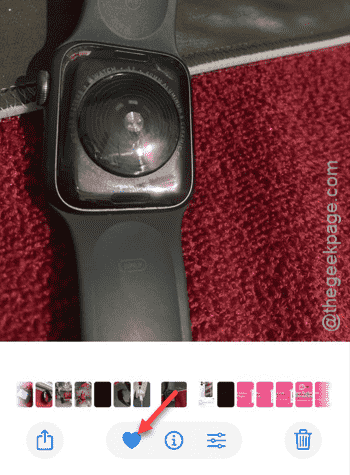
Step 1 – Open up any image of your choice from the Photos app.
Step 2 – Then, hit the “❤” icon to favorite it.
]
Fix 3 – Change the Photos Limit
There is a limit to the maximum number of photos that your Apple Watch can show you.
Step 1 – Reach the “My Watch” section on the Watch app on your iPhone.
Step 2 – Next, go to the “Photos” app.
Step 3 – In the Album part, tap the “Photos Limit” option.
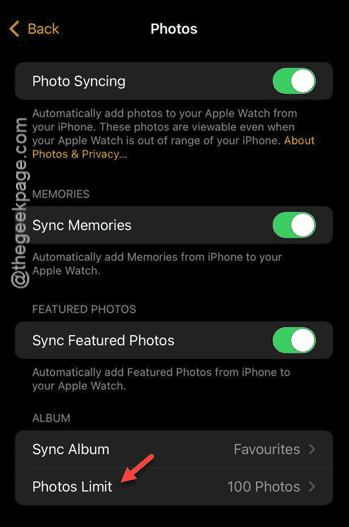
Step 4 – You can limit the number of the photos that you can see on the Apple Watch.
Step 5 – Choose the “100 Photos” or “250 Photos” to sync up that many photos.
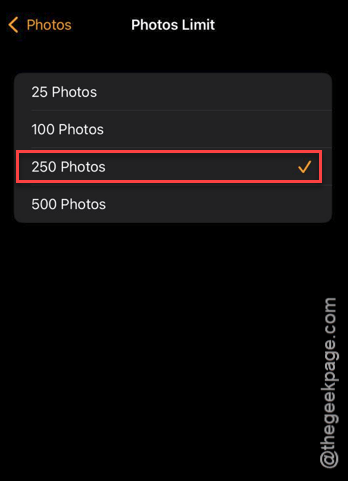
Now, you can check out all the images in that particular folder right from the Apple Watch.
Fix 4 – Allow a bit of time to watch
The watch does take some time to synchronize the images from your iPhone (or other device). It depends upon the network speed, number of the synchronized images, etc. So, allow a bit of time to your watch after updating the folder selection, number of images onboard. Eventually, all the images will get synced right into the device.
Fix 5 – Restart iPhone, Apple Watch
If these fix doesn’t work, you must restart the iPhone and the watch.
Step 1 – Press and hold the power button and the Volume Down button on the iPhone.
Step 2 – Use the ‘Slide to power off‘ slider to turn off the iPhone.

Step 3 – If you are doing this on your Apple Watch, press and hold the side button for 3–5 seconds.
Step 4 – Tap the Shut-down button at the top to open it up.
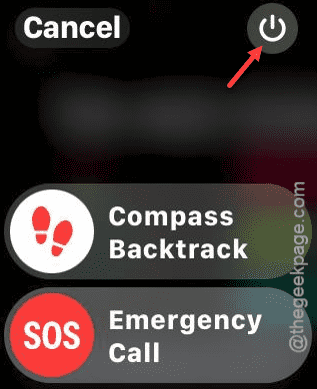
Step 5 – Next, slide the “Power Off” slider to power off the device.
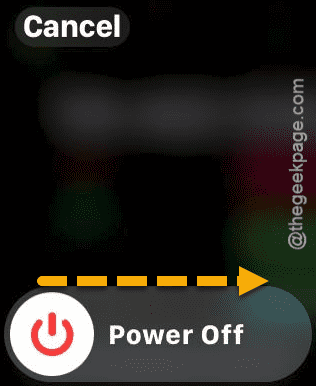
After switching off the watch and the iPhone, hold on to the side button/power button on both the device for a few seconds, until the Apple Logo shows up in there.
Shortly after the device becomes operational, you will be able to access the photos on the watch. See if this works out!