Does your Apple Watch show too many live activities? The Live Activities are a part of the features of the Apple ecosystem. But, the same feature can become the main point of distraction when you are busy doing other stuff, like driving a car. In that case, disabling the live activities should help you sort this out.
Why you should turn off the Live Activities on your Watch?
Live Activities provides valuable information modules directly on the Apple devices. This enhances the user experience as the users can directly take control of certain activities directly at their will. The third-party widget support for the live activities lets you track scores, data, or other live occurrences directly from the lock screen or home screen of the respected Apple devices.
But, unlike the iPhone which usually rests on a surface, you wear the Apple Watch on the wrist on all the time. Your Apple Watch also shows the status of the Live Activities that you are tracking from your iPhone. So, while you are performing a task that requires your maximum attention, certain distraction like these live activities can come into your way and cause problems. Here are the steps to disable the live activities on the watch.
Fix 1 – Turn off Live Activities on Apple Watch
The actual process of disabling the Live Activities is quite simple, and you can do that either from the Apple Watch or the iPhone.
Step 1 – On your Apple Watch, open the watch settings from the main app list.
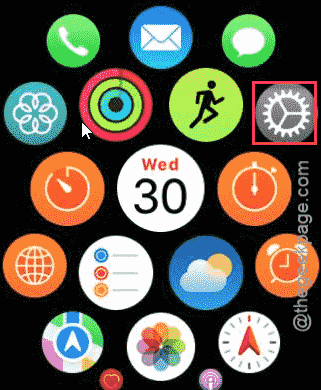
Step 2 – Open the Smart Stack menu there.
Step 3 – Then, open the Live Activities menu.
Step 4 – Finally, just turn off the Auto-Launch Live Activities option.
Once you have turned this off, the Watch app won’t show any of the Live Activities from your iPhone.
This way, you can focus on your task again.
Fix 2 – Disable live activities from Watch app
You can disable the live activities for the media apps directly from the Watch app.
Step 1 – While you are wearing the watch, load up the Watch app on your iPhone.
Step 2 – Then, tap the General settings and later open up the Auto Launch settings.
Step 3 – Open the Media apps and disable Live Activities option.
After turning this off, the live activities won’t show up on your Watch app.