If a document is filled with too many track changes or comments, it can become too heavy for your system to handle. In that case, the Word document can show signs of lag, stutter or even crash the Microsoft Word with each new keystroke! Usually, it is the All Markup view in MS Word that draws so much processing power to pull all the markup comments on the document. Apart from that, there are some hidden settings tweaks that can fix this unusual problem at your end.
| Symptom of the issue | Recommended Action |
| Typing Lag due to heavy markup | Switch to Simple Markup mode or Draft View mode |
| Crashing while saving the file | Assert to Accept All Formatting Changes to reduce metadata load |
| Word is stuck on ‘Opening’ phase | Load the Word in Safe Mode and then try to load the document |
Fix 1 – Switch to Simple Markup View
Shifting to the Draft View mode in Microsoft Word reduces the stress on the CPU, which is a crucial factor present in the All Markup mode.
Step 1 – Go to the Review tab on the Microsoft Word document.
Step 2 – Proceed to the Tracking group. Tap the All Markup button and choose the Simple Markup from the drop-down list.
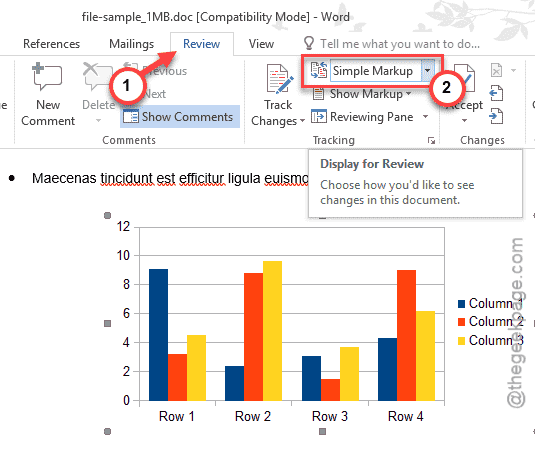
It will switch to the Simple Markup mode, without all the complex redlines and other out lines indicating markups on the entire document. Word will cease to live-render every format modifications, like font or color change.
Fix 2 – Turn off Formatting Tracking Feature
Word automatically tracks every time you make some even some small changes to the fonts of your document.
Step 1 – Go to the Review pane in MS Word.
Step 2 – Then, proceed to the Show Markup. Uncheck the Formatting box in there.
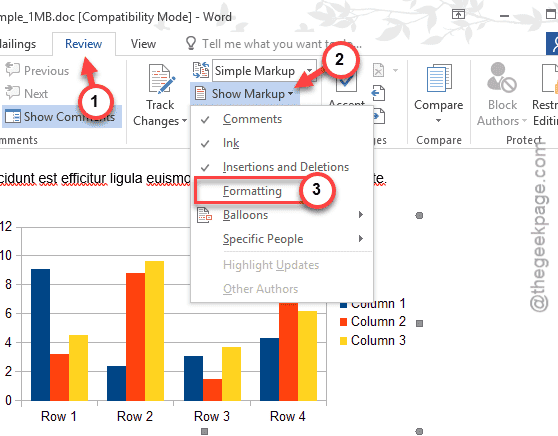
This way, MS Word won’t try to track every little formatting changes you make to the large document.
Fix 3 – Empty up the Reviewing Pane
Having the Review Pane opened up with all the editing information in a large document can stall or crash the Microsoft Word.
Step 1 – Return to the Review tab in the MS Word.
Step 2 – Go to the Reviewing Pane and turn it Off.
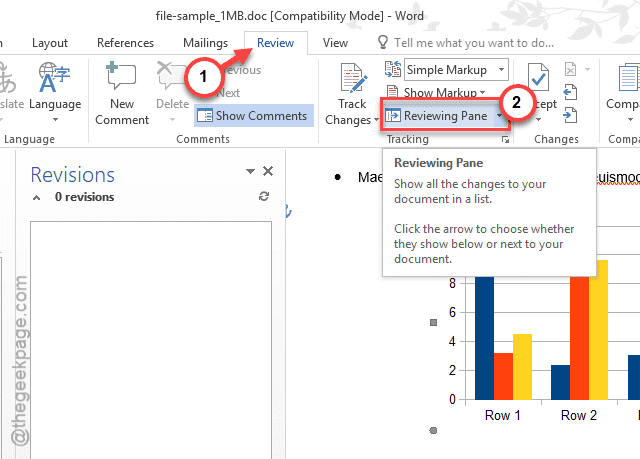
Using the Reviewing Pane continuously in a large document with a huge number of edits can slow the performance of MS Word significantly.
Fix 4 – Delete the Resolved Comments
If you have too many resolved comments in the margin of the document, it can cause such issues.
Step 1 – Again go to the Review panel in MS Word.
Step 2 – Next, tap the arrow button under the Delete and choose the Delete All Resolved comments.
This will delete all the resolved comments from your document.
Fix 5 – Hide Spelling/Grammar Feature
While the track change is active, MS Word can still mistakenly run the proofing engine in order to ‘try’ to signal superficial errors in the document.
Step 1 – Proceed to the File menu and load up the Options tab.
Step 2 – Next, reach the Proofing tab.
Step 3 – Scroll down to the bottom and check the Hide spelling errors in this document only and Hide grammar errors in this document only features.
Step 4 – Tap OK to save the changes.
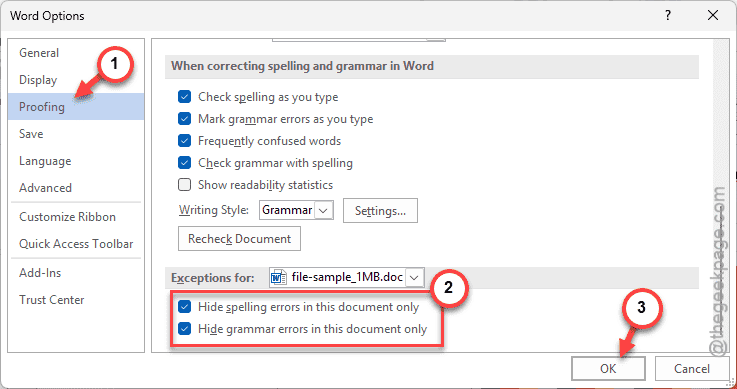
After this, Word will stop trying to spell-check the document all the time.
This way, you won’t face this issue again.