Just like any other electronic equipment, your Apple Watch may also sometimes overheat. Since getting the watchOS 26 build, a fraction of Apple Watch users have complained of excessive heating issues on their wearables while using them or while the devices are on charge. If the Apple Watch is getting overheated for too long, you should apply these fixes to solve this issue.
Fix 1 – Disable the Background App Refresh
Having too many apps stuck in the background synchronization loop can make the device overheat.
Step 1 – Go to the General tab in iPhone Settings.
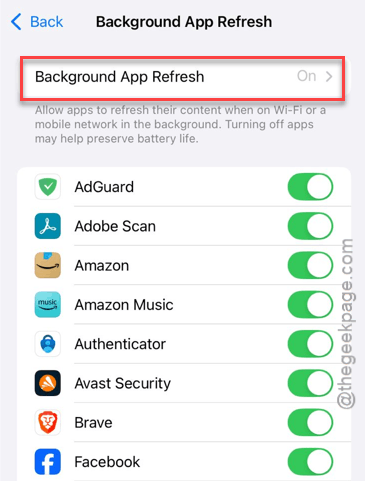
Step 2 – Proceed to the Background App Refresh settings, next.
Step 3 – Toggle the main Background App Refresh mode to OFF mode.
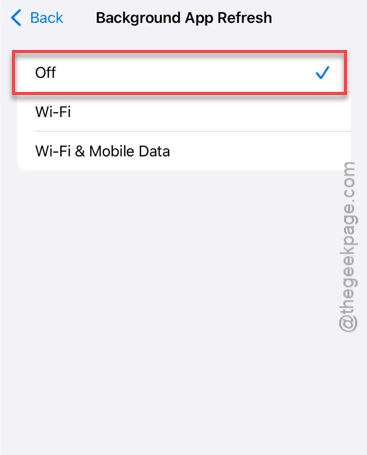
Now, continue to use the Watch for a few hours and see whether the watch is getting too hot.
Step 4 – Then, re-enable the Background App Refresh feature.
Step 5 – Now, go through the list of apps in that same page and disable the third-party apps (like Spotify, Strave) that can possibly cause this sort of heating effect.
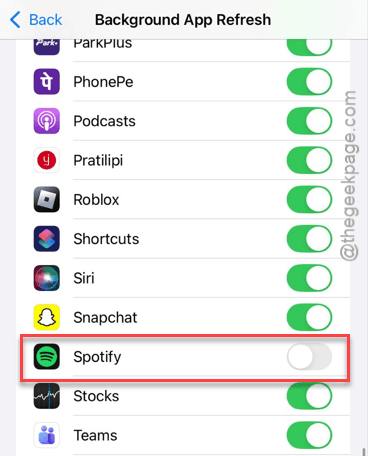
This should permanently fix the heating problem for the Apple Watch.
Fix 2 – Check the Apple Watch Charger
Misalignment of the Apple Watch charging puck with the Apple Watch charging surface can cause the watch dial to heat up.
Step 1 – Make sure that you are using the original Apple Watch charger to charge the wearable.
Step 2 – Place the charging puck correctly with the Apple Watch.
Step 3 – If you are using a 3-in-1 stand, center the Apple Watch properly on the charging surface (magnet).
Charging the Apple Watch may make it heat up, which is completely natural.
Fix 3 – Turn OFF Always on Display function
The Always On Display function of the Apple Watch may sometimes consume too much power in a hot environment.
Step 1 – In your Apple Watch, proceed to the Settings console.
Step 2 – Open up the Display & Brightness settings.
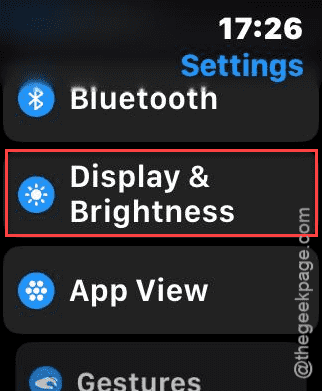
Step 3 – Tap Always On mode and toggle it OFF.
This reduces the load on the Apple Watch’s display, the primary cause of heating in that device.
Fix 4 – Unpair and Re-pair the Apple Watch
If you are experiencing this issue just after updating to watchOS 26, it may be due to the indexing operation carrying on the Apple Watch.
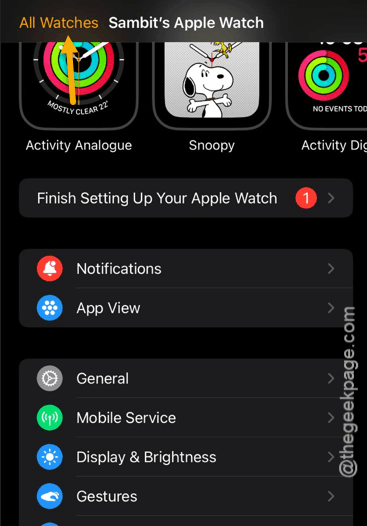
Step 1 – Open up the Watch app. Then, tap the All Watches in the top-left corner.
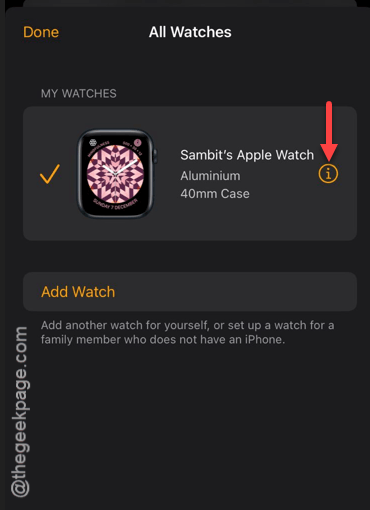
Step 2 – Tap the ℹ button to load up the list of watches.
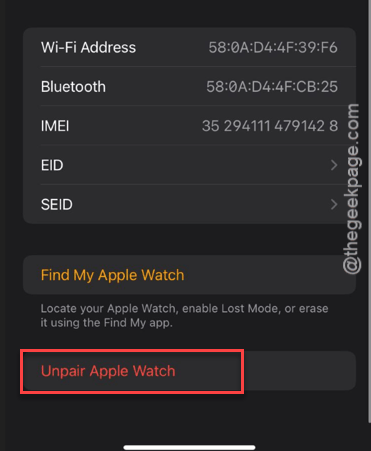
Step 3 – Then, use the Unpair Apple Watch option there to unpair the Apple Watch.
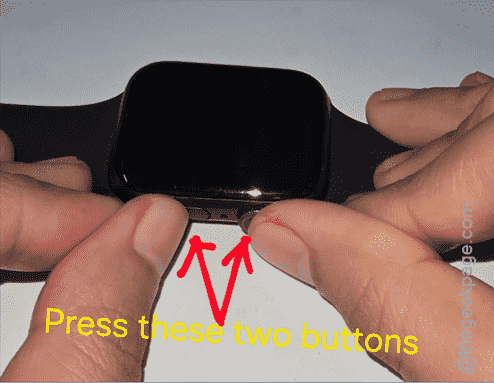
Step 4 – Now, go ahead and force-restart both the devices.
Steps for Apple Watch –
- Press the Digital Crown and the Side button of the Apple Watch for 10 seconds or so.
- Continue pressing those two buttons until the device reboots and shows up the Apple logo.
Steps for iPhone –
- Press and release the Volume Up button.
- Then, press and release the Volume Down button of the iPhone
- Finally, hold down the Side button of the device until the Apple logo shows up on the display.
This way, do a force restart of both of your devices.
Step 5 – Now, re-pair the Apple Watch with your iPhone, as you would have done for a new Apple Watch.

Complete setting up the Apple Watch. Once you have paired it up with your iPhone, the heating issue will be resolved.