Does your Apple Watch charge up to only 80%? You might wonder why your Apple Watch does charge only up to the 80% mark, while it should charge all the way to 100%. There is a valid reason behind this particular abnormal behavior. We have explained the reason in details, followed by a few recommended solutions that should help users fix the issue on their own. If you want a very quick resolution, just skip to the solutions part and your watch will be charging 100% again.
Why Apple Watch is charging to only 80%?
If you want a one word answer for this particular charging level query for your Apple Watch, it is the Optimized Battery Charging system. It is an advanced charging technology that controls the battery charging process of the wearable depending upon the location of your device (home, office, etc.). This restricts the charging capacity to the approximate level of 80% to increase the battery lifespan. It also does so based on your charging habits.
This does increase the overall watch battery lifespan, helping it keep an elevated level of battery health for prolonged usage. But, that 20% extra charge becomes crucial in some scenarios where you know that you will need it to last the day. In that case, full charging the Apple Watch becomes a necessity. Here are the resolution you may apply to solve this issue. There are two ways you can do this. Either just opt for the full charging option directly from the charging screen, or, you can just disable the optimized charging feature for the device.
Fix 1 – Turn off the optimized charging feature
You can simply turn it off briefly (for that charging cycle) on your watch.
Step 1 – While the Apple Watch is charging and the optimized charging is enabled, you will see a specific charging symbol.
Step 2 – Tap the centre of the charging cycle on the watch screen.
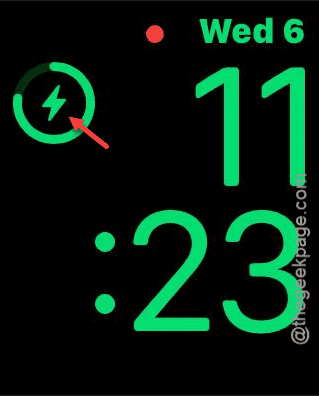
You will see your Apple Watch is charging to full cycle.
Fix 2 – Check the watch’s battery health
You can also just turn off the optimized battery charging feature for the Apple Watch.
Step 1 – You have to open the Watch settings on your Apple Watch.
Step 2 – Next, load up the Battery settings.
Step 3 – Then, go to the Battery Health.
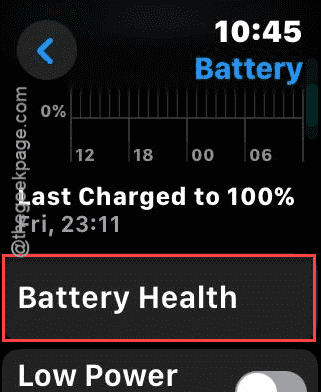
Step 4 – Now, turn off the Optimised Battery Charging feature there.
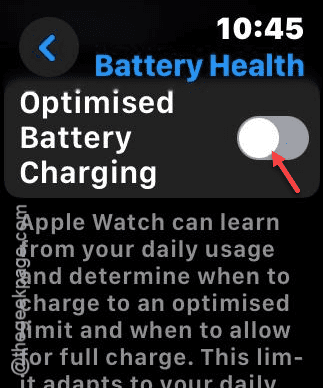
Step 5 – You can either choose to turn off until tomorrow or just turn it off completely. Select according to your preference.
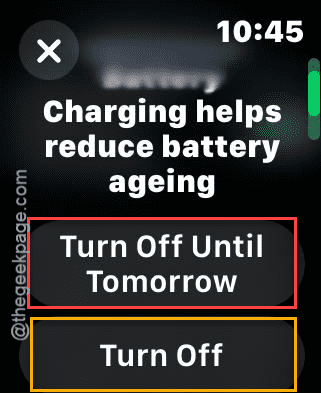
Once you have disabled the optimized battery charging feature for the Apple Watch, the watch will charge normally.
Disadvantages of disabling optimized charging feature on Apple Watch~
The main objective of having the optimized battery charging feature is to restrict the battery level of the watch to the specific 80% to take care of the battery health. Studies have shown that the life span of the watch battery improves considerably if the charging is limited to only 80%. So, you should just leave it on from the same settings page that we have mentioned before. In the case of emergency, you can just use the shortcut (Fix1) to charge the device fully, instead of completely disabling the optimized battery charging.