Does your Apple Watch charging very slowly and stopping before it reaches 100% mark? The battery of the Apple Watch has always been an issue, given how much limited operational time it offers. So, if the Apple Watch starts to charge slowly and does not even charge fully, you are in a problem that you must solve before doing anything else. So, here are a few fixes that should help you solve the issue.
Fix 1 – Turn off the Optimized Battery Charging
The optimized battery charging feature set a limit for the Apple Watch battery to charge up to 80% or so to increase its longevity.
Step 1 – Go to the app list on the Apple Watch. Then, proceed to the Settings on the watch.
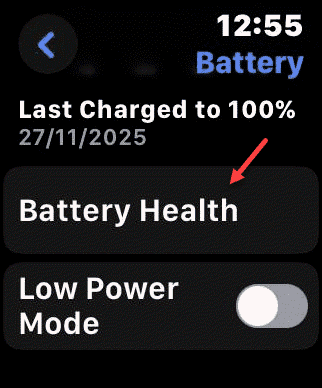
Step 2 – Later, load up the Battery settings. Next, open up the Battery Health settings.
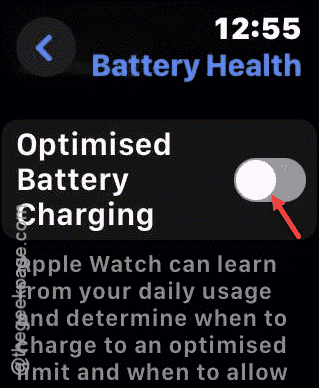
Step 3 – Set the Optimized Battery Charging feature to Off mode.
Step 4 – It will throw up a standard warning prompt. So, tap Turn off to finally turn it off.
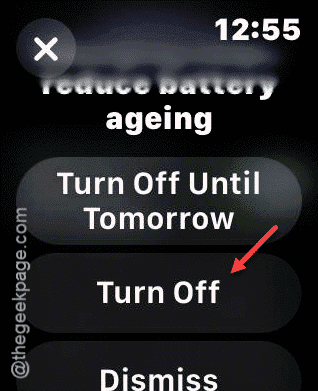
After turning off the optimized battery charging, the Apple Watch will start to charge more rapidly than before.
Fix 2 – Force Restart the Apple Watch
This can just be a normal glitch in the watchOS 26 or the whichever latest version of watchOS you are using.
Step 1 – At first, press and hold the Side button and Crown button on the Apple Watch together for 10–15 seconds.
Step 2 – To hold down those buttons until the Apple Watch restarts and shows up the Apple logo on the watch screen.
This means that Apple Watch has restarted successfully.
Step 3 – Then, put the Apple Watch on charge for 10–15 minutes.
Step 4 – Do restart the iPhone as well.
Track the charging progress of the Apple Watch once again. See if it helps or not.
Fix 3 – Charge in a normal room temperature
charging the Apple Watch in a very hot or cold environment can reduce the charging speed significantly. So, you should always charge your Apple Watch in at room temperature environment. Additionally, you should refrain from charging if the Apple Watch is too hot or cold. It is also beneficial for the longevity of your Apple Watch.
Fix 4 – Apple Watch Low Battery Health
The low battery health may not allow the Apple Watch to reach its full battery capacity.
Step 1 – Open the Settings on the Apple Watch.
Step 2 – Then, go this way –
Battery ⇾ Battery Health
Step 3 – Next, check out the Maximum Capacity. This is the mark where the Apple Watch battery currently stands at.
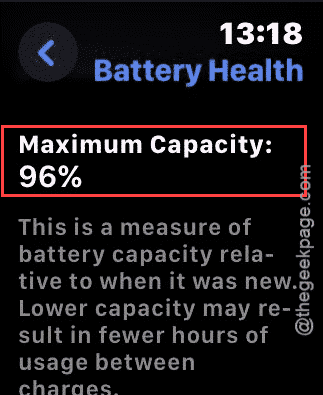
If your Apple Watch maximum capacity is anything lower than 75-80%, you should consider getting it replaced from an Apple authorized service center.
Fix 5 – Clean up the Apple Watch charger
Using an old, dusty puck to charge the Apple Watch may reduce the charging efficiency.
Tip 1 – You should use the official Apple Watch puck to charge the Apple Watch.
Tip 2 – Take a lint free soft cloth and clear up the MagSafe charging puck on the Apple Watch.
Tip 3 – Plug the charger to a different charging brick (5W or higher). But, make sure to use Apple authorized power adapters only.
Tip 4 – Don’t charge the Apple Watch from USB ports on your laptop, computer as they tend to deliver less power compared to traditional power point.
These tips should have helped you!