Some users have noticed a rapid battery drain after updating their Apple Watch to watchOS 26? Generally, your Apple Watch may lose a lot of battery in the first few cycles after completing the update. So, it is kind of normal for the Apple Watch to lose charge first few days. But, if the Apple Watch battery is dying too quickly well past the week you have upgraded to watchOS 26, it is time for you to perform some basic checks on the device.
Fix 1 – Restart the Apple Watch and iPhone
Step 1 – You have to press and hold the Side button and Crown button on the Apple Watch together for 10–15 seconds.
Step 2 – Doing this should show up the Apple logo on the watch screen.
Step 3 – Now, you have to restart the iPhone as well. Do that using the Power button in the Control Center.
Once you have rebooted both the devices, wait for 5 minutes or so for things to settle down. Then, track the battery drain on the Apple Watch.
Fix 2 – Unpair the Apple Watch and Set it up afresh
After updating the Apple Watch to the latest watchOS 26, you must unpair the Apple Watch and pair it up afresh.
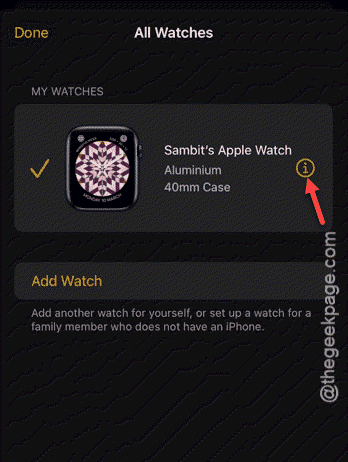
Step 1 – Load up the Watch app on the iPhone. Tap the All Watches on the top-right panel.
Step 2 – Next, tap the ℹ button next to your Apple Watch.
Step 3 – Then, scroll down and tap the Unpair watch button to unpair the Apple Watch. Confirm the decision to unpair the Apple Watch.
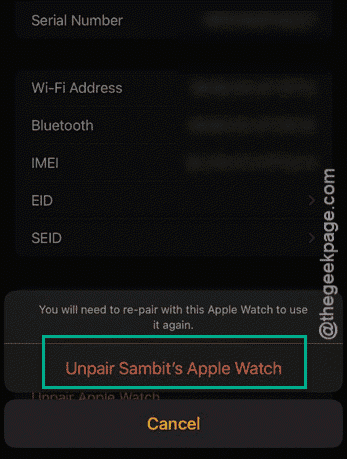
Step 4 – Keep the backup, do not assert to delete it. On the next step, you have to input the Apple ID password to finally unpair it.
Step 5 – Now, pair up the Apple Watch with your iPhone afresh. Do not use the backup.
Step 6 – You have to confirm the setup using the Apple ID, password on your iPhone.
Once you do that, this battery drain issue will be resolved.
Fix 3 – Toggle Background Refresh for Heavy Apps
If too many heavy applications continuously ran in the Apple Watch background, it will drain the Apple Watch battery too fast.
Step 1 – Load up the Watch app on the iPhone.
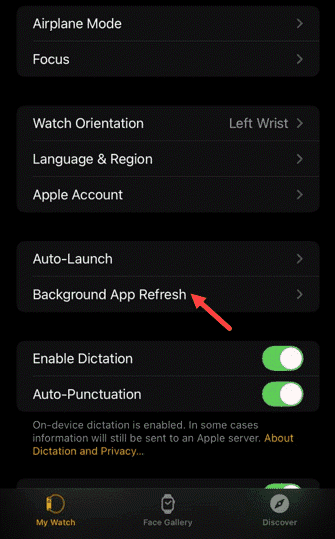
Step 2 – Open the up the General tab. Next, load up the Background App Refresh tab.
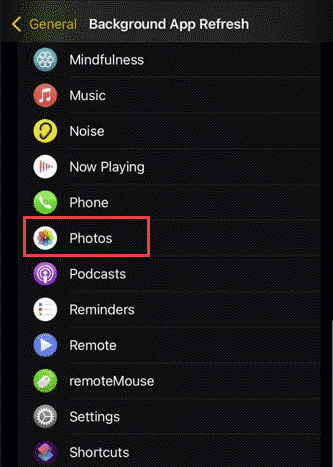
Step 3 – Find any high power consuming apps like Maps, Spotify, Weather, and turn them off.
Step 4 – Next, open your iPhone and go this way –
Privacy ⇾ Location Services
Step 5 – Look for any app that is set to Always On mode there and turn it off from there. Set these apps to While Using mode.
This way, you can put a plug on the rapid battery drain issue on the Apple Watch.
Fix 4 – Use Low Power Mode
Setting the Apple Watch to low power mode will stop the excessive battery drain issue.
Step 1 – To do this, simply pull down the Control Center.
Step 2 – Tap the battery icon there.
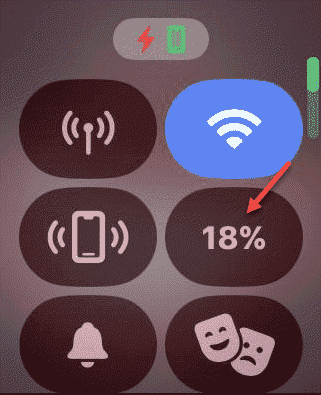
Step 3 – Next, turn on the Low Power Mode from there. Confirm it to put the device in low power mode.
Keep the low power mode turned on for the entire day/ charge cycle. Observe the difference in battery drain of the watch.