The Watch app on your iPhone keeps crashing. You tap it. Opens for a second. Then boom — home screen. Or it freezes completely, and you have to force close it.
This happens way more than it should. And it’s almost always a software glitch or corrupted sync data.
Why This Happens
Basically? The Watch app manages a constant connection to your Apple Watch. Bluetooth and WiFi, health data, and notifications should sync properly. And when any piece of that pipeline breaks? The app just dies. No graceful error. No warning. Just crash. Super common after iOS updates. Apple pushes a new version. The Watch app’s cache doesn’t match. And instead of handling it, the app just gives up. Every. Single. Time. Low storage makes it worse. So does background app refresh being off. So yeah. That’s why.
Fix 1 – Force Close and Reopen
Simple. But works more often than you’d think.
1 – Swipe up from the bottom of your screen to open the App Switcher. On older iPhones, double-tap the Home button instead.
2 – Find the Watch app card.
3 – Swipe it up to close it.
4 – Wait a few seconds.
5 – Open the Watch app again.
Still crashing right away? Not enough. Keep going.
Fix 2 – Restart Your iPhone
Quick fix. Clears out temporary memory junk that causes crashes.
1 – Hold the Side Button and either Volume button until the power slider shows up. On older iPhones, just hold the Side Button.
2 – Slide to power off.
3 – Wait ten seconds.
4 – Hold the Side Button again to turn it back on.
Done. Try the Watch app now.
Fix 3 – Update iOS and watchOS
Outdated software is the number one cause. For some reason people keep skipping updates and then wonder why things break.
1 – Open Settings.
2 – Tap General.
3 – Tap Software Update.
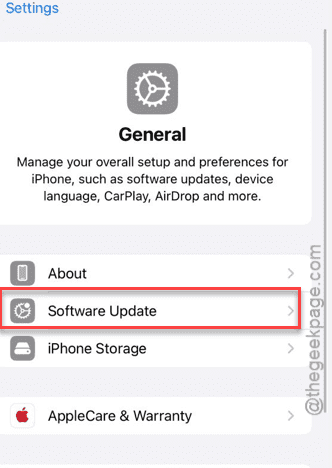
4 – If there’s an update, tap Download and Install.
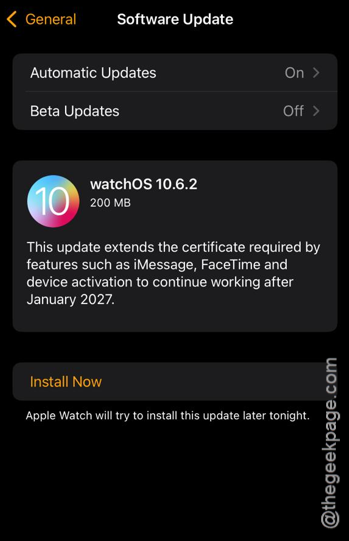
And update your watch too. Open the Watch app (if it stays open long enough), tap General, then Software Update. Both need to be current. Not just one.
Fix 4 – Offload and Reinstall the Watch App
If the app data is corrupted, this clears it out without losing everything.
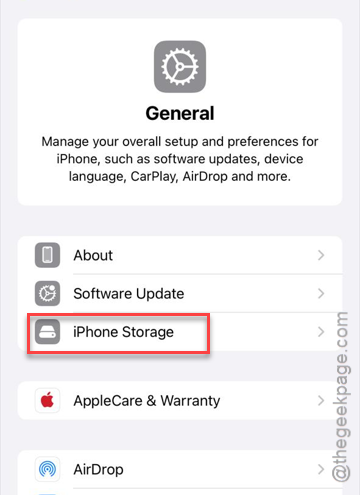
1 – Open Settings.
2 – Tap General.
3 – Tap iPhone Storage.
4 – Scroll down and find Watch.
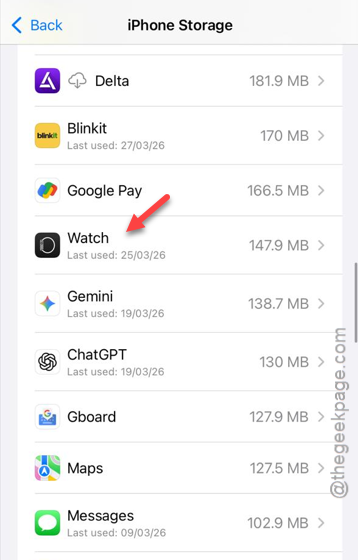
5 – Tap it.
6 – Tap Offload App.
7 – Wait a moment. Then tap Reinstall App.
Takes about a minute. And if Offload doesn’t cut it? Go back, tap Delete App instead. Then reinstall from the App Store. Nuclear option (yes, really). But it works.
Fix 5 – Reset All Settings on iPhone
This resets system settings without deleting your stuff. Photos, apps, game data — all safe.
1 – Open Settings.
2 – Tap General.
3 – Tap Transfer or Reset iPhone.
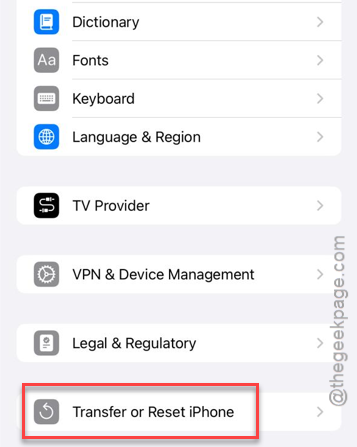
4 – Tap Reset.
5 – Tap Reset All Settings.
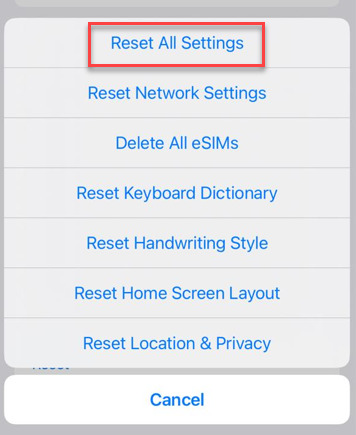
6 – Enter your passcode to confirm.
You’ll need to re-enter Face ID, passcode, and Wallet cards after. Annoying, I know. But it clears whatever system-level conflict was crashing the Watch app.
Fix 6 – Erase Watch and Re-pair from Scratch
Last resort. Rebuilds the entire connection from the ground up.
1 – On the watch itself, open Settings.
2 – Tap General. Go to the Reset settings.
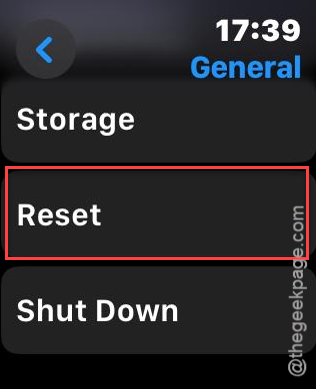
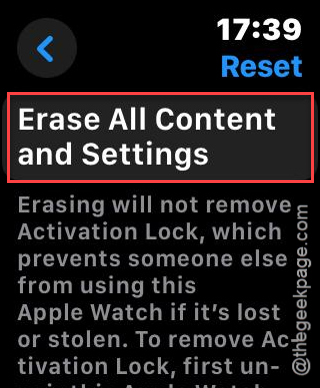
3 – Tap Erase All Content and Settings. Confirm it. Wait for it to finish.
4 – On your iPhone, delete the Watch app completely. Not just the home screen — all data.
5 – Reinstall the Watch app from the App Store.
6 – Start the pairing process. Keep WiFi and Bluetooth on.
7 – Here’s the trick — when it says “Connecting to Apple Watch“, turn off WiFi and mobile data. Before it reaches “Activating.” This skips the activation step that often fails.
8 – Follow the setup. Choose “Set up later” for anything optional.
9 – When it asks to reconnect to the internet, turn WiFi back on.
So yeah. Takes a while. But this is the fix when nothing else works. And your watch data backs up before the erase, so you do not lose health data or settings.
How to Prevent This
- Keep iOS and watchOS updated. Version mismatches cause the most crashes.
- Restart your iPhone once a week. Clears memory junk that builds up.
- Keep at least 5 GB free on your iPhone. Always.
- After major updates, do a Reset Sync Data as a precaution. Watch app > General > Reset > Reset Sync Data. Takes two seconds.
People Also Ask
How do I fix an app that keeps crashing on my iPhone?
Force close it. Restart your phone. Update iOS. Still crashing? Delete and reinstall. Nine times out of ten, one of those does it.
Why does my app keep closing as soon as I open it?
Probably corrupted data. Offload it through Settings > General > iPhone Storage. Then reinstall. Clears the cache without losing your stuff.
How do I fix a frozen app on my Apple Watch?
Hold the side button until the power screen shows. Let go. Then hold the digital crown until the app quits. Relaunch. Done.