Can’t pair your Apple Watch with your iPhone? The full capability of the Apple Watch can be unleashed only when you have paired it to your iPhone. You can’t set up an Apple Watch without paining it with your iPhone, first. So, whether if you are having this pairing issue with your new Apple Watch or the existing one. In any of the cases, these fixes will help you out.
Fix 1 – Keep both the devices in proximity
You can’t keep the Apple Watch and the iPhone too far from each other. If you are facing this problem while paining up a new watch, you can’t keep them too far. So, just keep the watch near to your iPhone, the pairing process should be successful.
If it fails, you can retry the whole pairing process.
Fix 2 – Turn off the flight mode
You can’t put the Apple Watch or the iPhone in flight mode and complete it to pair.
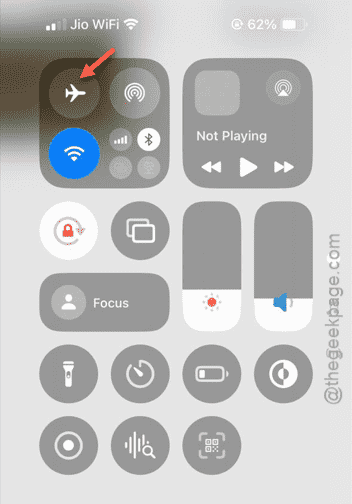
Step 1 – Open the Control Center on the iPhone.
Step 2 – Make sure the device is not in the Airplane mode.
Step 3 – Then, press the side button of your Apple Watch.
Step 4 – Next, scroll down and disable the Airplane mode from there.
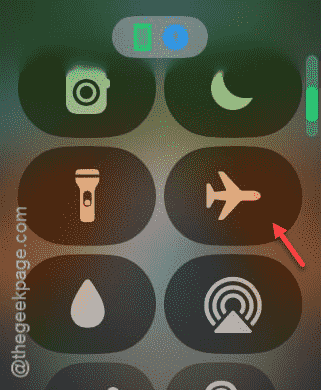
While both the devices are not using the Airplane mode, they will be paired very easily.
Fix 3 – Restart your iPhone and watch
Restart the iPhone and your watch. If it’s a bug, it should fix the problem.
Step 1 – You can press-hold the Volume Up and the Power button together.
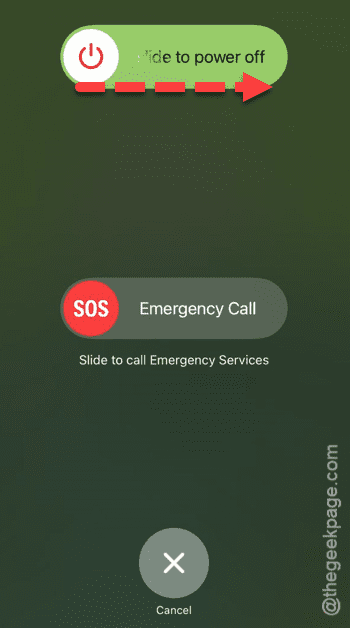
Step 2 – Once you have held that enough, ‘Slide to power off’ option should show up.
Step 3 – Drag the slider right away to power off the iPhone.
Step 4 – On your Apple Watch, hold down the side button.
Step 5 – Touch the ‘Power off‘ switch once on the watch.
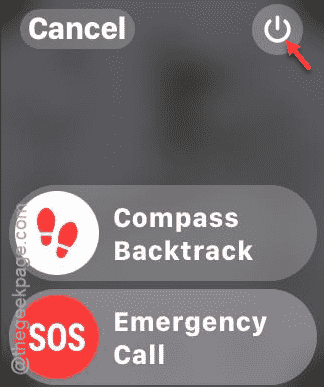
Step 6 – Use the ‘Power off‘ slider to power off the Apple Watch.
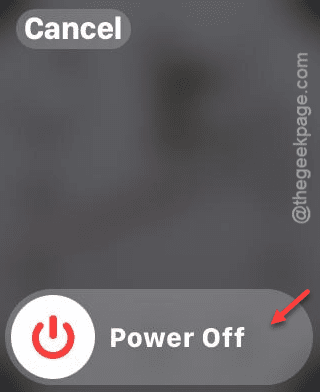
After switching the off in the Apple Watch and the iPhone, you have to press down the power button on both the devices to start them up.
Fix 4 – Reset the network settings on iPhone
You can just reset the network on the iPhone to resolve the problem.
Step 1 – You must load up the Settings page on your iPhone.
Step 2 – Proceed the following way –
General > Transfer or reset iPhone
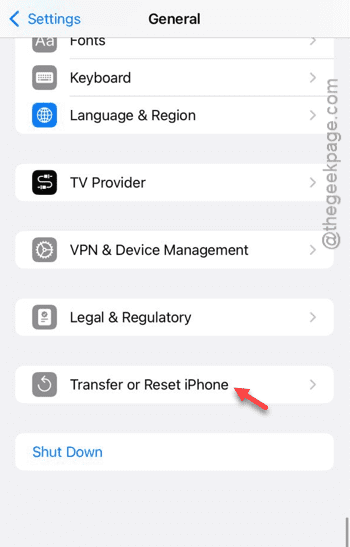
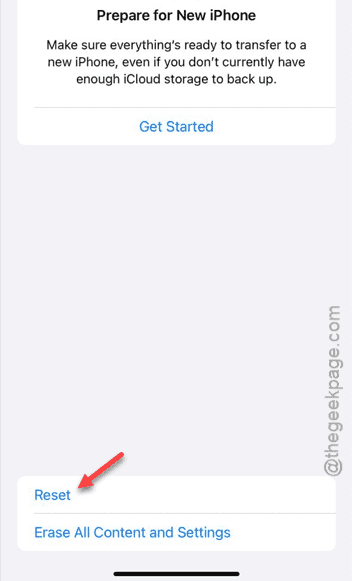
Step 3 – Later, touch the “Reset” option there to load up the resetting tools list.
Step 4 – Choose to run the “Reset Networking Settings” option there to reset the complete network system on the device.
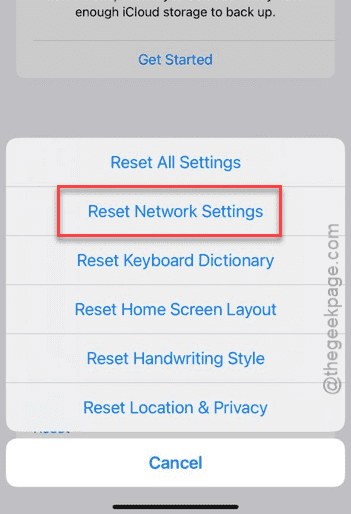
Every Apple device reboots while it reset the network settings on the device.
Step 5 – So, after the iPhone reboots, open up the Settings page once again.
Step 6 – This time, go to the “Wi-Fi” section.
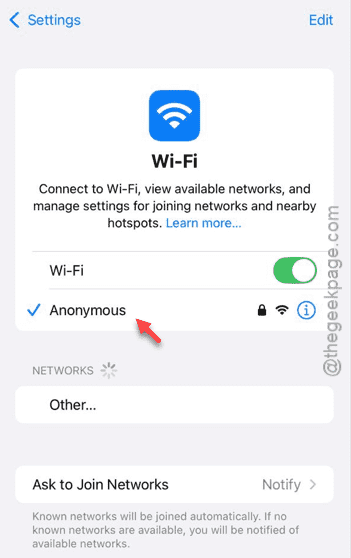
Step 7 – You have to connect to the Wi-Fi manually. So, select the Wi-Fi and input your password there to connect to the Wi-Fi.
After this, you can pair the Apple Watch to iPhone. Check if this works.
Fix 5 – Reset the watch and pair
You can reset the Apple Watch to the default settings and start the pairing process afresh.
NOTE – When you reset your Apple Watch, all the data from the watch will be removed. This means all the apps that you have sideloaded from the App Store will be removed during this process. The items that are synced with the iCloud, you can get them back the next time you pair the device with your iPhone.
Step 1 – Tap the crown once on your watch.
Step 2 – Open up the “Settings” icon there.
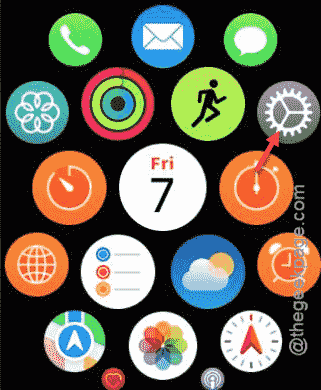
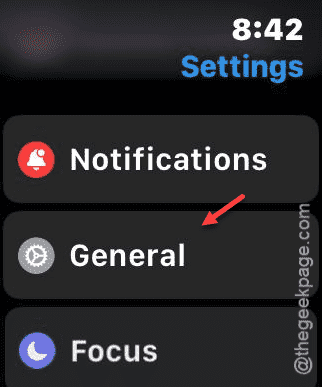
Step 3 – Then, go to the “General” tab.
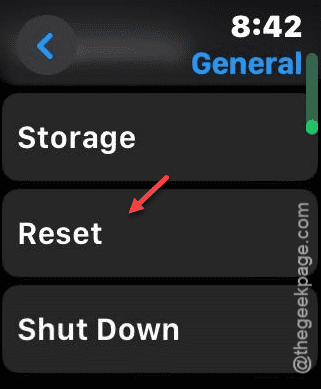
Step 4 – Locate the “Reset” option, next.
Step 5 – On the following page, tap the “Erase All Content and Settings” option there.
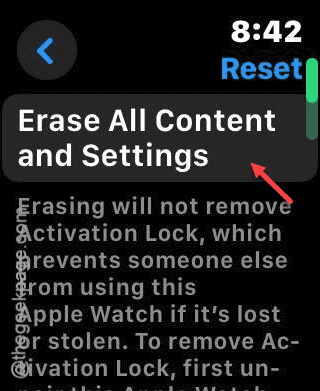
Step 6 – Once you have reset the Apple Watch, open up Watch app on your iPhone.
You will notice the following screen –
Unpairing Apple Watch
Your iPhone should have started the process of removing the pairing between the devices. Check if this works.