Can’t connect your Apple Watch to your iPhone? While your Apple Watch can function as a separate entity, the full capabilities of the smartwatch can only be availed if you pair it up with your iPhone. So, we have taken this opportunity to create this troubleshooting guide to fix the Apple Watch connection problems with the iPhone.
Fix 1 – Turn on the Bluetooth on both the devices
Bluetooth is used primarily to set up the pairing between the Apple Watch and your iPhone.
Step 1 – Press the crown of the watch once.
Step 2 – Then, tap to load up the Settings on the watch.
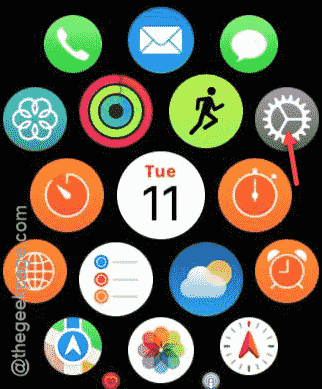
Step 3 – After loading up the Settings page, go to the “Bluetooth” settings and open it up.
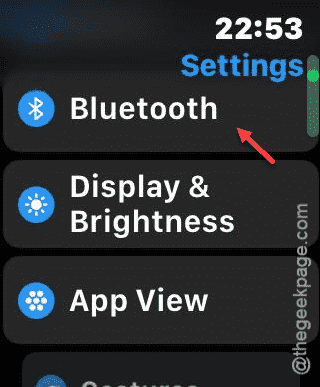
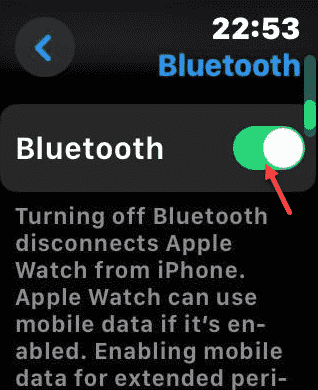
Step 4 – Make sure it is turned on.
Step 5 – Now, on your iPhone scroll down to find the Control Center.
Step 6 – In the Control Center, turn on the “Bluetooth” on the device.
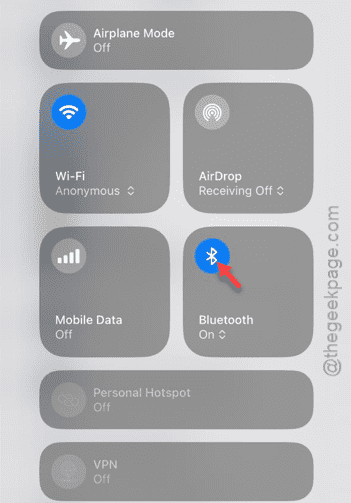
While the Bluetooth is turned on both the device, the iPhone will get connected to your watch for sure.
Fix 2 – Reset iPhone’s network settings
You can just reset your iPhone’s network settings to delete all the connection settings on the device.
Step 1 – At first, you have to reach the Settings page on your iPhone.
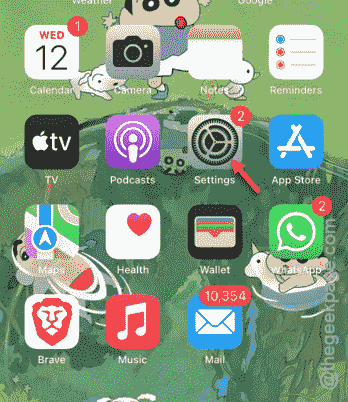
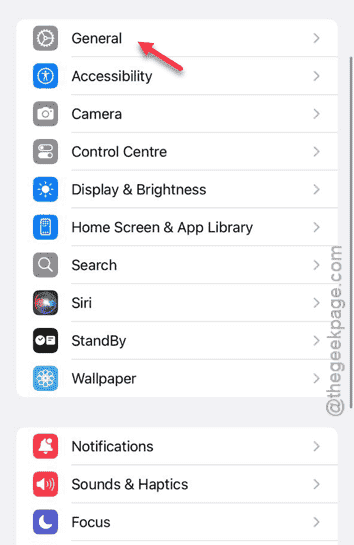
Step 2 – Next, go to the “General” tab.
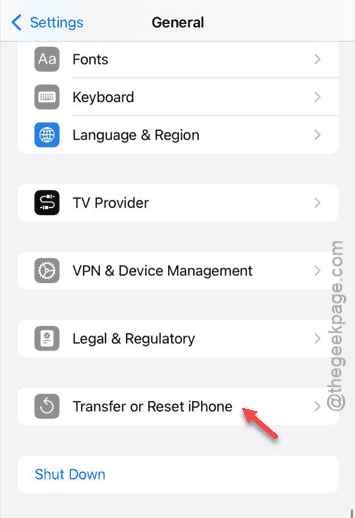
Step 3 – Later, load up the “Transfer or reset iPhone” option.
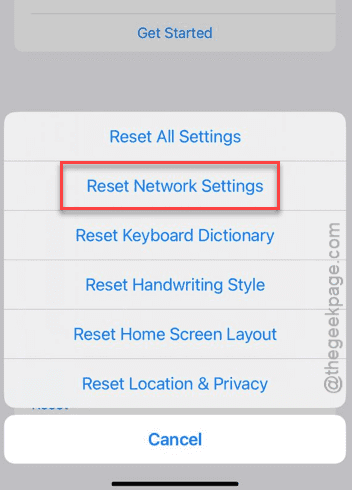
Step 4 – Choose to open up the “Reset” option.
Step 5 – Tap the “Reset Network Settings” to run the resetting command that will remove all the network-related settings.
You have to pair the Apple Watch with your iPhone afresh. Check if this works.
Fix 3 – Update the watchOS update
If your watch does lack an important update, you may update the watch.
Step 1 – At first, press the crown on your watch.
Step 2 – Then, tap the “Settings” icon to load up the watch settings.
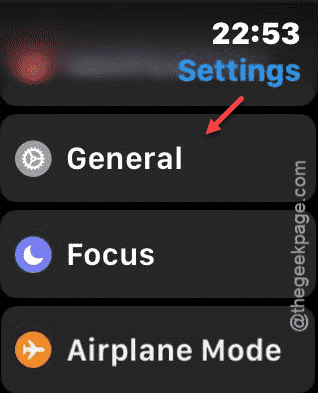
Step 3 – In the Settings page, go to the “General” tab.
Step 4 – In the General tab, open up the “Software Update” option.
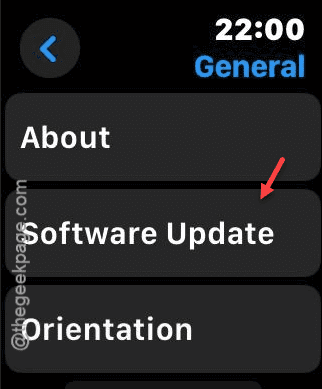
Step 5 – If a watchOS update is pending indeed, you should update it from there.
After updating the watch, the problem with the watch not connecting to the iPhone will go away.
See if this helps.