Can’t connect your Apple Watch to your iPhone? While your Apple Watch is fully capable of providing you with necessary information, there are some connected features that it can’t deliver unless it is connected to your iPhone. If you can’t pair or connect your watch to your iPhone, you may use the following troubleshooting steps.
Steps to identity if the watch is not connected to your iPhone –
You can recognize whether your iPhone is connected to your watch or not simply by a sign on the watch.
Step 1 – Tap the side button on the device once. Look for a small green sign on the top.
Step 2 – Touch the sign in there to load up the Watch conditions.
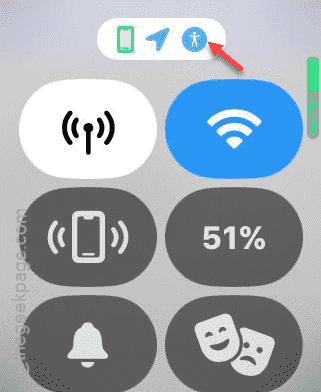
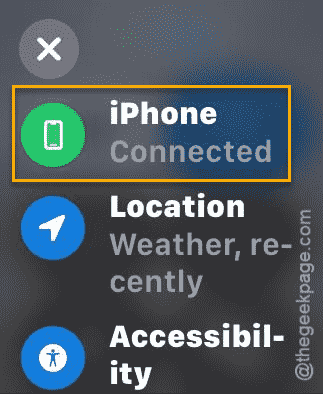
Step 3 – You can now check the status of the watch.
Fix 1 – Refresh the network system on iPhone, Watch
You can refresh the network system on the iPhone and your watch.
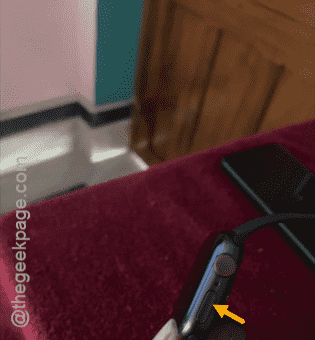
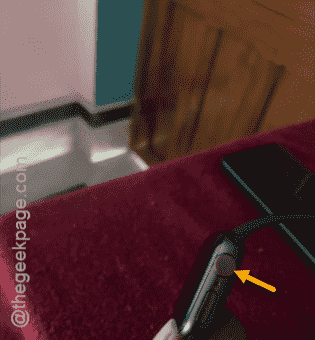
Step 1 – Press the side button on the watch.
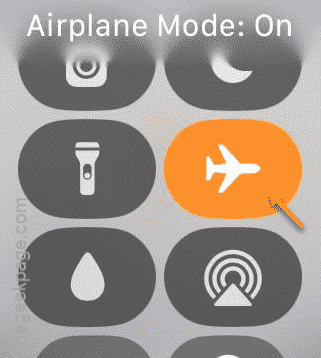
Step 2 – Tap the Airplane mode in there to put the watch in flight mode.
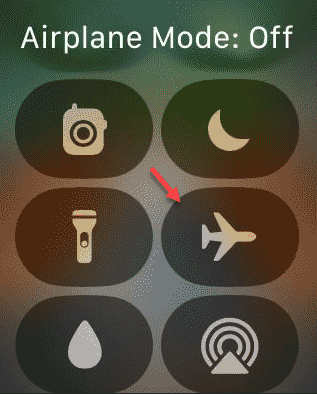
Step 3 – Wait for a few seconds and revoke the Airplane mode.
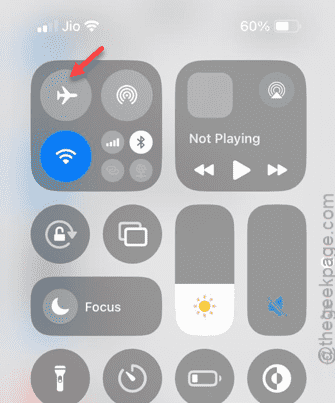
Step 4 – On your iPhone, open up the Control Center.
Step 5 – Tap the Airplane mode to enact it on your iPhone.
Step 6 – Later, touch the Airplane mode on the console to disable it.
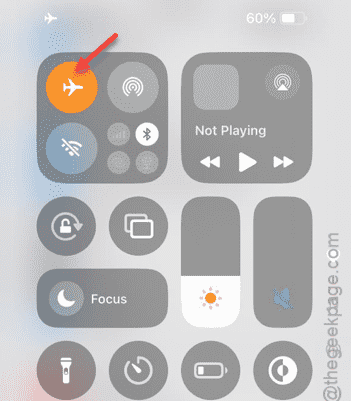
This time, your Apple Watch will connect automatically to your iPhone.
Fix 2 – Reset the Bluetooth settings
The Apple Watch connects to the iPhone via Bluetooth.
Step 1 – Tap the crown on your Watch to load up the apps list.
Step 2 – Next, tap the “⚙” icon to open the Settings on your watch.
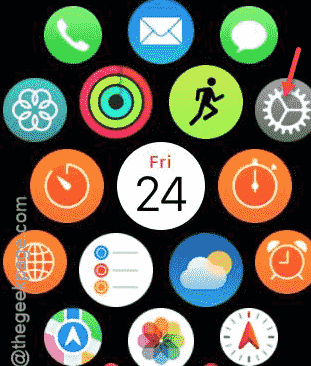
Step 3 – Scroll down and open up the “Bluetooth” settings.
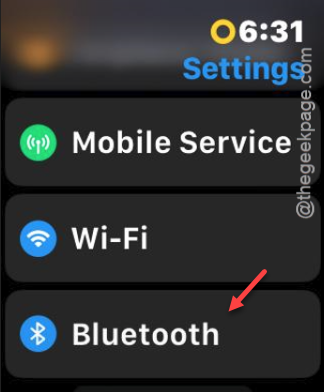
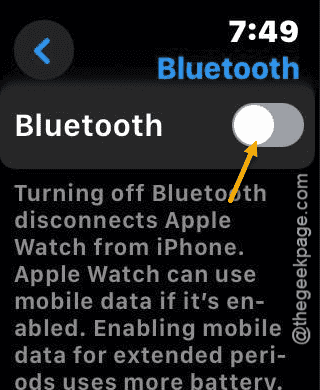
Step 4 – Turn off the Bluetooth on the watch briefly.
Step 5 – Then, turn it on once again.
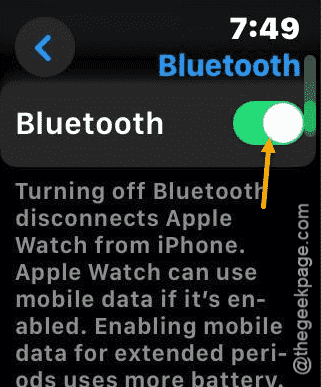
Check if this connects the watch and the iPhone. See if this works or not.
Fix 3 – Force restart your iPhone and watch
You should force restart the iPhone and restart your watch. This should reconnect the devices.
Steps on iPhone –
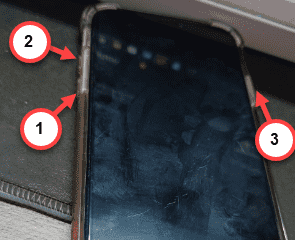
Step 1 – Simply press and release the Volume Plus button.
Step 2 – Then, hit the Volume Minus button on your iPhone.
Step 3 – Finally, press and hold the Power button. Doing this should start the force restart procedure, when this show you the Apple logo on the screen, leave the power button.
Steps to follow on your Apple Watch –
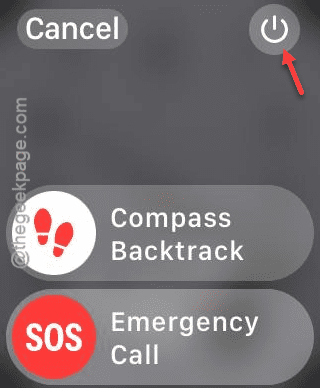
Step 1 – Simply, press and hold the side button on the watch.
Step 2 – Now, tap the Power off button once.
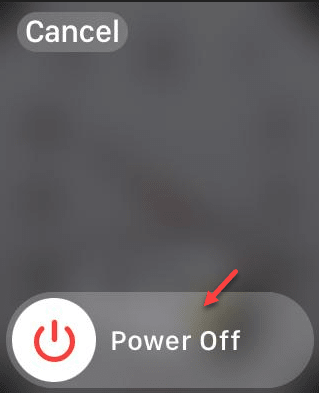
Step 3 – Finally, drag the “Power off” slider to power off the watch.
When both the devices restart, they will connect with each other automatically.
Fix 4 – Reset the network settings on iPhone
Sometimes the problem in the network settings in the iPhone can cause problems connecting the iPhone and the watch.
Step 1 – Go to the iPhone Settings.
Step 2 – Once you have reached there, go to tap the “General” settings on the device.
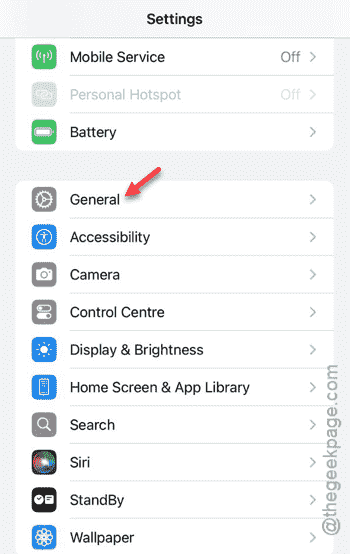
Step 3 – Then, reach the “Transfer or reset iPhone” settings section.
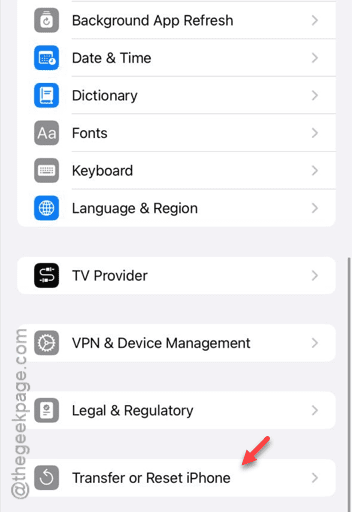
Step 4 – Tap the “Reset” option.
Step 5 – Now, you must tap the “Reset Network Settings” feature.
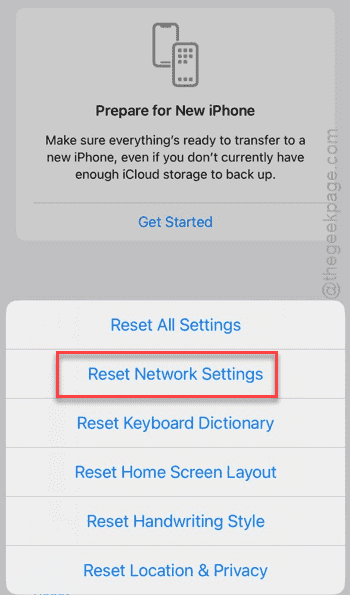
The networking reset process may require some time. But, when it completes, you can connect your Apple Watch afresh.
This time, there won’t be any issues.