Can’t feel the haptic vibration while the alarm goes off on your Apple Watch? Many users rely upon the haptic vibration to wake up to an alarm on their Apple Watch. But, if the haptic feedback is too weak, it may not nudge you to wake up from your slumber. Generally, this problem occurs if the vibration is set to Default mode, instead of Prominent mode. Here are some instructions that you may follow to fix this issue at your end.
Fix 1 – Set Prominent Haptic Boost on Apple Watch
Most users have found the Default vibration is too subtle for the alarm alerts. If the alarm haptic feels too weak, setting it to the Prominent mode should resolve the issue.
Step 1 – On the Apple Watch, go to the Settings. Then, open up the Sounds & Haptics tab.
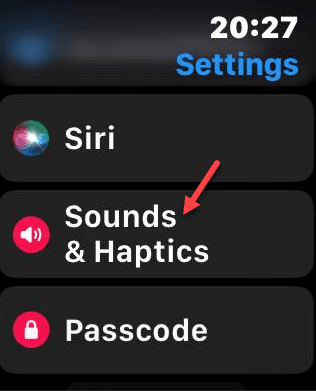
Step 2 – Ensure the Haptic Alerts is toggled to ON mode.
Step 3 – Set it to Prominent mode. Make sure the Haptic Crown is also toggled to ON mode.
Now, set a quick alarm and check the haptic feedback.
Fix 2 – Check the Sleep Focus Overrides
If you use Sleep Schedule, your Sleep Focus settings can come into conflict with the alarm settings, and lower the haptic affect.
Step 1 – Load up the Watch app on the iPhone.
Step 2 – Go to the My Watch tab. Load up the Sleep settings.
Step 3 – Ensure Wait for Sleep and Sleep Screen is configured correctly.
Step 4 – Toggle the Track Sleep with Apple Watch to OFF and ON mode.
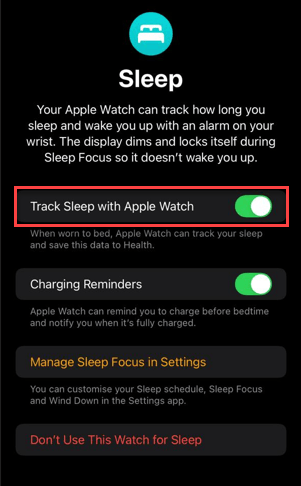
This should refresh the settings.
Fix 3 – Resolve the Silent Mode Haptic
Some users have found that while the Cover to Mute mode is active, a heavy blanket or sleeve covering the Apple Watch can kill the haptic movement as well.
Step 1 – On the Watch, open up the Settings.
Step 2 – Go to the Gestures settings.
Step 3 – Toggle the Cover to Mute to OFF.
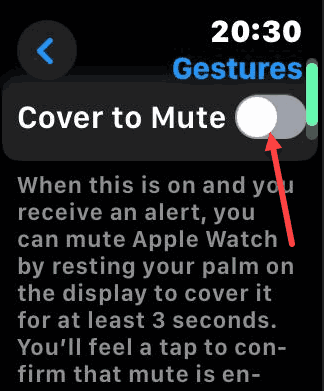
Now, test your alarm again.
Fix 4 – Direct Alarm App Haptic Reset
Generally, your alarms on the iPhone do get mirrored in to the Apple Watch. But this mirroring process may sometimes fail and cause such issues.
Step 1 – Load up the Alarms app on the Apple Watch.
Step 2 – Create a new alarm for 1 minute from now.
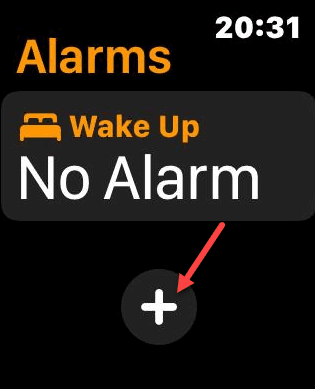
Step 3 – Scroll down to the specific alarm’s settings and make sure the Sound/Haptic is not set to None mode.
See if this resolves the haptic feedback issue that you are having with the alarm.
Fix 5 – Enable Vibration Accessibility Feature
If the vibration is disabled in the iPhone settings, the alarms haptics won’t be available.
Step 1 – Load up the Watch app on your iPhone.
Step 2 – Then, proceed to the Accessibility settings.
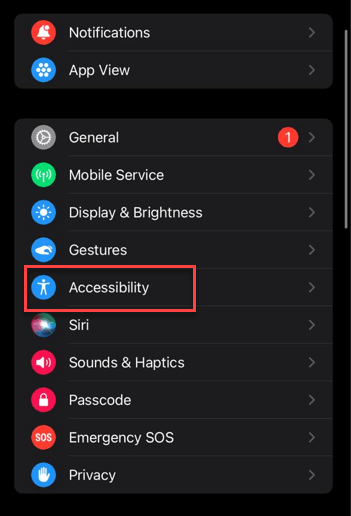
Step 3 – Scroll down to the Vibration settings.
Step 4 – Make sure the main Vibration toggle is switched to OFF mode.
If this vibration feature were off, you wouldn’t feel the haptic feedback again.