Are the step counts not syncing properly in the iOS 26 post-update scenario? There are several reports from the iPhone users about the iPhone counts not syncing properly. The step count syncing errors are often linked to a handshake failure between the iPhone’s sensor readings and Apple Intelligence’s processing. Here are the troubleshooting steps to solve this problem.
Fix 1 – Re-toggle the Motion and Fitness Privacy
If the iPhone is not counting steps at all, the motion sensors are supposedly failing to initialize after the iOS 26 update.
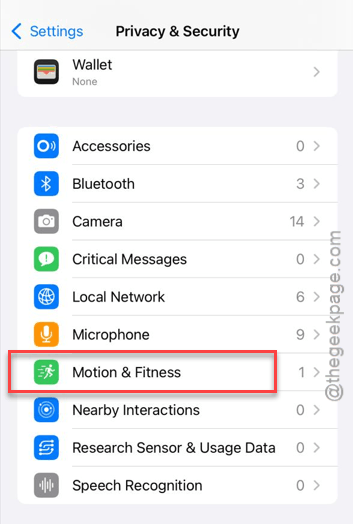
Step 1 – Proceed to the iPhone Settings. Then, go to the Privacy & Security tab.
Step 2 – Go to the Motion & Fitness tab.
Step 3 – Toggle the Fitness Tracking to OFF.
Step 4 – Return to the same menu and toggle the Fitness Tracking and Health back ON.
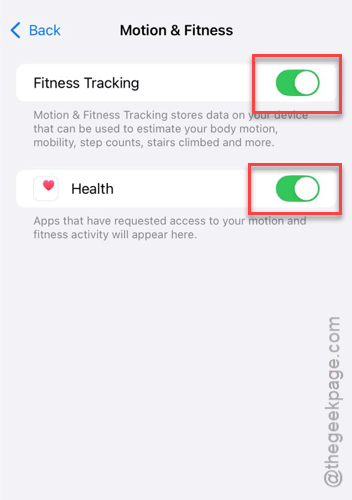
Check if this works.
Fix 2 – Enable Motion Calibration and Distance
iOS 26 uses an enhanced system to calculate your stride length. If the system service is disabled, the Health app may fail to identify it.
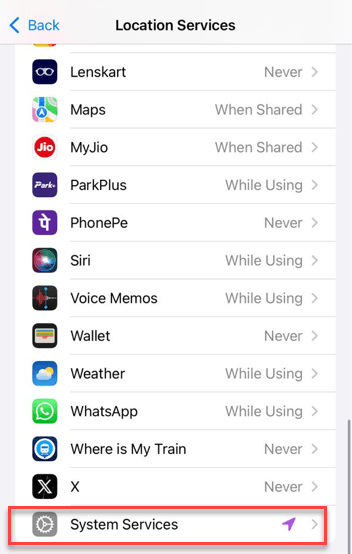
Step 1 – Open the Privacy & Security settings on the iPhone.
Step 2 – Go to the Location Services. Open up the System Services there.
Step 3 – Ensure the Motion Calibration & Distance service is toggled to On mode.
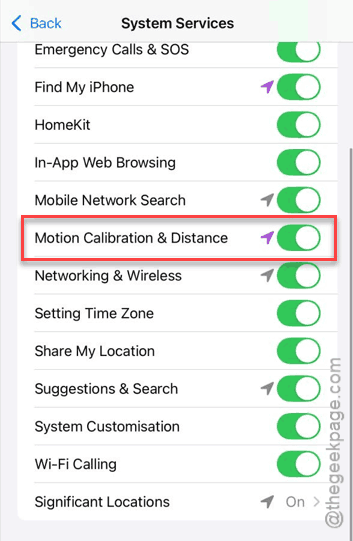
Now, check whether the step counts are syncing properly or not.
Fix 3 – Adjust Data Source Priority
If the step count has suddenly frozen up or is showing a very low count that’s usual, check and rectify the data source in the Health app.
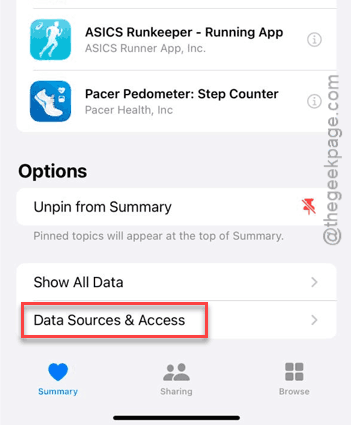
Step 1 – Open the Health app. Load up the Summary tab.
Step 2 – Go this way –
Steps > Data Sources & Access.
Step 3 – Tap the Edit button.
Step 4 – Under Data Sources tab, use the handle to drag your current iPhone to the very top of the list.
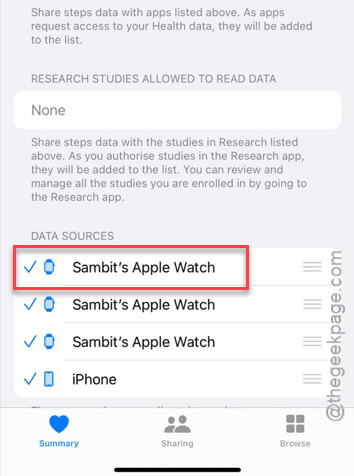
This way, the iOS 26 can source the data from the device.
Fix 4 – Perform a Reset Sync Data on Apple watch
Resetting the synchronized data on the Apple Watch should reboot the step count feature on the wearable.
Step 1 – At first, open up the Watch app on the iPhone.
Step 2 – Then, go to the General tab. Load up the Reset section, next.
Step 3 – Then, use the Reset Sync Data feature to reset the sync data on the Watch and the iPhone.
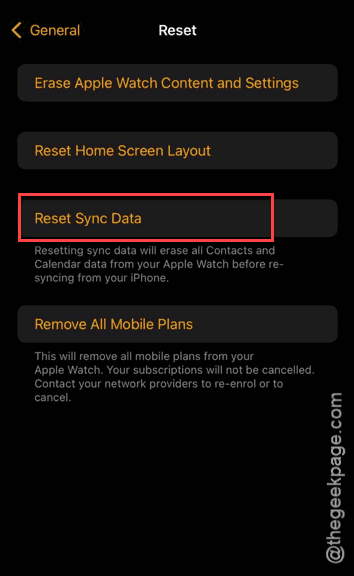
Although you can’t see or track the resetting process as it happens in the background.
Fix 5 – Remove any Ghost device from Health
Some users have reported that this has happened from an iOS 26 bug that causes Health app to track active sessions from your previous iPhone, which you no longer use.
Step 1 – In the Health app, tap the profile icon.
Step 2 – Under the Privacy panel, tap the Devices tab.
Step 3 – Look for any old iPhones or Apple Watches that you no longer use.
Step 4 – Tap on the old device and select the Delete All Data from <device> button.
This way, remove all the iPhones