You open Services to start App Readiness. The Start option is right there. Highlighted. But greyed out — you can’t click it.
So the service just sits. Stuck. And apps that need it won’t install right. Frustrating, because it *looks* clickable. Here’s how to actually get it going.
Why This Happens
Short version: the service can’t start, so Windows won’t let you start it. The button’s dead for a reason.
Usually something underneath is broken. Corrupted temporary files from a failed install. Damaged system components. Or the Windows Installer service it leans on being stuck itself.
And the greyed-out Start is just the symptom. The GUI gives up before it even tries. Annoying — but it means we fix the cause, not the button.
So we clear the junk, repair the system, and force the service on from the command line when the interface refuses. One of these does it.
Fix 1 – Clear Out Temporary Files
Corrupted setup leftovers in your temp folder trip up the whole installer chain. Wiping them is harmless and quick. Start here.
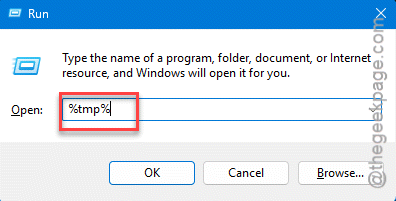
1 – Press Windows + R, type %tmp%, and press Enter.
2 – Press Ctrl + A to select everything in the folder.
3 – Press Delete (or Shift + Delete to skip the Recycle Bin).
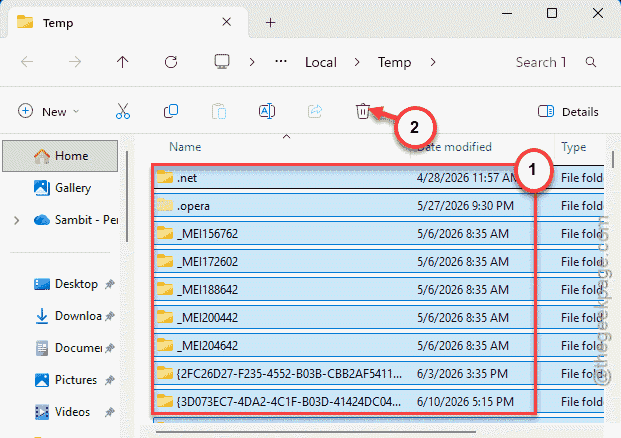
4 – If a few files say they’re in use, just skip them. The rest still go.
5 – Restart and check the service.
It won’t delete anything you care about — temp files are disposable by design. And clearing them fixes a surprising number of installer hiccups.
Fix 2 – Force the Service On From Command Prompt
If the Start button stays greyed out, skip the GUI entirely.
1 – Type CMD in the taskbar search, right-click Command Prompt, and choose Run as administrator.
2 – Set the service to start on demand:
sc config AppReadiness start= demand
3 – Press Enter.
4 – Now start it:
net start AppReadiness
5 – Press Enter.
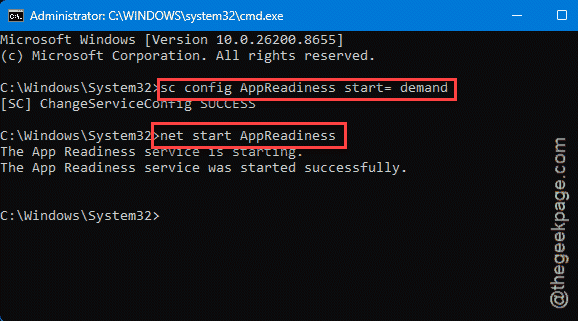
Mind the space after the equals sign — start= demand, not start=demand. The command’s picky about it. This often gets the service running when the Services window flatly won’t.
Fix 3 – Repair System Files With DISM and SFC
If broken system components are blocking the service, these two scans rebuild them. Run them in order.
1 – Open Command Prompt as administrator again.
2 – Run the deployment repair first:
dism /online /cleanup-image /restorehealth
3 – Wait for it to finish (it can stall at a percentage for a while — that’s normal).
4 – Then run the file checker:
sfc /scannow
5 – Let it complete and restart your computer.
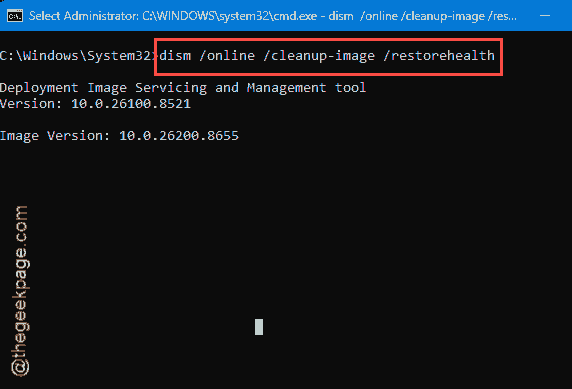
DISM fixes the underlying image. SFC then repairs individual files using it. Together they clear the deep corruption that leaves services unstartable.
Fix 4 – Reset the Windows Installer Service
App Readiness leans on the Windows Installer service. If that one’s stuck, App Readiness can’t come up either. Reset it.
1 – Hit the Windows + R buttons together.
2 – Then, type services.msc, and press Enter.
3 – Scroll down to Windows Installer.
4 – Right-click it and choose Properties.
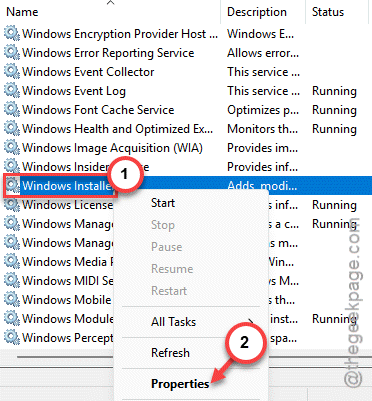
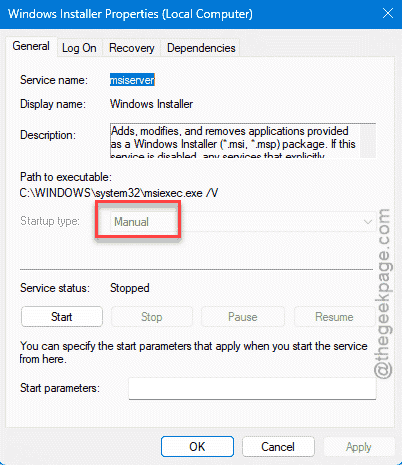
5 – If Startup type can be changed, set it to Manual.
6 – Click Start if the service is stopped, then OK.
7 – Right-click Windows Installer again and choose Restart.
With its dependency healthy, App Readiness usually starts without a fight. Go back and try it.
How to Prevent This
– Clear your temp folder now and then. Failed-install junk piles up and jams the installer chain.
– Don’t disable App Readiness. It’s needed for apps to provision properly. Leave it on demand.
– Run SFC after any messy install or update.
People Also Ask
Is it safe to disable the App Readiness service?
Not really recommended. App Readiness preps apps when you sign in and when new ones install. Disable it and you can hit provisioning errors and apps that won’t set up correctly. Leave it on demand (manual) so it starts when needed without running constantly. That’s the sweet spot.
How do I turn on the App Readiness service?
You can enable the App Readiness services either using the command line approach or the Services path. Run thesc config AppReadiness start= demand from a shell terminal and it should be good to go.