You hit Alt-Tab to switch windows. The menu pops up — then blinks out instantly. Or it flickers like a strobe and snaps you back where you started.
Happens most with borderless games. Here’s what fixes it.
Why This Happens
Basically? A borderless window grabs the screen and refuses to let go of focus. So when you Alt-Tab, the menu and the game fight over who’s in charge. The menu loses and vanishes.
There’s a refresh-rate angle too. If the game runs at a slightly different rate than your desktop, the GPU stutters trying to switch between them. That stutter shows up as the flicker.
And overlay software piles on. Game bars, multi-monitor tools — anything that tracks window focus can slam the menu shut the second it appears.
Fix 1 – Turn Off Optimizations for Windowed Games
Start here. This Windows feature is the most common cause, and switching it off fixes Alt-Tab for a lot of people.
1 – Press Windows + I to open Settings.
2 – Go to System, then Display.
3 – Scroll down and click Graphics.
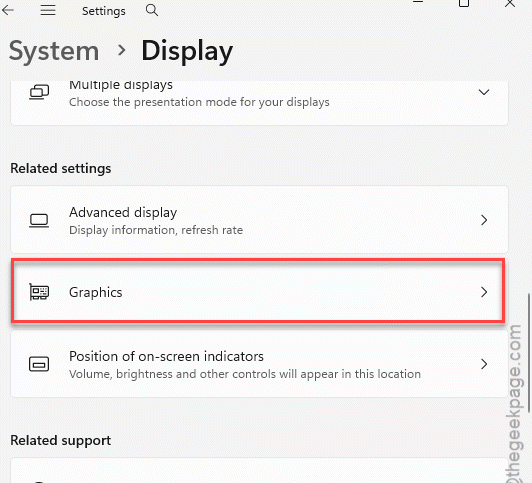
4 – Click Default graphics settings near the top.
5 – Find Optimizations for windowed games and toggle it Off.
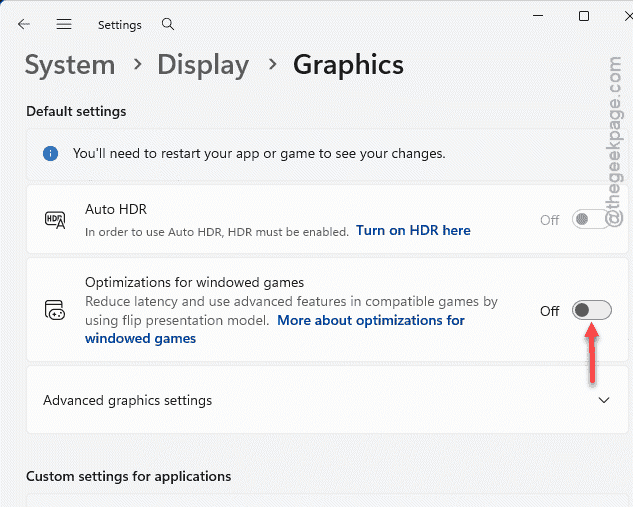
6 – Restart your PC. The change doesn’t fully apply until you do.
Then test Alt-Tab with your game open. If the menu stays put now, you’re done. If it still blinks, the next fix digs deeper.
Fix 2 – Match the Game’s Refresh Rate to Windows
If the game and your desktop run at even slightly different refresh rates, the GPU chokes during the switch. So make them identical.
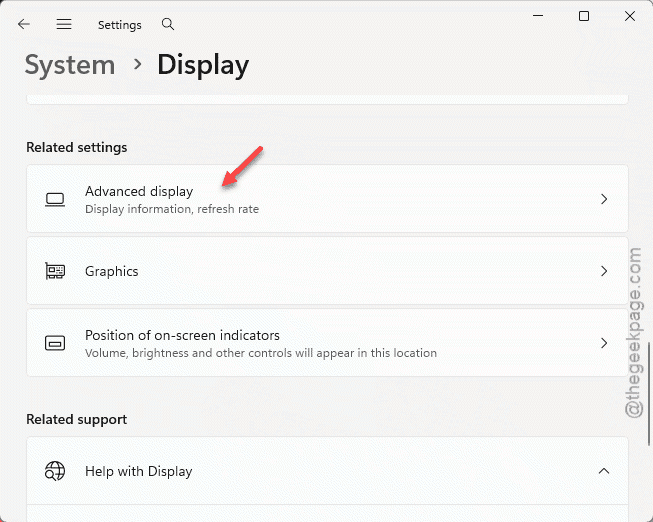
1 – At first, press Windows + I, go to System section. Then, go to Display mode. Advanced display.
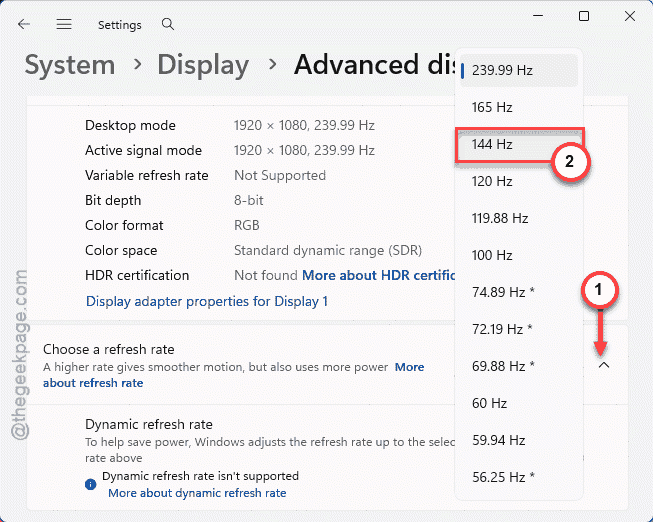
2 – Note down your current resolution. Check the refresh rate (like 144Hz) as well.
3 – Launch your game and open its video settings.
4 – Set the game’s resolution and refresh rate to the exact same numbers.
Same goes for both — not close, exact. A game capped at 143Hz against a 144Hz desktop is enough to cause the stutter.
Fix 3 – Shut Off Overlays and App Hooks
Background overlays love to grab focus.
1 – In Discord, go to User Settings > Advanced and turn off the in-game overlay and hardware acceleration.
2 – In GeForce Experience (or the NVIDIA App), turn off the in-game overlay.
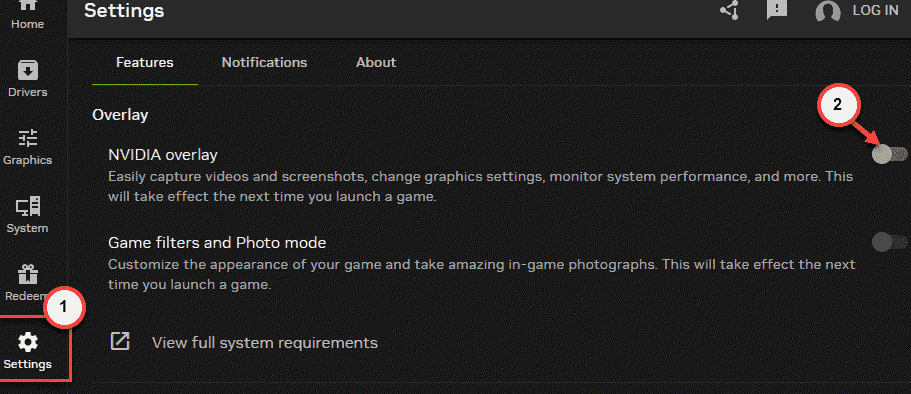
3 – If you use DisplayFusion, open Settings > Advanced Settings, search for Disable Application Hooks, and set it to True.
4 – Restart the game.
Turn these off one at a time if you can. That way you’ll know exactly which overlay was the culprit.
Fix 4 – Force the Classic Alt-Tab Menu
The modern Alt-Tab menu is fancier, but it’s also the part that crashes against borderless windows. The old classic menu is rock solid.
1 – Press Windows + R, type regedit, and press Enter.
2 – Paste this into the address bar at the top and press Enter:
HKEY_CURRENT_USER\Software\Microsoft\Windows\CurrentVersion\Explorer
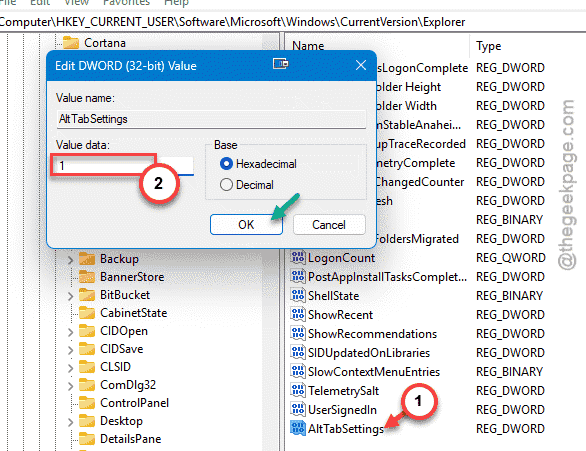
3 – Right-click the Explorer folder, choose New > DWORD (32-bit) Value, and name it AltTabSettings.

4 – Double-click your new value and set the Value data to 1. Click OK.
5 – Open Task Manager, find Windows Explorer, right-click it, and choose Restart.
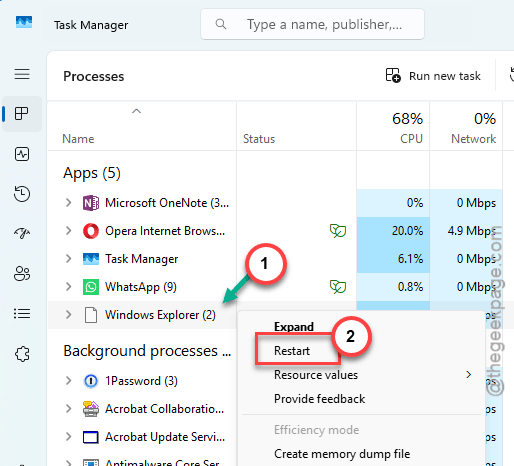
Now Alt-Tab shows the simpler, classic switcher. It skips the fancy preview thumbnails — but it doesn’t crash. Want the modern one back later? Just delete that AltTabSettings value.
Fix 5 – Turn Off Hardware-Accelerated GPU Scheduling
Worth a shot if the flicker hangs on.
1 – Go to Settings > System.
2 – Proceed to the Display section.
3 – Then, open up the Graphics settings.
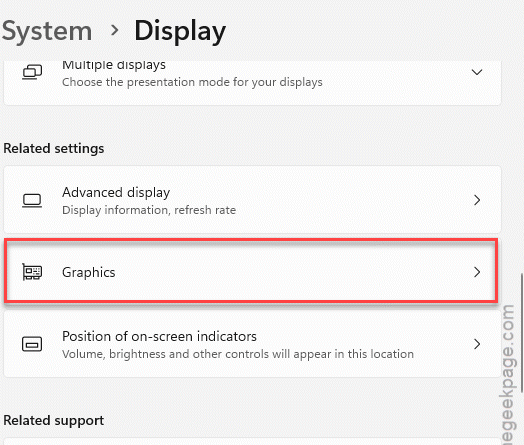
4 – Set the Hardware-Accelerated GPU Scheduling to Off.
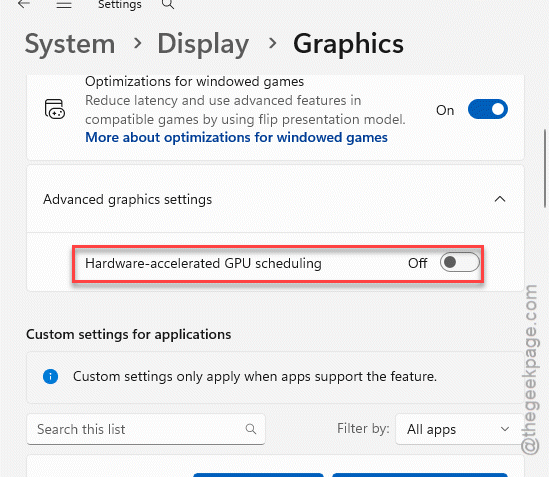
Restart your PC. This feature sometimes loses focus during the screen flip that happens when you switch between a borderless game and the desktop. Switching it off can settle the whole thing down.
How to Prevent This
– Keep Optimizations for windowed games off if borderless apps give you trouble.
– Run true Fullscreen instead of Borderless when a game lets you. Fullscreen sidesteps the focus mess entirely.
– Keep overlays trimmed down. The fewer apps grabbing focus, the smoother Alt-Tab behaves.
People Also Ask
Why is my screen flickering when I Alt-Tab?
You should set both to the exact same refresh rate. Turning off Optimizations for windowed games in Windows settings clears it up for a lot of people too.
Why does Alt-Tab close my window instantly?
A borderless app or a background overlay is grabbing focus and slamming the menu shut. Disable overlays in Discord and your graphics app first. If it keeps happening, switching to the classic Alt-Tab menu through a registry tweak fixes the focus conflict for good.