You set your shiny new Wi-Fi 7 router to a fat 320MHz channel for max speed. And your network drops off the list. Gone.
Your phone sees it. Your laptop doesn’t. Or it shows up, then disappears a minute later. Annoying when you paid for the fastest Wi-Fi there is. The catch is that 320MHz only lives on one tricky band — and that band is fussy. Let’s walk through it.
Why This Happens
Here’s the deal. Those super-wide 320MHz channels — the ones that make Wi-Fi 7 so fast — only exist on the 6 GHz band. There’s no room for them anywhere else.
And 6 GHz is the new kid. It’s picky. Your PC needs a real Wi-Fi 7 adapter, the right driver, and Windows 11 — 6 GHz flat-out doesn’t work on Windows 10.
Then there’s the law. The 6 GHz band isn’t fully open everywhere. In the EU, the UK, and parts of Asia, regulators restrict it. So your router might be broadcasting a 320MHz channel your country doesn’t even allow, and your device just refuses to show it.
On top of that, 6 GHz uses WPA3 security only — older security locks devices out. And it has shorter range than 5 GHz. So the SSID can simply vanish if you wander a room away. Lots of little gates. We check each.
Fix 1 – Set Your Adapter to Prefer the 6 GHz Band
Start here. Telling your Wi-Fi card to favor 6 GHz makes it grab that band faster and stop bouncing off it — which is what makes the network seem to vanish.
1 – Press Windows + X and click Device Manager.
2 – Expand Network adapters.
3 – Right-click your Wi-Fi adapter and choose Properties.
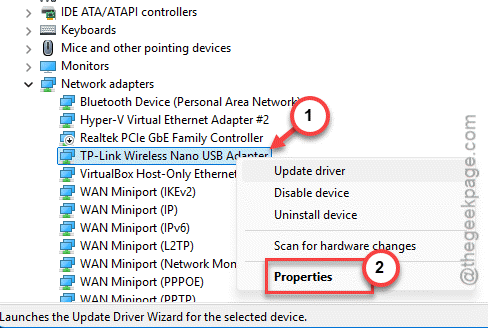
4 – Click the Advanced tab.
5 – In the list, find Preferred Band (some drivers call it Band Preference).
6 – Change it from No Preference to Prefer 6 GHz Band and click OK.
After this, the connection latches onto 6 GHz quicker and holds. One heads-up — this helps your PC connect, but it won’t make every diagnostic tool detect the card. That’s a separate quirk.
Fix 2 – Confirm Your PC Can Even See 6 GHz
Before chasing settings, make sure your hardware qualifies. If any piece is missing, no setting on earth will show that network.
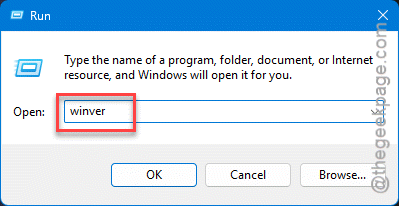
1 – Check your Windows version. To do that, you have to press Windows + R, type winver, and press Enter.
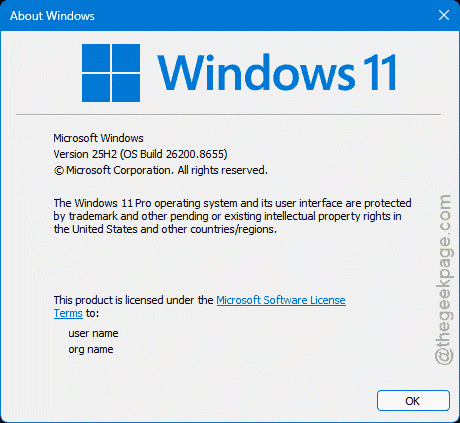
It must say Windows 11. On Windows 10, 6 GHz won’t work at all.
2 – Confirm your adapter actually supports Wi-Fi 7. Check your laptop or adapter maker’s spec page — if you’re not sure, the model number lookup on their site settles it.
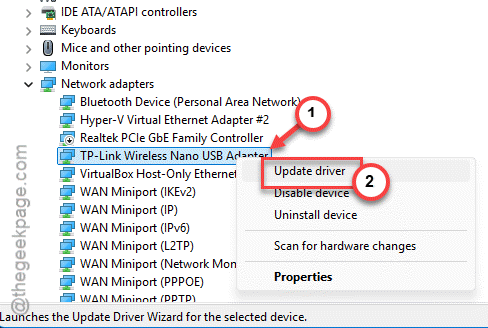
3 – You have to update the Wi-Fi driver: To do that, right-click the Windows button and tap Device Manager.
4 – Now, right-click the adapter, choose Update driver from the context menu. Tap Search automatically for best drivers option.
5 – Restart and look for the network again.
A fresh driver matters more here than usual.
Fix 3 – Switch Your Wi-Fi Security to WPA3
The 6 GHz band only accepts WPA3 security. If your network is on older WPA2, the 6 GHz part of it can disappear.
1 – Open a browser of your choice and go to your router’s admin page. To be sure, you should look it up online or, check the sticker on the router).
2 – Log in, then open the Wireless or Wi-Fi settings.
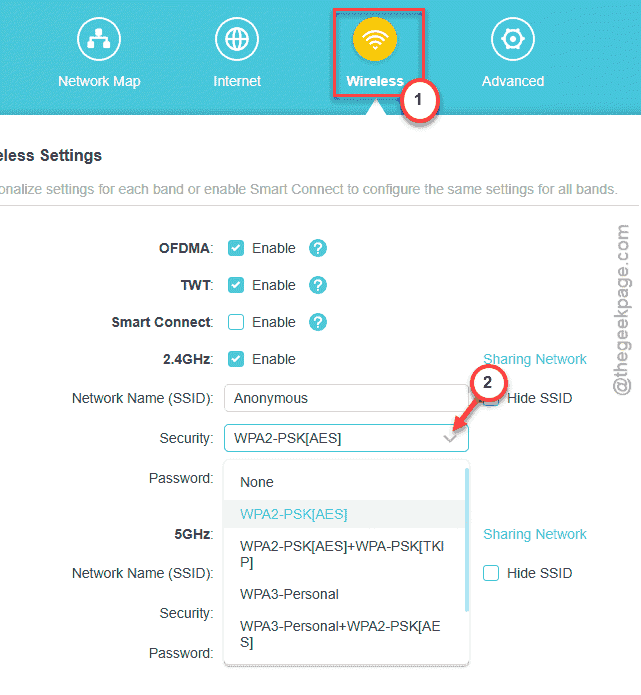
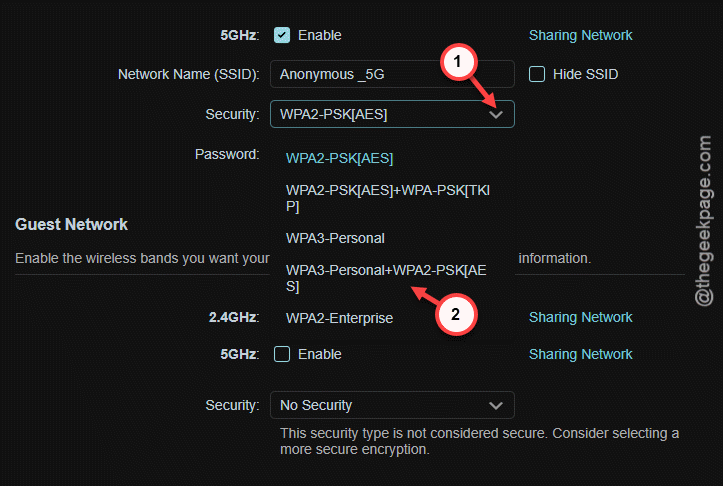
3 – Find the security or encryption option for your network.
4 – Switch it to the WPA3 (or WPA2/WPA3 mixed mode from the drop-down.
5 – Save and let the router restart.
Heads up: some older gadgets — printers, smart plugs, cheap IoT stuff — can’t do WPA3 and may drop off. If that’s a problem, run a separate 2.4 GHz network for them and keep 6 GHz on WPA3.
Fix 4 – Move Closer to the Router
Quick reality check. The 6 GHz band is fast but short-ranged — it fades through walls way faster than 5 GHz does. So if the network vanishes when you move to another room, you’ve just walked out of its reach. Try standing near the router and see if it reappears. If it does, that’s your answer, and a mesh node or a second Wi-Fi 7 unit closer to your workspace fixes it for good.
Fix 5 – Reset the Device’s Network Settings
Last resort, but it clears stubborn leftover profiles that block a first-time 6 GHz connection.
1 – Press Windows + I, go to Network & internet.
2 – Next, proceed to the Advanced network settings section.
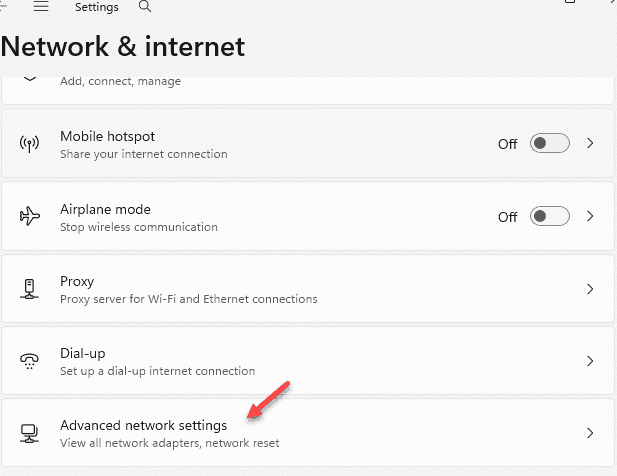
3 – Get to the Network reset zone, and click Reset now.
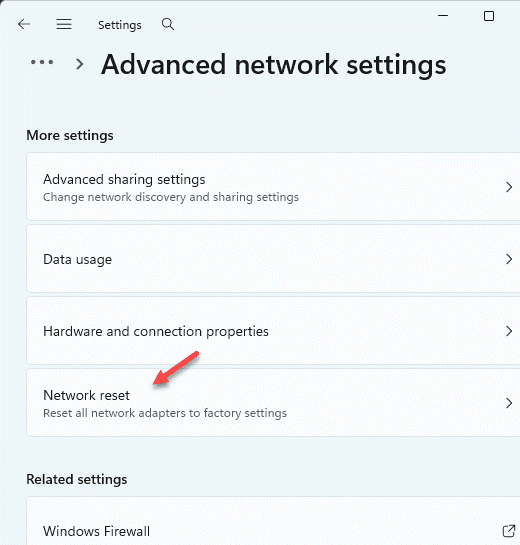
This wipes all saved networks and reinstalls your adapters, so you’ll reconnect to everything fresh. Then look for the Wi-Fi 7 network and rejoin it. It often shows up right after.
How to Prevent This
– Don’t forget to get the latest version of Wi-Fi 7 driver.
– Run your 6 GHz network on WPA3 and put old WPA2-only gadgets on a separate band. Mixing them is what drops devices.
– Set the correct region on both router and PC. Wrong region means the band legally can’t appear.