Facing screen flickering issues on your iPhone at low brightness? This should not be categorized as an iOS 26-specific issue, as LED displays can sometimes flicker at low brightness due to Pulse Width Modulation (PWM) dimming. Disabling the PWM Dimming feature in the iPhone Settings should resolve the issue on your iPhone. But, if that does not solve the screen flickering issue, here are some useful fixes to fix the problem.
Fix 1 – Disable the Pulse Width Modulation feature
There is the toggle to disable the PWM feature that stops high-speed pulsing that is causing the screen to flicker at the low brightness level.
[NOTE – This feature is only available on iPhone 17 and later models.]
Step 1 – Open the Accessibility settings in iPhone. Open the Display & Text Size tab.
Step 2 – Find the Disable PWM (Pulse Width Modulation) toggle and turn it ON.
After enabling the PWM dimming feature, the iPhone’s screen won’t flicker at low brightness anymore.
Fix 2 – Turn OFF Auto Brightness and True Tone
The display features, such as Auto Brightness and True Tone can cause the
Step 1 – In the iPhone Settings, open the Display & Brightness tab.
Step 2 – Turn the True Tone feature OFF.
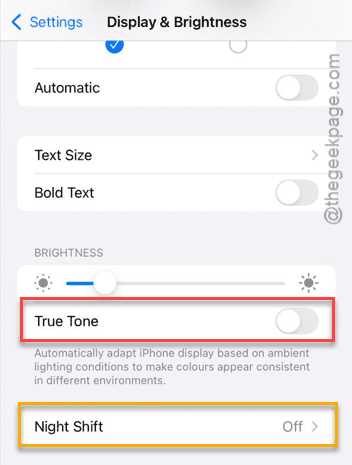
Step 3 – Next, go this way –
Accessibility > Display & Text Size
Step 4 – Turn OFF the Auto Brightness feature.
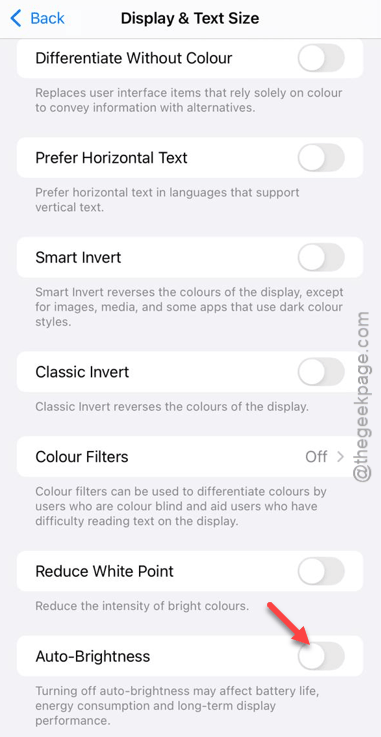
Now, set the iPhone’s display to the least possible scale and check whether the display is still flickering or not.
Fix 3 – Adjust the Reduce White Point Feature
The iPhone’s display may flicker if the Reduce Motion feature is active in the iPhone settings.
Step 1 – Load up the Accessibility settings in the iPhone Settings.
Step 2 – Open the Display & Text Size panel. Toggle the Reduce White Point to OFF mode.
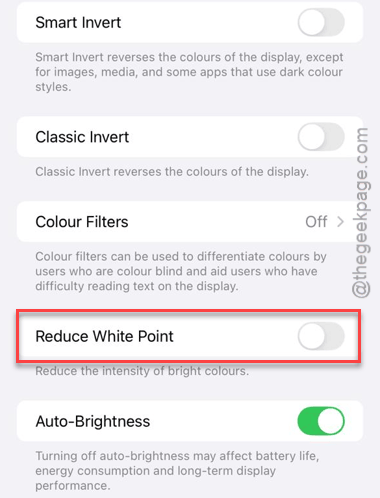
This way, your iPhone’s screen will not flicker even at low brightness.
If you indeed need to enable the white point limiter feature, do not reduce the iPhone’s display below the 25% mark, which can sometimes cause the screen to flicker.
Fix 4 – Enable the Reduce Transparency Feature
The iOS 26’s transparent UI elements can sometimes cause the display to flicker at low brightness. Enabling the Reduce Transparency feature should resolve the issue.
Step 1 – Open up the Accessibility settings in the iPhone Settings.
Step 2 – Load up the Display & Text Size settings.
Step 3 – Then, set the Reduce Transparency setting to ON.
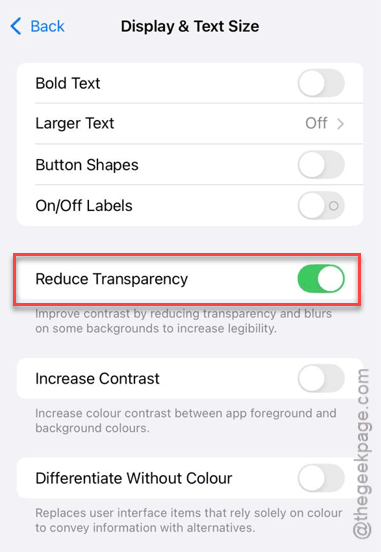
Check whether the iPhone’s display is still flickering or not.
Fix 5 – Reset the Display Zoom toggle
The last resort to fix this flickering problem on your iPhone is to refresh the display zoom level.
Step 1 – Proceed to the Display & Brightness settings.
Step 2 – Next, open up the Display Zoom settings.
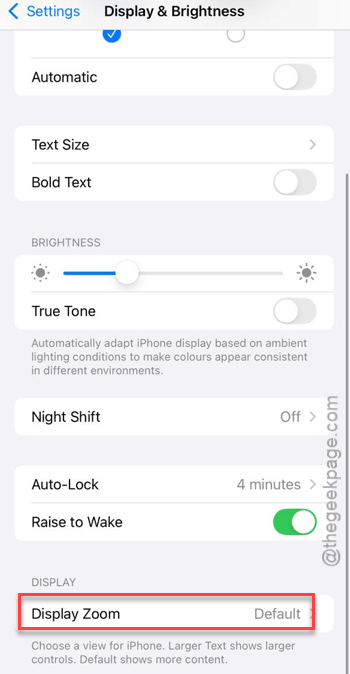
Step 3 – Change the Display Zoom to Larger Text mode. Then, revert it to Default mode.
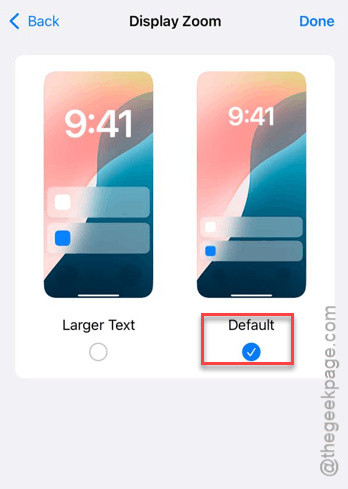
This simple refresh should fix the flickering problem that you are experiencing on the iPhone.