The crackling that you are getting from your headphone might feels like a dying headset. It almost never is. It does work with your phone or other device quite well. So the hardware is okay. Windows is the problem. You should follow these instructions to solve this problem at your end.
What’s Actually Going On
Windows keeps flipping your headset into the hands-free profile whenever an app touches the microphoneThat profile was built for phone calls, not music. Everything goes muddy.
Why does it get worse the second a game loads? Timing. A known bug in recent builds makes the audio stream pop and stutter every time your graphics card spikes. Not ideal.
The annoying part? Each cause has its own fix. You may need two or three of them.
Fix 1 – Disable Intel Smart Sound for Bluetooth Audio
If you have an Intel laptop, start here. This driver sits between your headset and Windows and squashes the audio for no good reason. So turn it off. Nothing breaks (Windows falls back to its own Bluetooth audio driver).
1 – Right-click the Start button and choose Device Manager.
2 – Double-click Sound, video and game controllers to expand it.
3 – Find Intel Smart Sound Technology for Bluetooth Audio in the list. On some headsets it shows up as Hands-Free Telephony instead.
4 – Right-click it and choose Disable device.
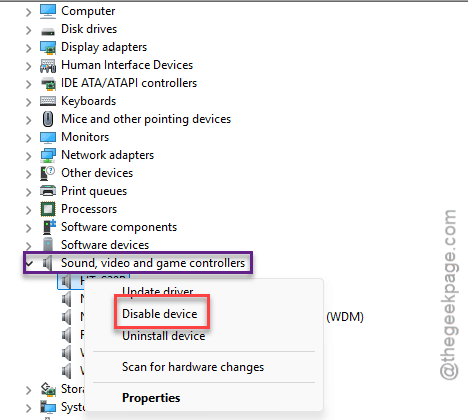
5 – Click Yes on the warning.
6 – Restart your PC and reconnect the headset.
Fix 2 – Turn Off Hands-Free Telephony for the Headset
Bluetooth headsets have two personalities. One is A2DP, the high-quality stereo profile. The other is HFP, the hands-free profile with a mic. And Windows loves to jump to HFP the moment any app asks for your microphone.
Unchecking the hands-free service locks the headset into the good profile.
1 – Press Windows + I to open Settings.
2 – Click Bluetooth & devices in the left sidebar.
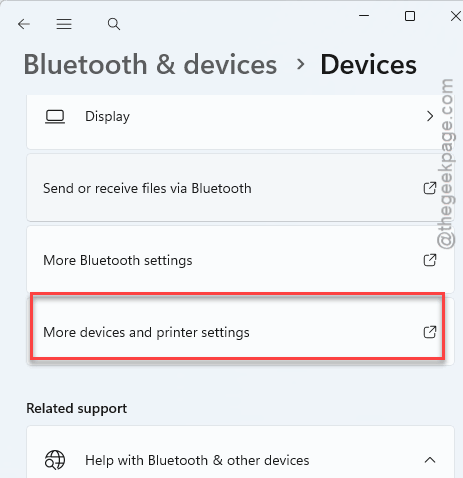
3 – Click Devices.
4 – Scroll to the bottom and click More devices and printer settings. This opens the old Control Panel window.
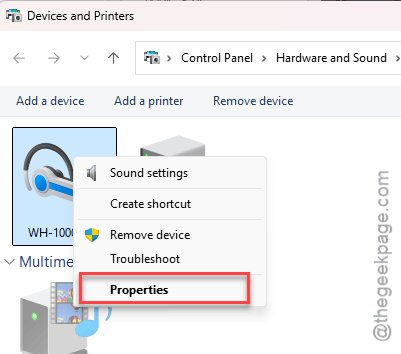
5 – Right-click your headset and choose Properties.
6 – Click the Services tab.
7 – Uncheck Handsfree Telephony (some builds call it Hands-free phone service). If you see Remote controllable device, uncheck that too.
8 – Click OK.
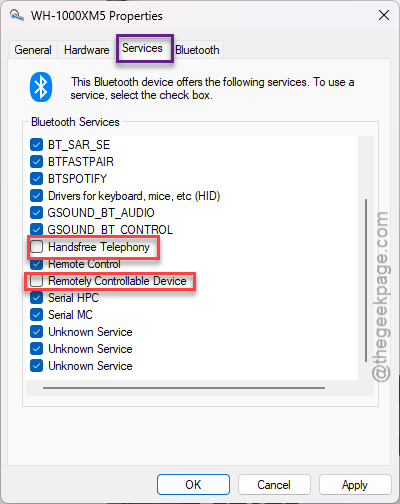
One catch. With this off, the headset’s built-in mic stops working in Windows. Fine if you use a separate mic or your laptop’s own. But if the headset mic is your only one, skip this fix and lean on the others.
Fix 3 – Disable the Bluetooth Audio Gateway Service
This background service routes call audio, and it routes it badly. Teams sessions in particular get sent down the wrong path. It’s been flaky for years, and for some reason it’s still on by default.
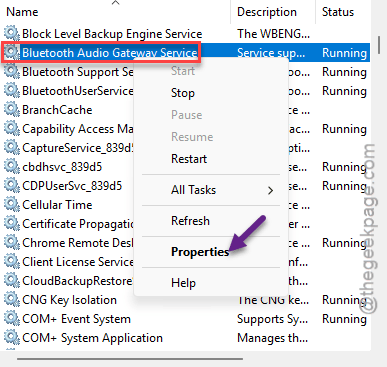
1 – Press Windows + R, type services.msc, and press Enter. The Services window has an icon that looks like two gears.
2 – Scroll down to Bluetooth Audio Gateway Service. The list is alphabetical, so it’s near the top.
3 – Right-click it and choose Properties.
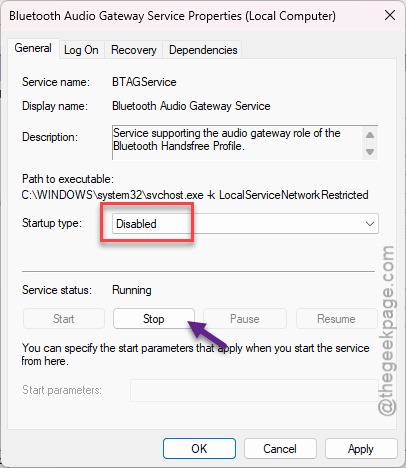
4 – Change Startup type to Disabled.
5 – Click Stop, then OK.
6 – Restart your PC.
Check if this works.
Fix 4 – Stop Apps From Taking Exclusive Control
Quick one. Some apps grab the whole audio device for themselves and shove everything else out of the way.
1 – At first, right-click the speaker icon in the bottom right corner of the taskbar.
2 – Open the Sound settings.
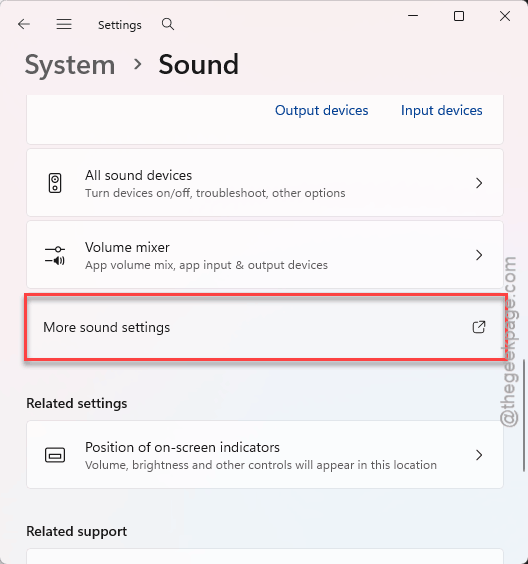
3 – Go to the More sound settings.
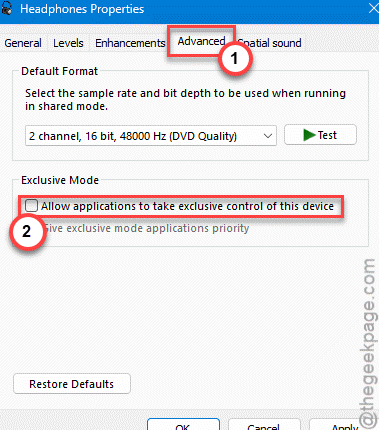
4 – Then, go to the Playback tab and find the heapdhone you are using. Right-click that and tap Properties.
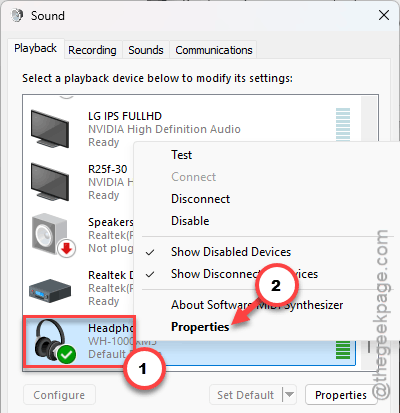
5 – Open the Advanced tab. Finally, uncheck the Allow applications to take exclusive control of this device feature.
6 – Click Apply.
No restart needed.
Fix 5 – Turn Off the AAC Codec in the Registry
This is the one that fixes the rhythmic stutter. It forces Windows back to SBC, the older codec that every headset on earth supports. Slightly lower quality on paper. But you will not hear the difference, and the stutter goes away.
Registry edits scare people, and fair enough. But this one is a single new value.
1 – Press Windows + R, type regedit, and press Enter.
2 – Click Yes if Windows asks for permission.
3 – Click the address bar at the top, paste this path, and press Enter:
HKEY_LOCAL_MACHINE\SYSTEM\CurrentControlSet\Services\BthA2dp\Parameters
4 – Then, right-click an empty spot in the right-hand pane.
5 – Choose New, then DWORD (32-bit) Value.
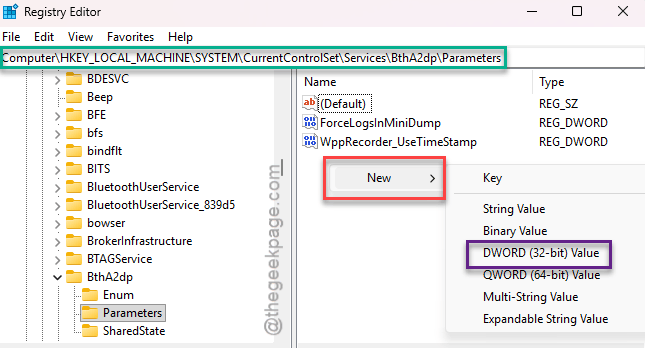
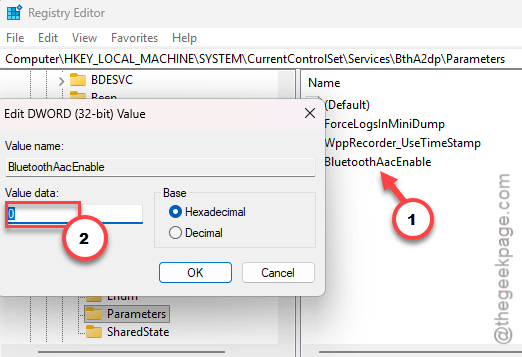
6 – Name it BluetoothAacEnable and press Enter.
7 – Double-click it and make sure Value data says 0.
8 – Click OK and restart your PC.
Check if this works.
Fix 6 – Disable Hardware-Accelerated GPU Scheduling
Audio only breaks when a game or video is running? This is yours. GPU scheduling hands timing work to the graphics card, and in these builds that starves the Bluetooth stream for a few milliseconds at a time. You hear it as pops.
1 – At first, right-click an empty part of the desktop and choose Display settings.
2 – Scroll down and click Graphics under Related settings.
3 – Click Change default graphics settings.
4 – Switch Hardware-accelerated GPU scheduling to Off.
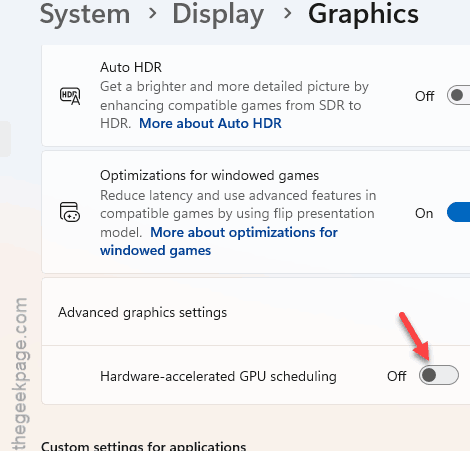
5 – Restart your PC.
Game performance barely moves with this off (a frame or two at most).
So It Doesn’t Happen Again
- After every big Windows update, check Device Manager. The Intel Smart Sound driver comes back. Every time.
- Use a separate mic if you can. The moment a headset mic gets used, Windows drops to the phone-call profile, and quality tanks.
- Skip the optional Bluetooth driver updates in Windows Update. Grab drivers from your laptop maker instead. Slower, but they actually get tested.
Quick Answers
How do I fix distorted audio in Windows 11?
Start with the Intel Smart Sound driver in Device Manager. Disable it, restart, and test. Still bad? Uncheck Handsfree Telephony in the headset’s properties so Windows stays on the high-quality stereo profile. Those two fixes clear up distortion for most people. GPU scheduling is the fix for pops during games.
Why does my Bluetooth audio sound distorted only during calls?
Because calls switch your headset to the hands-free profile. That profile carries mic audio and playback over one narrow channel, so everything sounds flat and muddy. Music apps use the stereo profile and sound fine. Turning off Handsfree Telephony stops the switch, but it also disables the headset’s mic.
Will disabling Handsfree Telephony break my microphone?
Yes, the headset’s own mic stops working in Windows. Playback stays perfect. If you need that mic for meetings, leave the service on and use the other fixes instead. Or plug in a cheap USB mic and keep the headset for listening only. Plenty of people run it that way.