You click play. The screen goes black. And it stays black. No error box. No crash report. Just a black rectangle where Valorant should be, and a cursor that still moves. Sometimes Alt + F4 gets you out. Sometimes you’re reaching for the power button.
Why This Happens
Riot changed how Vanguard works. It used to load with Windows and sit there all day. Now it starts on demand — only when you launch a game.
That sounds better. It mostly is. But loading an anti-cheat driver into a running system is a much fussier thing than loading it at boot, so Vanguard checks your PC first.
It wants Secure Boot on. TPM 2.0 on. Hardware virtualization on. If any of those checks fail, the handshake with the Windows kernel falls apart mid-launch. And instead of telling you which one failed, the game just hands you a black screen.
Then there’s the other side of it. Vanguard leans on a Windows feature called Memory Integrity — the thing that stops unverified drivers running in the kernel. Great in theory. But if you have an old graphics driver or a flaky power management driver installed, Memory Integrity refuses to let it load, and now the black screen happens before you even reach the desktop.
So the same setting is both the fix and the cause. Depends which black screen you have. Read Fix 2 and Fix 3 carefully before changing anything.
Fix 1 – Turn On What Vanguard Requires in the BIOS
This is where most black screens come from. The BIOS is the settings menu built into your motherboard, and you reach it before Windows loads. Riot’s own support pages list these four as requirements.
Names differ between motherboard brands. Don’t panic if yours reads slightly differently — the words in brackets are the alternatives you’re likely to see.
1 – Restart your PC.
2 – As it powers back on, tap the Delete key repeatedly. On some machines it’s F2 instead. The BIOS menu appears.
3 – Look for Secure Boot and set it to Enabled. It’s usually under a Boot or Security tab.
4 – Find TPM 2.0 and set it to Enabled. Intel boards call this PTT. AMD boards call it fTPM.
5 – Find Virtualization and enable it. Intel calls it Intel Virtualization Technology or VT-x. AMD calls it SVM Mode.
6 – Find IOMMU and enable it. On Intel boards this is VT-d.
7 – Find CSM — that’s Compatibility Support Module — and set it to Disabled. Secure Boot won’t turn on while CSM is running.
8 – Press F10 to save and exit. Your PC restarts on its own.
One warning worth reading twice. If your drive is encrypted with BitLocker, changing Secure Boot or TPM settings can lock you out on the next boot. Grab your recovery key from account.microsoft.com/devices first. Takes two minutes and saves you an evening.
Fix 2 – Switch On Memory Integrity
1 – Press the Windows key and type Device Security, then press Enter.
2 – Click Core isolation details under the Core isolation heading.
3 – Turn the Memory integrity toggle to On.
4 – Turn on Microsoft Vulnerable Driver Blocklist too, just below it.
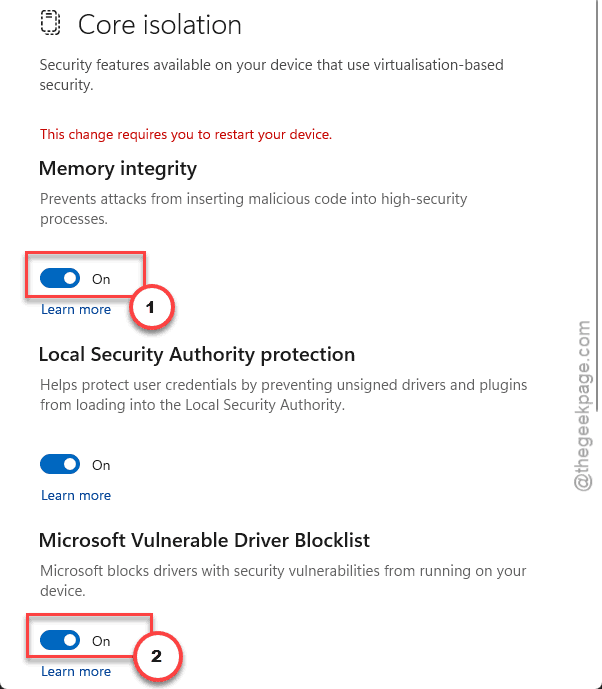
5 – Restart your computer.
Windows may refuse and say an incompatible driver is installed. It names the driver. That’s not a failure — that’s the most useful message you’ll get all day, because that driver is almost certainly what’s breaking your launch. Update it or remove it, then try again.
Fix 3 – Delete Valorant’s Display Config
Sometimes Vanguard is innocent. Try deleting the display configuration.
1 – Press Windows + R, type %localappdata%, and press Enter.
2 – Open the VALORANT folder.
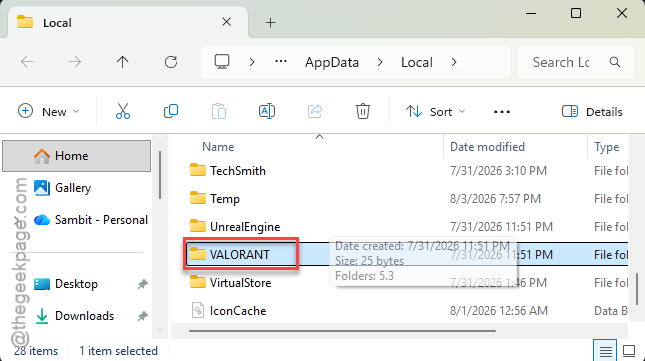
3 – Open Saved, then open Config.
4 – Inside, you’ll see a folder with a long string of random letters and numbers as its name. That’s your hardware profile.
5 – Delete that folder.
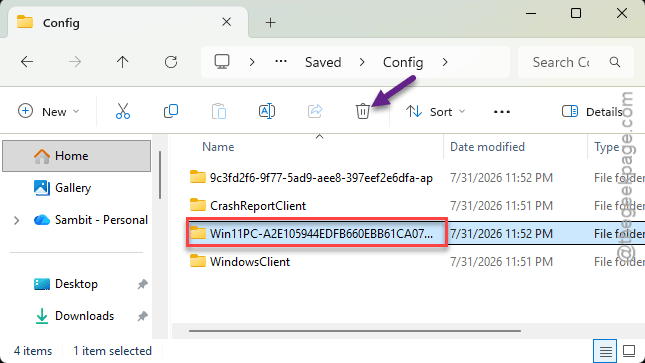
6 – Launch the game.
It rebuilds the config from scratch and picks a resolution your monitor actually supports. You’ll lose your keybinds and video settings. Small price.
Fix 4 – Rip Out the Old Vanguard and Start Fresh
Left-over pieces of the old always-on Vanguard block the new on-demand one from starting. Registry entries pointing at services that no longer exist. The launcher tries them anyway and hangs.
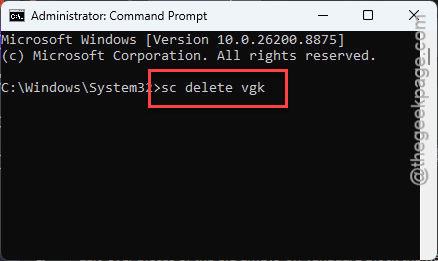
1 – Press the Windows key, type cmd, right-click Command Prompt, and choose Run as administrator.
2 – Type this and press Enter:
sc delete vgc
3 – Then type this and press Enter:
sc delete vgk
4 – Open File Explorer and go to C:\Program Files.
5 – Delete the Riot Vanguard folder.
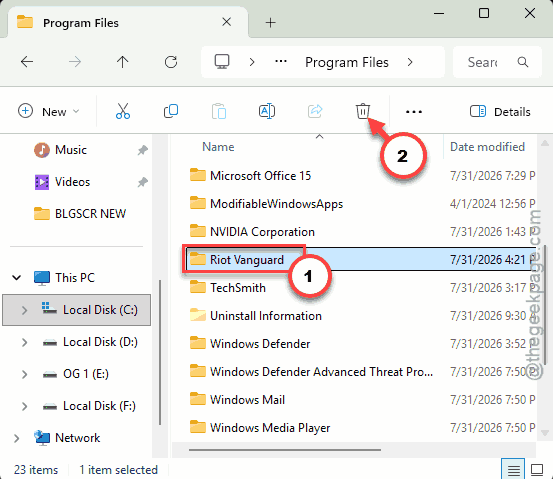
6 – Restart your PC. This one isn’t optional — the services stay in memory until you do.
7 – Open the Riot Client and let it reinstall Vanguard. It takes a few minutes and asks for another reboot at the end.
Fix 6 – Turn Off Virtual Machine Platform
Last resort, and only if nothing above worked.
1 – Press the Windows key, type Turn Windows features on or off, and press Enter.
2 – Untick Virtual Machine Platform.
3 – Click OK and restart.
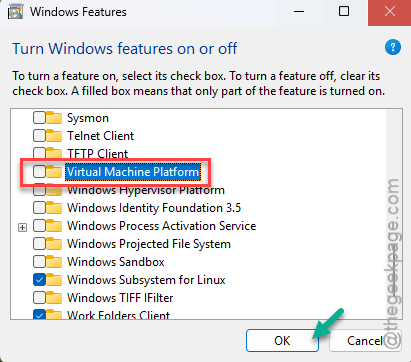
This drops Vanguard back to an older way of running. It also breaks WSL and Android app support, and Riot may eventually stop supporting it. Turn it back on once you’ve found the real culprit.
How to Prevent This
– Leave Secure Boot and TPM on permanently. Windows 11 wants them anyway, and so does every anti-cheat now.
– When Windows says a driver is blocking Memory Integrity, deal with it that day. Don’t dismiss the notification.
– Reboot when Vanguard asks you to. Skipping it is how you end up with half-loaded services and a black screen next Tuesday.
People Also Ask
How do I fix Windows 11 stuck on black screen?
Try Ctrl + Shift + B first — it restarts the graphics driver without touching anything else. No luck? Force the PC off three times during boot and Windows opens its recovery menu, where you can start Safe Mode and roll back whatever driver caused it. Bad graphics drivers cause most of these.
Does Vanguard cause black screen?
It can, yes. Vanguard’s on-demand mode checks for Secure Boot, TPM 2.0 and virtualization before it will load, and when a check fails it hangs instead of explaining itself. It also needs Memory Integrity, which conflicts with older drivers. Turn the BIOS settings on and the black screen usually goes away.
Why is Valorant showing a black screen?
Two likely reasons. Either Vanguard failed its security check at launch, or the game saved a resolution your monitor can’t display. Can you hear the menu music? Then it’s the resolution — delete the config folder in %localappdata%\VALORANT\Saved\Config. Silence points at Vanguard.