When you are trying to share some files across the iOS devices, Airdrop is always a no-brainer choice. But, sometimes your files can get stuck in the middle of the Airdrop process. If you are facing this problem on your devices, these solutions will be extremely helpful. This sharing problem is nothing new with the Airdrop system. But, solving this issue won’t take much.
Why the files are stuck in the Airdrop process?
Airdrop is not a simple file-transfer process. It requires certain features on both the sender and recipient devices to successfully share the files across them. Airdrop needs the Bluetooth and Wi-Fi access on the devices for it to complete the transfer. So, if the files are stuck while transferring them, you can point your finger to the unavailability of one of those essential features. Other than that, low battery mode can be another reason of the same failure.
Fix 1 – Turn on the flight mode
You have to enable and disable the flight mode on both the devices. This will reset the whole Airdrop system.
Step 1 – Load up the Settings on the sender device.
Step 2 – In that Settings page, find the “Airplane mode” to enable the Airplane mode.
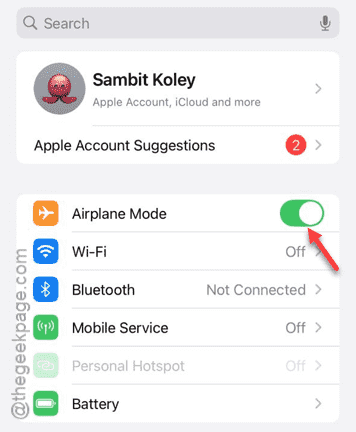
Leave the device alone for a few seconds.
Step 3 – After this, scroll down from the Control Center.
Step 4 – Tap the “Airplane mode” to disable it.
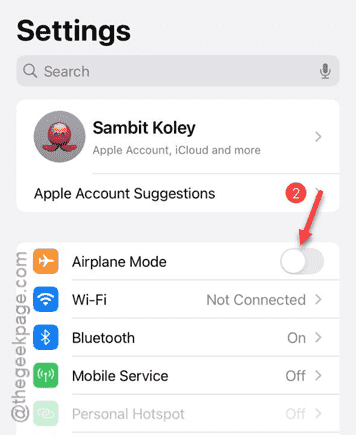
When the flight mode is deactivated, cellular networks or Wi-Fi connection shall be restored within a few seconds.
Step 5 – Now, you have to execute these same steps in the same sequential order on the recipient device as well.
Once the connection is restored, try to airdrop the same files. This time, the files won’t get stuck in the middle of the process.
TIP – If the airdrop sharing is failing while sharing too many files, you should share one or two files at a time.
Fix 2 – Reset the network settings
As the Airdrop directly relies on network connection, resetting the network settings may help you sort out this issue.
Step 1 – Visit the iPhone Settings.
Step 2 – Once you are there, tap to go to the “General” settings.
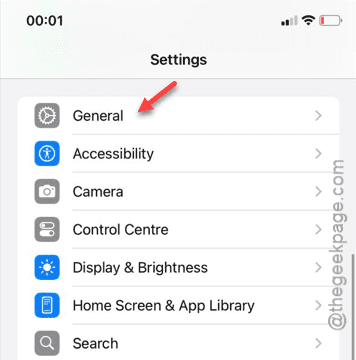
Step 3 – In that General settings page, you must go to the “Transfer or reset iPhone” module.
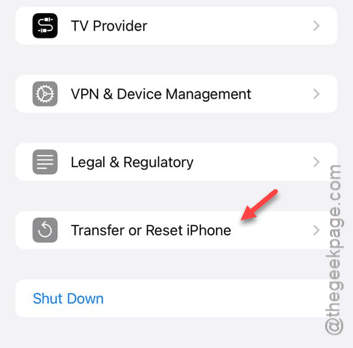
Step 4 – Find the “Reset” option and tap to open it.

Step 5 – Now, tap the “Reset Network Settings” option.
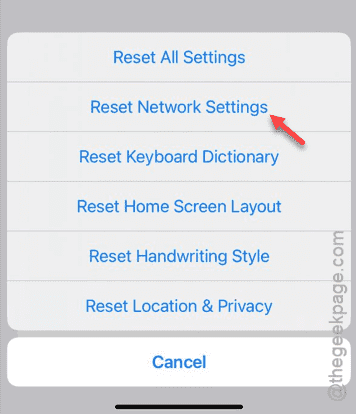
Step 6 – A prompt of network reset should appear on the screen. So, tap the “Reset network” option there.
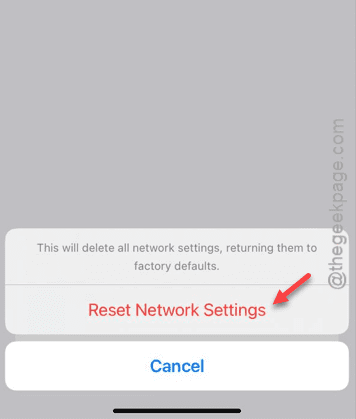
Your device will be restarted to remove all the saved up network settings data from the device.
Step 7 – After the device restarts, you have to reconnect to the Wi-Fi using the password.
Step 8 – You have to repeat the same steps on the other device where you are receiving the files.
When you have reconnected and ready, try airdropping some of the files once more. It won’t get stuck again. Check if this works out for you.
Fix 3 – Check the battery level
If you try to airdrop files while the battery power is low on any of the participating devices, it can get paused or stopped unexpectedly. If the battery level is too critical on any one of these devices, put it on charge and resume the airdrop process. If the ‘Power Saver’ or ‘Battery Saver’ mode is enabled, disable it as well.
This way, the battery level won’t affect the airdrop process anymore. Hope these have worked out for you!