Getting this “Your Account has been disabled” message in the App Store or on iTunes home page? When this message appears on the App Store front page, you can’t access it. This issue can be related to the account credential. Follow these fixes to solve the issue.
Why you can’t access the App Store?
The exact reason why this message appears may not be the same for all the affected users. But, as we have mentioned this before that the problem is linked with the Apple ID credentials. You can’t use iTunes or App Store without an Apple ID. The existing password for your account can lead to this problem. So, you should change your account password and retry this.
Fix 1 – Change the Account password
The most prominent solution in this case is to change the account password for the Apple ID.
Step 1 – You should begin by going to the Settings window.
Step 2 – Next, you must go to the Apple ID information page. So, tap the Apple ID to access it.
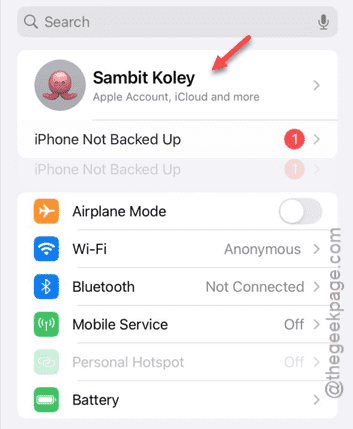
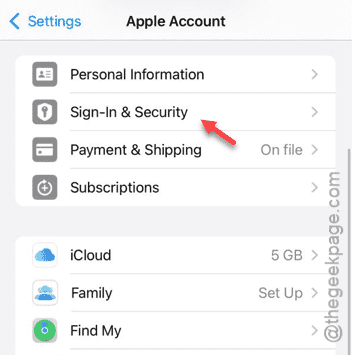
Step 3 – Within that page, go to the “Sign-in & Security” settings.
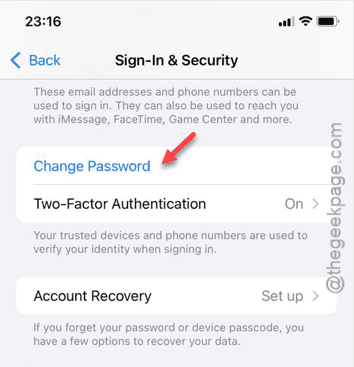
Step 4 – Now, tap the “Change Password” option to start the password changing process.
Step 5 – Now, before you can change the account password, your access will be verified using Face ID.
Step 6 – Now, on the following page, type the new account password.
Step 7 – Re-type the same password in the following box. Save these changes.
Step 8 – Tap “Change” to change the password.
Once you have set up the new password for your account, you can return to the App Store or iTunes app.
Use the new password to log in to your account. See whether you can log in or not.
Fix 2 – Use the Apple Support
If resetting the account password doesn’t help, you can get in touch with the Apple Support to get some assistance.
Step 1 – Start by opening up a browser. Like, Safari or Chrome, open any of those.
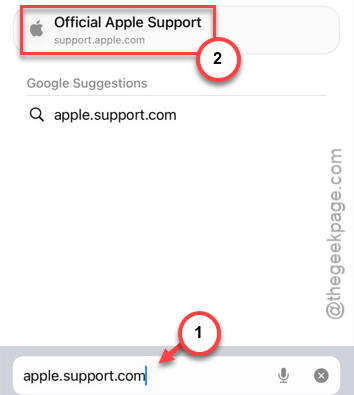
Step 2 – Next, type this and go to the Apple Support page.
support.apple.com
Step 3 – This page contains lots of information. So, go down to ‘Search for more topics‘ to find a search box.
Now, we have to use this search box to find what we are looking for.
Step 4 – Type something like “apple ID is disabled” option and perform the search.
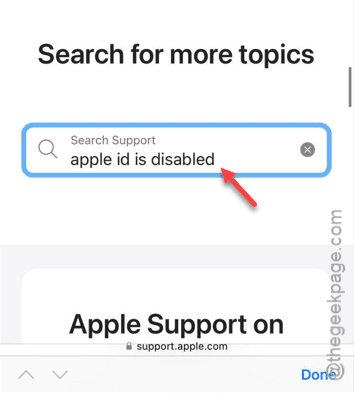
Step 5 – Find the “If your account has been disabled in the App Store and iTunes Store” template.
Step 6 – Tap the “Contact Apple Support” hyperlinked button there to reach the Apple Support directly.
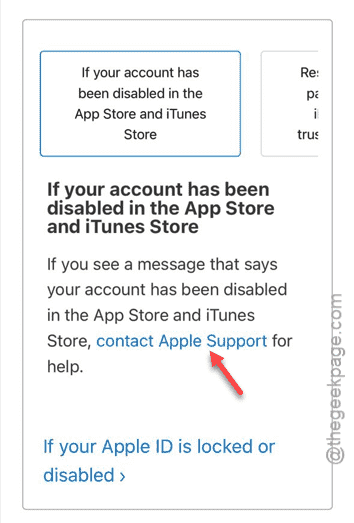
Now, follow the on-screen steps, and you will get to the ‘Get Support’ page.
Step 7 – Find this template –
You can request account activation by providing more information
Step 8 – Tap “Get Started“.
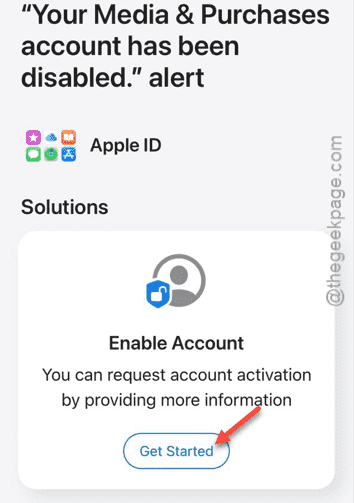
This will guide you through the entire process and you can get the