Can’t find some of the synced contacts on your iPhone? Generally, the contacts on other devices does get synced in through the iCloud. So, if some of the contacts are missing, these set of solutions should be helpful. Start from the basic solution and later, implement the main solutions if the first one doesn’t help.
Why some of the contacts are missing from iCloud?
The main reason why you can’t view or access some of the accounts because the accounts need to get synced via iCloud. A certain change in the iCloud settings can lead to this issue in the iPhone. Follow these solutions to fix it.
Fix 1 – Disable and re-enable the Contacts
You can take control of the synchronization of contact settings directly from the main iCloud settings page.
Step 1 – Start the troubleshooting process by going to the iPhone Settings.
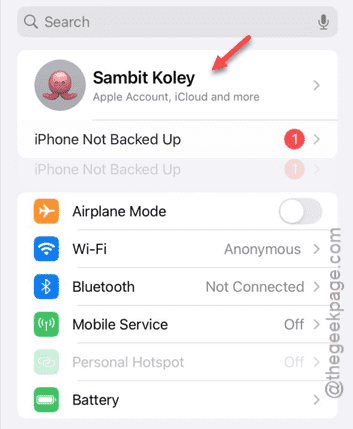
Step 2 – At the top of the Settings page, you will find your Apple ID banner. Tap that once.
Step 3 – Once that banner opens up, open up the “iCloud” option.
This shall lead you to the iCloud Settings page.
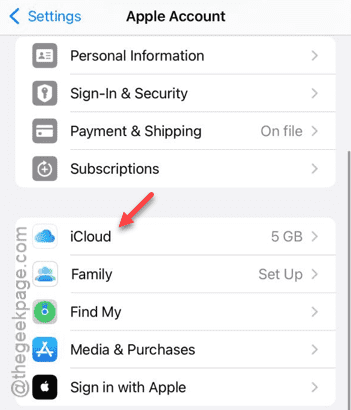
The iCloud Settings page has many options, and you can control several iCloud features from this page.
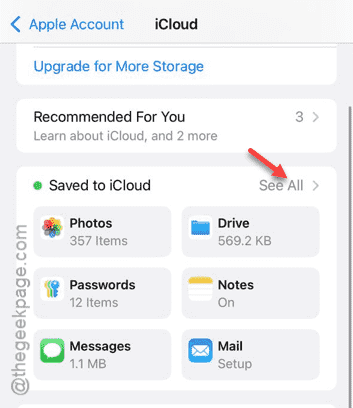
Step 4 – Go to the ‘Saved to iCloud’ page and tap the “See All” option to open up the complete list of apps.
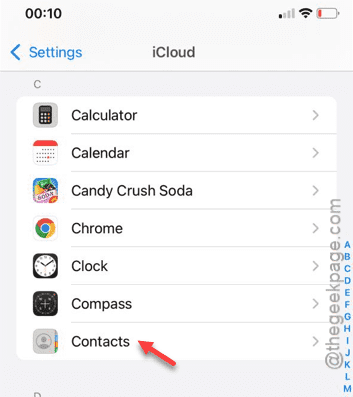
Step 5 – Now, we have to find the “Contacts” option in that list. If that is disabled, you must enable it at once.
Step 6 – If the Contacts option is already enabled, just disable the Contacts option and re-enable the same again.
Step 7 – If iPhone shows up the ‘Existing Local Contacts‘ message, tap the “Merge” option.
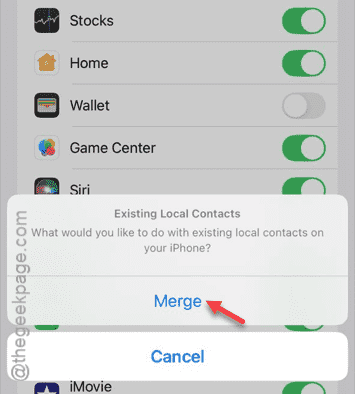
Once you have enabled the Contacts in this page, iCloud should start the contact syncing feature automatically.
Go back to the Contacts page or open up the Dialer and see whether you can dial up those numbers or not.
Fix 2 – Set the Default Account source
Your iPhone can synchronize the contacts from only one source at a time. Try setting this ‘Default Account’ modifier to iCloud.
Step 1 – You can do this only from the Settings page. Go to the Settings tab.
Step 2 – On that next page, open up the “Apps” tab.
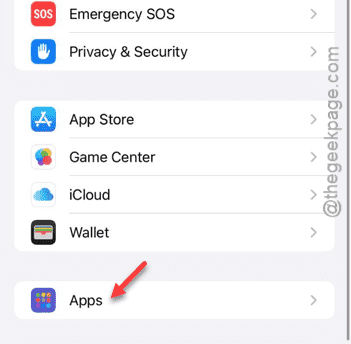
Step 3 – Next, find the “Contacts” app and open it up from there.
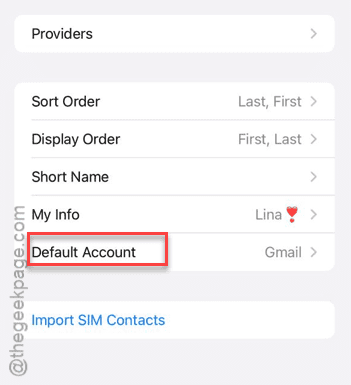
Step 4 – After opening the Contacts app, scroll down and open up the “Default Account” menu.
Step 5 – Set this to the “iCloud” option.
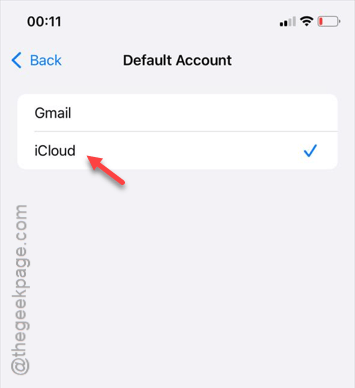
Give this a few seconds or a minute. All the accounts will get synced into the device. Check if this works.
[NOTE – If you are using the Gmail accounts to get those contacts, you can select the ‘Gmail’ account option to get those synced it.]