Can’t find the GIF button, or the GIFs are showing up as static on your Microsoft Teams app client? Many users have pointed out several issues with the GIF button, wherein most of the cases the GIF button is simply missing from the Teams app. While some users have pointed out that the GIF button is showing up as grayed out. These are just different scenarios of the GIF button-related issues in Microsoft Teams. So, their resolutions are also different as well.
Quick Fix Table –
| Issue | Recommend Fix |
| GIF button is completely missing | Fix 1 – Turn On the Connected Experience |
| GIF button is grayed out | Consult IT Admin; change rating (Strict/Moderate) |
| GIFs are static; won’t play | Fix 4 – Turn on Windows Animations |
Fix 1 – Enable the Optional Connected Experiences feature
The GIFs in Microsoft Teams are provided as a third-party service, which can be accessed only when the Optional Connected Experiences are enabled.
Step 1 – Tap the ⋯ button next to the profile picture on the Teams client, and tap Settings.
Step 2 – Open the Privacy settings from the left-hand tab.
Step 3 – Next, find the Optional connected experience toggle and turn it ON.
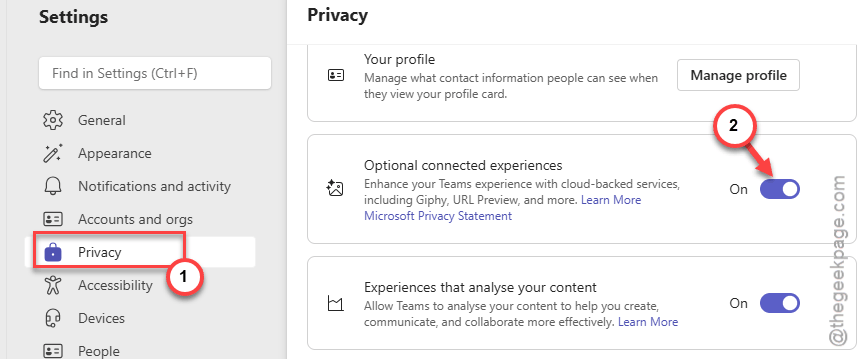
Step 4 – Restart the MS Teams client.
Once Microsoft Teams has restarted, the GIF button will be enabled and show up in the text panel.
Fix 2 – Ask the Admin to enable GIFs
If you are still not getting the GIF button in the Microsoft Teams app, you should consult your IT admin to enable the GIF for your account.
Step 1 – Go to the Teams Admin Center. Open up the Messaging Policies tab.
Step 2 – Then, open up the Global (Org-wide default) policy section.
Step 3 – Next, toggle the Giphy in conversations to OFF mode and tap Save.
Step 4 – Wait for 5 minutes or so. Then, toggle it back to ON mode. Save the changes.
The GIFs panel should show up correctly in the Teams client after implementing this change.
Fix 3 – Use the Windows GIF Picker workaround
Without relying upon the GIFs from Microsoft Teams, you should use the Windows GIF picker to implement the GIFs.
Step 1 – Open the Microsoft Teams app and open up the chat/ channel where you want to send a GIF message.
Step 2 – Then, don’t try to use the emoji/sticker button in the text panel.
Step 3 – Instead of that, press the Win+. shortcut (Cmd+Ctrl+Space on Mac) to open up the Emoji/GIF panel.
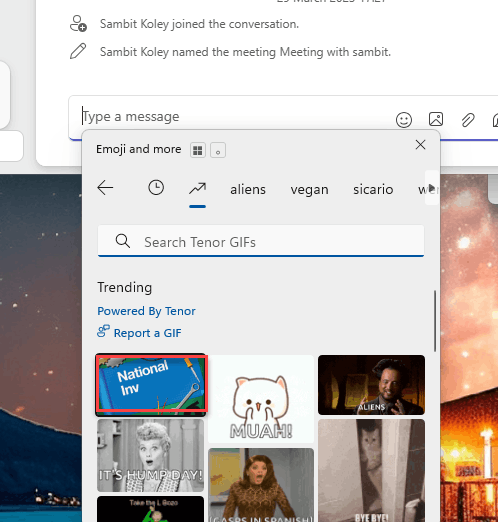
This way you can send GIFs without using the dedicated Teams GIF panel.
Fix 4 – Enable Windows Animation Effects
Sometimes, the previews of the GIFs table can get stuck due to animation glitch in Windows 11 devices.
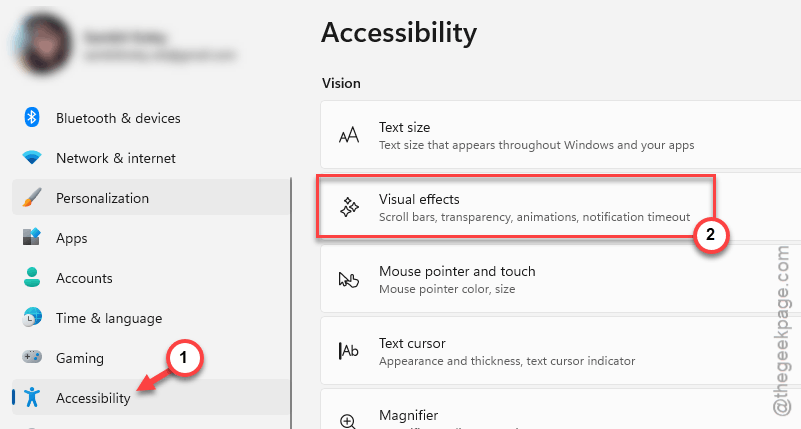
Step 1 – Load up the Windows Settings. Next, go to the Accessibility tab.
Step 2 – Open up the Visual Effects tab.
Step 3 – Turn ON the Animation Effects feature.
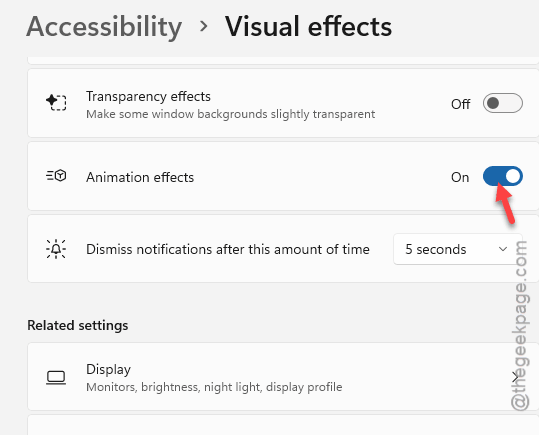
Try to use the GIFs again in Microsoft Teams app.
Fix 5 – Clear up Microsoft Teams Appdata (select folders only)
You should selectively clear up some of the Microsoft Teams appdata folder that can cause this issue with the GIFs in Teams app.
Step 1 – Hit the Win+R buttons together.
Step 2 – Paste this Teams address and hit Enter to proceed there.
%localappdata%\Packages\MSTeams_8wekyb3d8bbwe\LocalCache\Microsoft\MSTeams
Step 3 – Once you reach there, remove these folders.
Cache
Local Storage
blob_storage
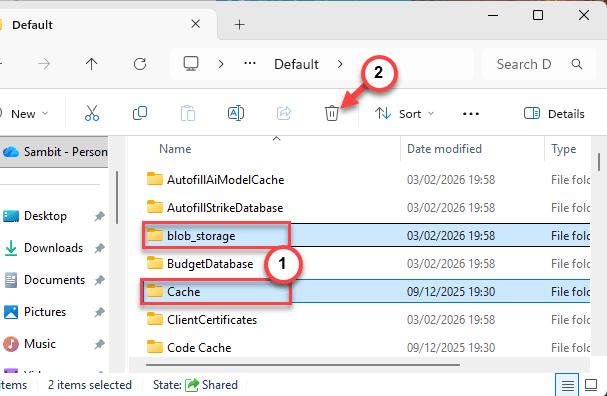
Relaunch the Teams client, and try to use the GIFs again.