Another Xbox app update, another input bug. This time every button press lands twice. Jump becomes double jump. Menu picks skip right past what you wanted. And on top of that there’s a fat half-second of lag between your thumb and the screen. Cloud gaming was already a compromise. Now it’s a fight.
Why This Happens
Two separate bugs, and they gang up on you.
The double presses come from GameInput, the Windows service that reads your controller. A bug in the current Xbox app spawns a second copy of it. Two services, one controller, every press counted twice. And Steam makes it worse. Its controller mapper runs in the background even when Steam is minimized, and it feeds the Xbox app a second stream of the same inputs. Ghost controllers left behind in Device Manager? Same result.
The lag is a different story. The Xbox app’s video decoding is slower than a browser’s, weirdly. And on some networks the app trips over the switch between IPv4 and IPv6 (two addressing systems your connection can use), which desyncs the video from your inputs. You press, the server hears it, the picture catches up later.
Why hasn’t Microsoft merged the two fixes into one patch? Beats me. So here are seven things that work today.
Fix 1 – Kill the Duplicate GameInput Service
Fastest test for the double-press bug. If you find two copies, you’ve found your problem.
1 – Press Ctrl + Shift + Esc to open Task Manager.
2 – Click the Details tab. On the new Task Manager it’s in the left sidebar.
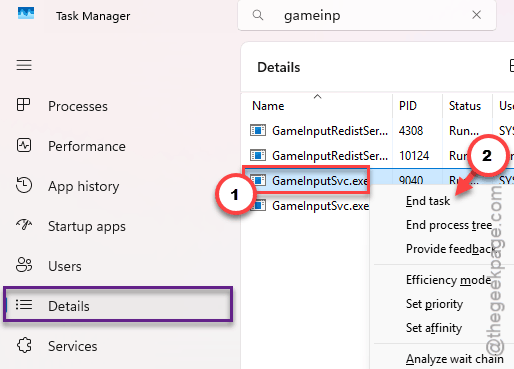
3 – Scroll down to GameInputSvc.exe. The list is alphabetical.
4 – Look for more than one entry with that name.
5 – Right-click each extra copy and choose End task. Leave one running.
6 – Go back to the Xbox app and test a game.
The duplicate usually comes back after a reboot. Annoying, but Fix 2 deals with that for good.
Fix 2 – Reinstall Microsoft GameInput
Wiping the input service and letting Windows pull a fresh copy is the real fix for Fix 1’s problem. It sounds drastic. But it isn’t. Windows reinstalls it on its own after the restart, so you’re not stuck without a controller.
1 – Press Windows + R keys together.
2 – Then, input this line and click OK.
appwiz.cpl
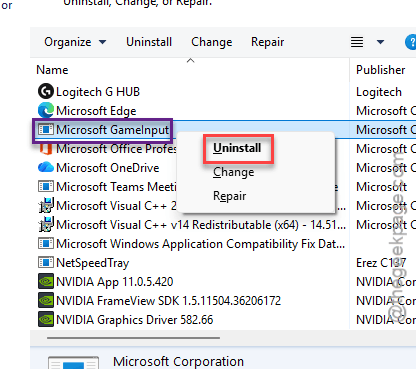
3 – Look for the “Microsoft GameInput” app in the search box at the top.
4 – Right-click it and, tap and choose Uninstall.
6 – Restart your PC.
Give Windows a minute after the desktop appears. The reinstall happens quietly in the background. Then open the Xbox app and check that the controller still works before you launch anything.
Fix 3 – Get Steam Out of the Way
Steam Input is a great feature for Steam games. But it hooks every Xbox controller on the system, not just the ones in Steam games, and the Xbox app ends up with two copies of every press. Three ways to stop it. So pick whichever fits how you use Steam.
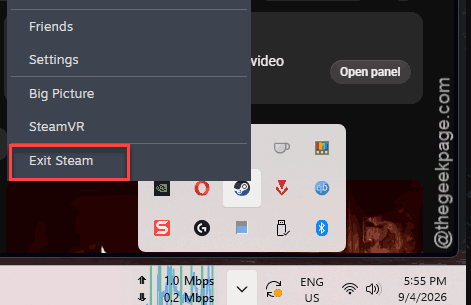
The quick way: right-click the Steam icon in the system tray (bottom right corner of the taskbar, behind the little up arrow) and choose Exit Steam. Done until you open it again.
The permanent way:
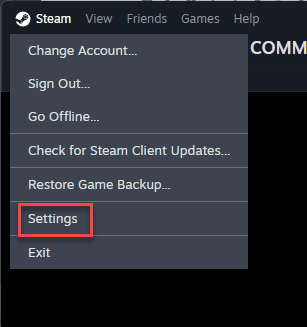
1 – Open Steam and click Steam in the top left corner, then Settings.
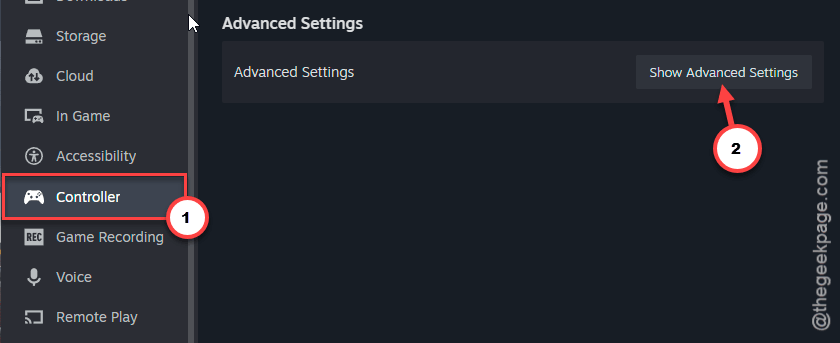
2 – Click Controller in the left sidebar. On the right-hand side, tap the Show Advanced Settings.
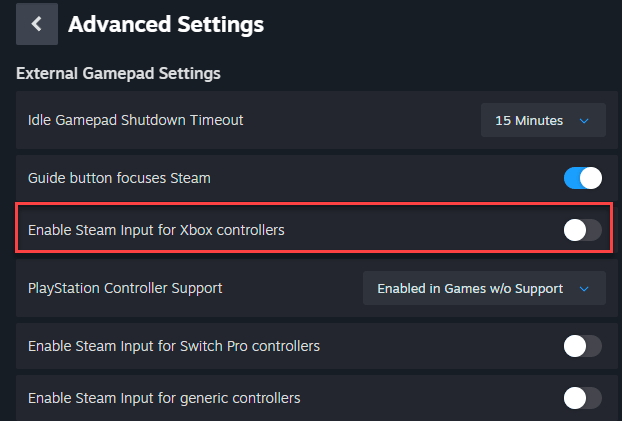
3 – Turn off Enable Steam Input for Xbox controllers.
4 – Close the Settings window.
The middle way, if you want Steam Input for Steam games but not on the desktop:
1 – On that same Controller page,
2 – Find Desktop Layout, click Edit.
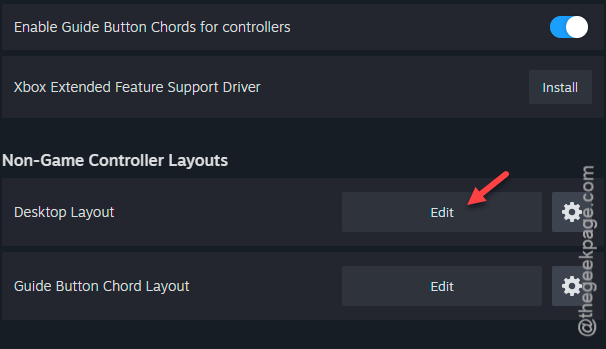
Clear the mapping so nothing is bound. Steam then stops sending inputs when you’re outside a Steam game.
Fix 4 – Remove Ghost Controllers From Device Manager
Every controller you’ve ever plugged in leaves a hidden entry behind. And Windows sometimes reads two of those entries at once for one physical controller. Cleaning them out takes two minutes.
1 – Right-click the Start button and choose Device Manager.
2 – Click View at the top and choose Show hidden devices.
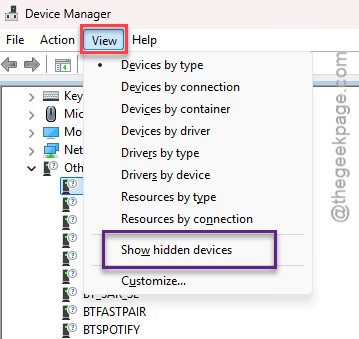
3 – Expand Xbox 360 Peripherals. If it isn’t there, expand Human Interface Devices instead.
4 – Look for grayed-out controller entries, or two entries with the same name.
5 – Right-click each faded or duplicate one and choose Uninstall device.
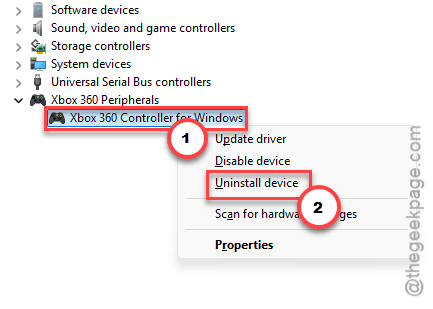
6 – Restart your PC, then plug the controller back in.
Only remove the faded ones. But a solid entry is the controller you’re using right now.
Fix 5 – Turn Off IPv6 on Your Network Adapter
This one is for the lag, not the double presses. Cloud Gaming handles the IPv4-to-IPv6 juggling badly on some connections, and the result is input desync plus blocky video. Forcing IPv4 skips the juggling entirely.
1 – Press Windows + R, type ncpa.cpl, and press Enter.
2 – Right-click the adapter you’re using (Ethernet or Wi-Fi, whichever has the solid green bars) and choose Properties.
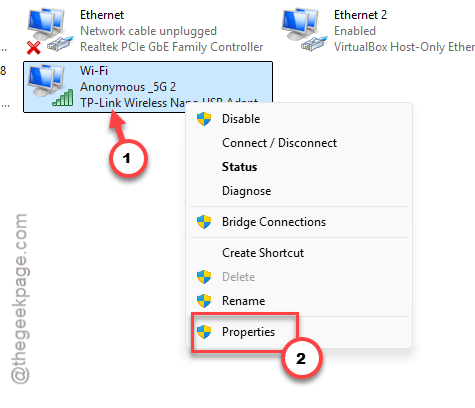
3 – In the list, uncheck Internet Protocol Version 6 (TCP/IPv6).
4 – Click OK.
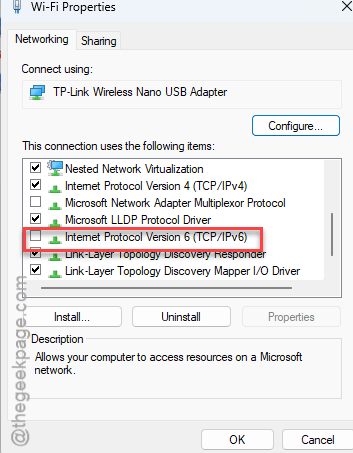
Your connection drops for a second while the adapter reloads. Normal. And nothing else on your PC will care (almost every website and service still runs fine on IPv4 alone).
Fix 6 – Trim the Cloud Gaming Settings
A handful of settings in the Xbox app add latency for no good reason. Off they go. This is the plain, boring part, but it adds up to a noticeable difference.
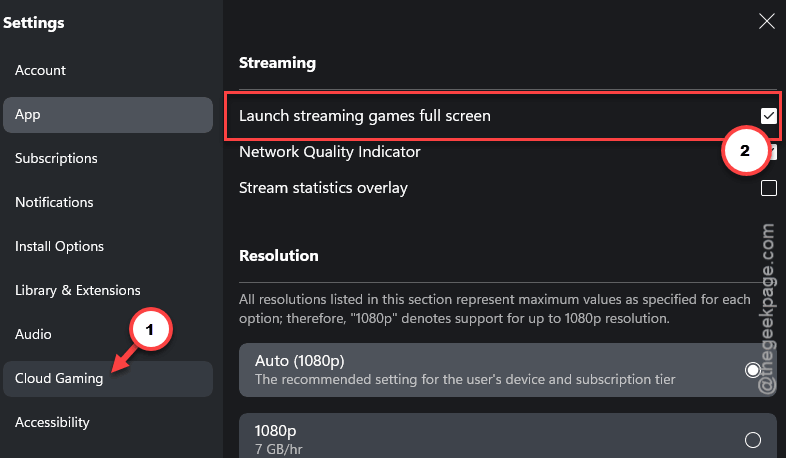
1 – Open the Xbox app and go to the Cloud Gaming section.
2 – Open the settings for Cloud Gaming and click Audio & Video.
3 – Turn on Launch streaming games full screen and turn off Clarity Boost.
4 – Click Accessibility and turn off High Contrast Mode.
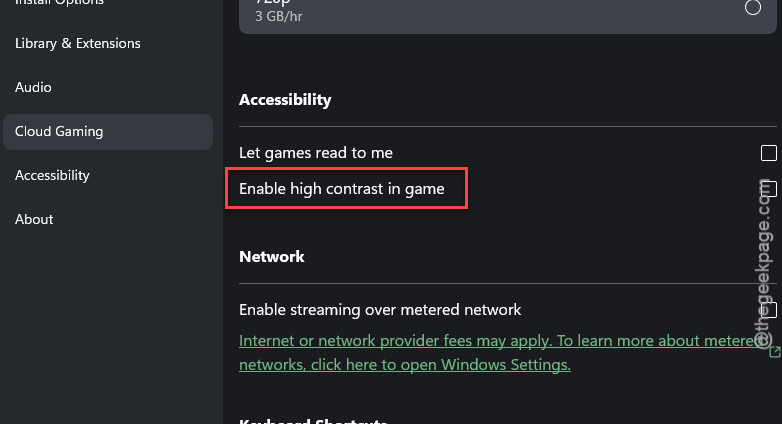
5 – Click Input and turn off Controller Rumble.
Rumble is the surprising one. Because every vibration is a message sent back to your controller, and polling for it eats into input timing. And Clarity Boost sharpens the picture but costs a few frames of delay. Not worth it for anything competitive.
In the game itself, turn off motion blur, any “UI parallax” option, and replay recording. Fortnite has all three under its video and game settings. Each one shaves a little off the delay.
Fix 7 – Play in Edge Instead of the App
Still laggy or still doubling? Skip the app. The browser version of Cloud Gaming uses a different, faster video decoder, and it reads your controller through the browser rather than through GameInput. Both bugs vanish at once.
1 – Close the Xbox app completely.
2 – Open Microsoft Edge (Chrome works too, but Edge tends to be smoother here).
3 – Go to Xbox Play and sign in with your Game Pass account.
4 – Connect your controller, then launch a game from the page.
Press F11 for full screen. And honestly? A lot of people find the browser version better than the app even when the app is working. Microsoft’s own docs list it as a fully supported way to play, so you’re not losing anything.
How to Prevent This
- Exit Steam before cloud sessions. One click. Saves a lot of double-jumping.
- After every Xbox app update, glance at Task Manager for a second GameInput service. It comes back more often than it should.
- Keep Clarity Boost and rumble off. Pretty pictures and buzzing hands aren’t worth the delay.
- Use a wired connection for cloud play. Wi-Fi adds jitter, and jitter feels exactly like input lag.
People Also Ask
How do I fix input delay on Xbox Cloud Gaming?
Turn off Clarity Boost, controller rumble, and high contrast mode in the app’s Cloud Gaming settings, and launch games in full screen. Disable IPv6 on your network adapter if the lag comes with blocky video. Still slow? Play through Edge at xbox.com/play instead. Its video decoder is faster than the app’s.
Why is Xbox Cloud Gaming delayed?
Some delay is built in, since the game runs on a server and streams to you. But the Xbox app adds more on top through slow video decoding and extra features like Clarity Boost and rumble polling. A wired connection, trimmed settings, and the browser version bring it down to the point where most games feel fine.
How do I fix Xbox controller double input on PC?
Open Task Manager’s Details tab and end any extra copies of GameInputSvc.exe. Then exit Steam or turn off Steam Input for Xbox controllers, since Steam’s mapper duplicates presses. If it keeps happening, uninstall Microsoft GameInput from Installed apps and restart. Windows reinstalls a clean copy on its own.