Every seasonal patch of Once Human, it is the same circus. A big Once Human update lands, and suddenly it’s network anomaly errors, random disconnects in the middle of loot, characters vanishing from the server list,etc. The game blames your network. But, we both know that it’s almost never your network. Here’s what’s actually going on. The patch leaves old terrain assets rotting in a local cache, and the client chokes on them when you enter new zones. The servers fumble IPv6 handshakes whenever population spikes. Defender sometimes flags the new anti-cheat packets and quietly cuts the cord. And my personal favorite — sometimes the patch file isn’t even released to your region yet, so the game just fails and calls it a network error. You can easily fix this following these solutions.
Fix 1 – Delete the LoadingCache Folder
First stop after any seasonal patch. The new update conflicts with terrain files the old version downloaded, and that clash disconnects you right as you cross into new zones.
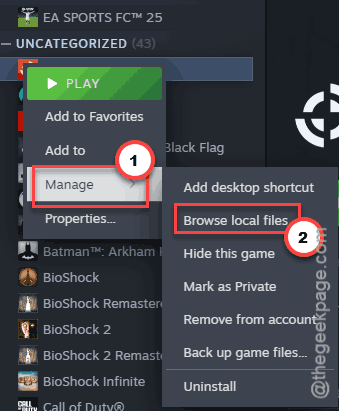
1 – Open your Steam Library and right-click Once Human.
2 – Select Manage, then Browse local files.
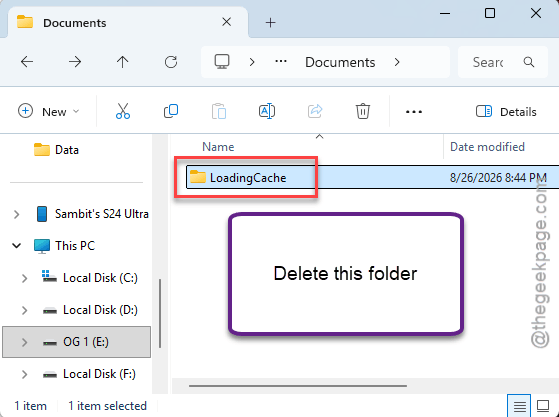
3 – Open the Documents folder inside the game directory.
4 – Delete the LoadingCache folder entirely.
The game rebuilds the cache with fresh, patch-matched files on the next launch. Loading runs a bit slower that first time. After that, normal.
Fix 2 – Flush and Renew Your DNS
Launcher stops downloading and drops your connection halfway? Stale routing data. Two commands clear it.
1 – Close the game launcher completely.
2 – Press Windows + R, type cmd, and press Enter.
3 – Type this code, and press Enter.
ipconfig /flushdns
4 – Type and press Enter.
ipconfig /renew
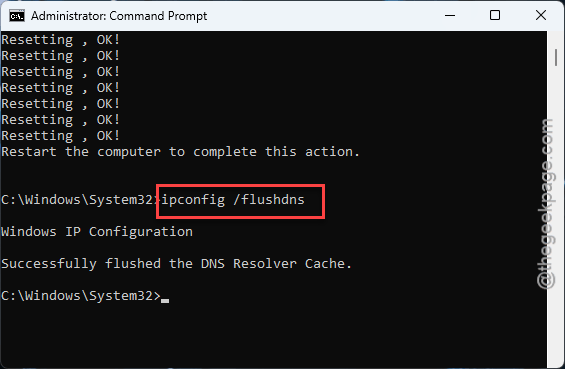
Your connection blinks out for a few seconds while Windows grabs a fresh IP. Don’t panic.
5 – Reopen the launcher and resume the download.
Fix 3 – Disable IPv6
The game’s server infrastructure and IPv6 do not get along, especially during high-population events. Every failed IPv6 handshake is another Network Anomaly on your screen. So take IPv6 out of the conversation.
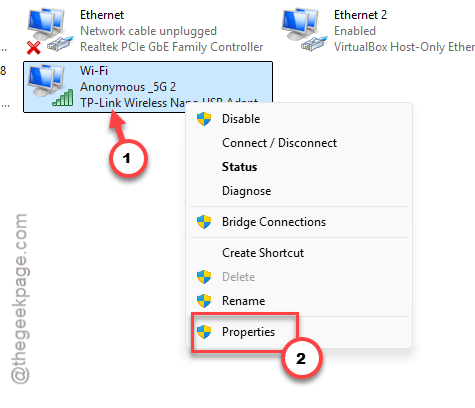
1 – Press Windows + R, type ncpa.cpl, and hit Enter.
2 – Right-click your active internet connection — the one without a red X on it.
3 – Select Properties.
4 – Uncheck the box next to Internet Protocol Version 6 (TCP/IPv6).
5 – Click OK.
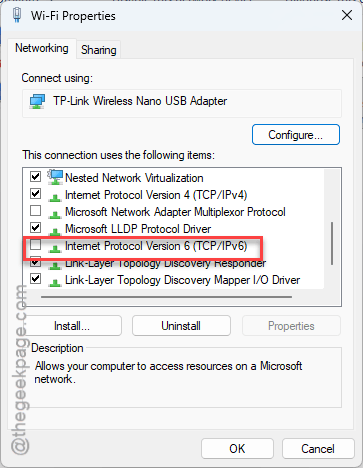
Everything else on your PC keeps working over IPv4. You will not notice the difference anywhere except in the game, where the disconnects thin out.
Fix 4 – Point Your DNS at Cloudflare or Google
Your ISP’s default routing is often what’s mangling packets on the way to the new server nodes. Public DNS sidesteps it.
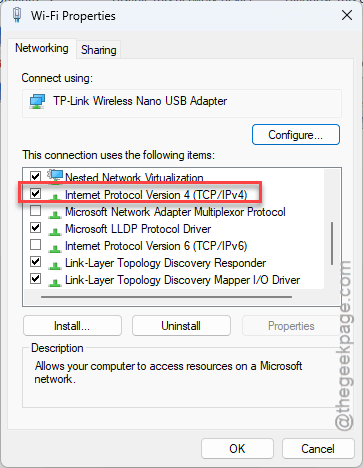
1 – In the same Network Properties window from Fix 3, double-click Internet Protocol Version 4 (TCP/IPv4).
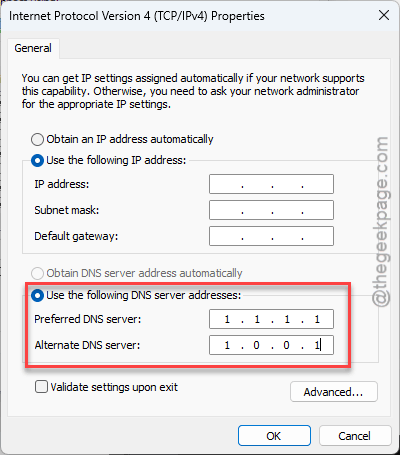
2 – Select Use the following DNS server addresses.
3 – Enter this for Cloudflare.
1.1.1.1
1.0.0.1
Or if you preferGoogle, use this set instead.
8.8.8.8
8.8.4.4
4 – Click OK on both windows.
This helps more than people expect. And it’s free, reversible, and usually makes regular browsing snappier too (your ISP’s DNS was probably never the fast option).
Fix 5 – Whitelist the Game in Defender
Windows Defender keeps flagging the patch’s new anti-cheat packets. It doesn’t warn you — it just severs the connection and lets the game report a network error. Charming.
1 – Open Windows Security and click Virus & threat protection.
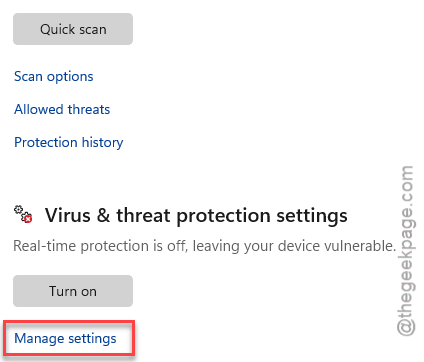
2 – Click Manage settings.
3 – Scroll down to Exclusions and click Add or remove exclusions.
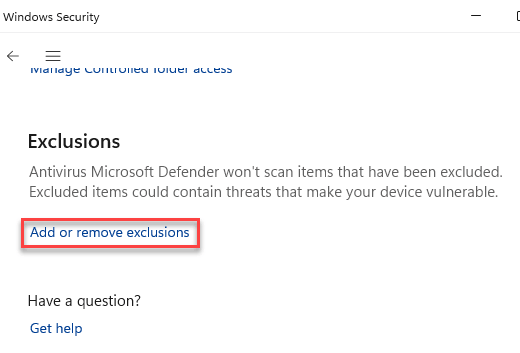
4 – Choose File, then browse to your installation directory and select OnceHuman.exe.
Keep it to that one file. No need to exclude whole folders for this.
Fix 6 – Run the Game as Administrator
Without elevated rights, the game can’t overwrite its outdated network config files during patching. So it patches halfway and limps. Set the flag once and forget it:
1 – Open your Once Human installation folder.
2 – Next, right-click the main game executable. The actual executable file, not the Steam shortcut.
3 – Select Properties and go to the Compatibility tab.
4 – Check Run this program as an administrator.
5 – Click Apply, then OK.
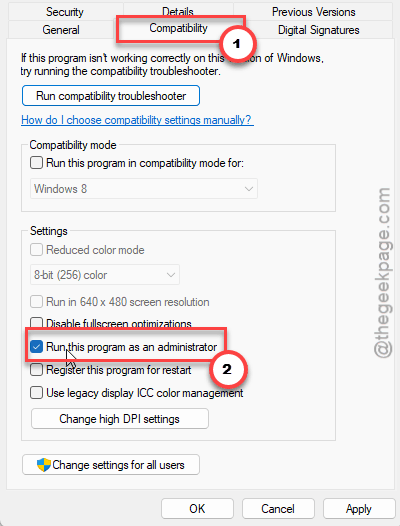
After this, relaunch the game and test.
Fix 7 – Grab the Patch Through a VPN
The regional one. Sometimes the game fails to boot with a network error because the patch file hasn’t been routed to your region yet. Not delayed for everyone — just for you. Great system.
1 – Exit Once Human completely.
2 – Connect your VPN to a server in a different country.
3 – Relaunch the game. The network error should vanish, and a patch download of about 1.17 GB begins.
4 – Let that download finish fully. Don’t cut it off early.
5 – Exit the game and disconnect the VPN.
6 – Launch the game normally, no VPN.
You only needed the VPN to fetch the file. Once it’s on disk, the game runs fine on your regular connection.
Fix 8 – Cycle Steam Offline and Back
For the scariest version of this bug: your character just… gone from the server list. Breathe. The character is fine; the backend lost track of your session.
1 – Close Once Human completely.
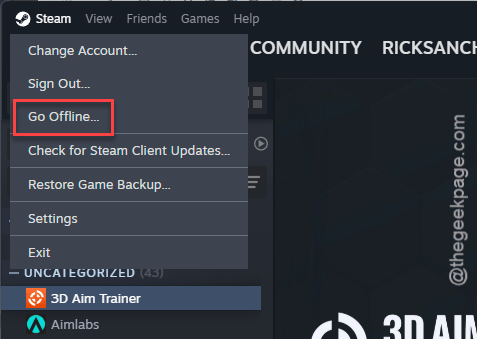
2 – In Steam, click the Steam menu in the top-left corner.
3 – Select Go Offline and wait for Steam to restart.
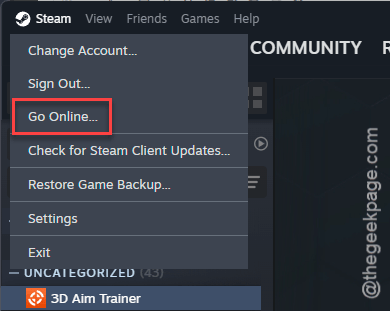
4 – Click the same menu again and select Go Online.
5 – Relaunch the game and check the server list.
Your character should be sitting right where you left them.
Keep It From Coming Back
- Make the LoadingCache delete a patch-day ritual. Thirty seconds before you queue, and the zone disconnects never start.
- Leave the Defender exclusion and the admin flag in place. Both survive updates.
- Patch day chaos in your region? Give it a few hours before deep troubleshooting — or run the VPN trick and skip the wait.
- And keep the public DNS. There’s no downside worth switching back for.
People Also Ask
Why does my Once Human game keep crashing?
After a seasonal patch, the usual culprit is the LoadingCache folder — old terrain assets clashing with the new update crash the client when you enter fresh zones. Delete that folder from the game’s Documents directory and let it rebuild. Antivirus interference with the anti-cheat causes crashes too.
Why am I getting “failed to retrieve server-related data” in Once Human?
That’s a routing problem between you and the game’s servers, not a broken install. Flush your DNS (ipconfig /flushdns), switch to Cloudflare’s 1.1.1.1, and disable IPv6 on your adapter. If it hits everyone at once on patch day, the servers themselves are struggling — wait it out.