You press the shortcut. Nothing. No dimmed screen, no overlay, no saved file. And the one time you actually need a screenshot, Windows just shrugs.
Why This Happens
Its app data gets corrupted. Or its registration with Windows breaks after an update, so the shortcut fires and nothing answers. And sometimes the Print Screen key simply isn’t wired to the capture overlay anymore — that’s an actual toggle, and it loves switching itself off. Why? No idea.
Oh, and one more possibility. Your screenshots might be working fine. They’re just being saved silently to a folder you never look at. Cruel, honestly.
Fix 1 – Repair or Reset the Snipping Tool
Start here. This fixes the corrupted-app-data case without touching anything else on your PC.
1 – Press Windows + I to open Settings.
2 – Go to Apps, then Installed apps.
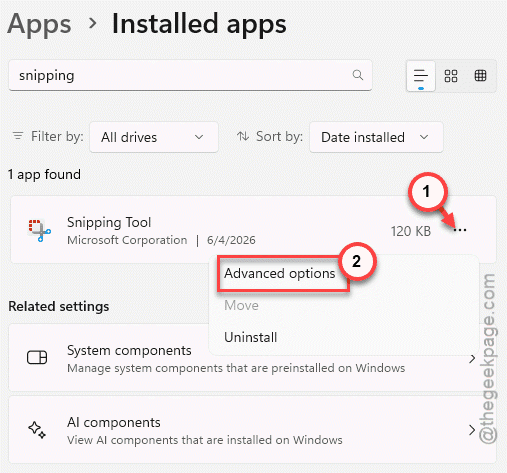
3 – Type “Snipping” in the search box at the top. Way faster than scrolling.
4 – Click the three dots (⋯) next to Snipping Tool and open Advanced options.
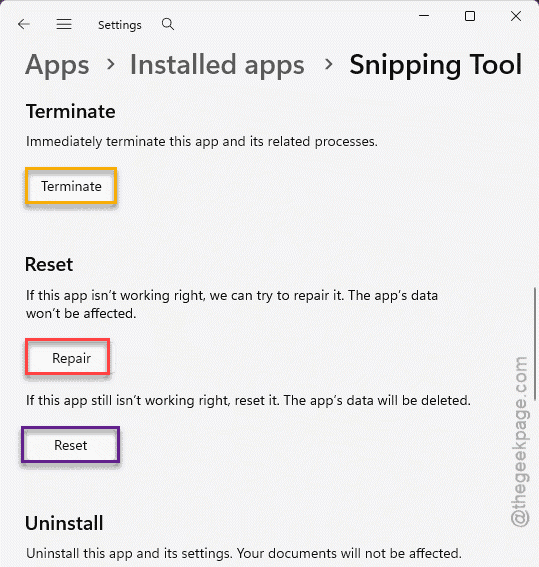
5 – Scroll down and click Terminate.
6 – Click Repair and wait for the checkmark.
7 – Still broken? Click Reset — it’s right below Repair. This clears out the corrupted configuration data.
Now try Windows + Shift + S. The screen should dim and give you the snip toolbar.
Fix 2 – Test the Shortcut With the On-Screen Keyboard
Quick detective work. This tells you whether the problem is the snipping system or your physical keyboard.
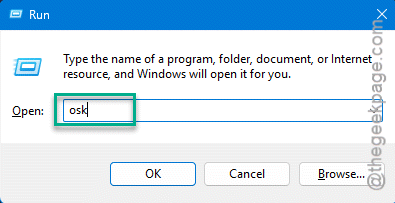
1 – Press Windows + R, type osk, and hit Enter.
2 – The On-Screen Keyboard pops up.
3 – Using your mouse, click Win, then Shift, then S on the on-screen keys.
Screen dims and lets you snip? Then the tool is fine — your keyboard or some background software is eating the shortcut before Windows sees it. Doesn’t dim? The tool itself is broken, so keep going with the fixes below.
Fix 3 – Turn the Print Screen Key Back On
If tapping PrtScn does absolutely nothing, this toggle is probably off. It lives in a spot nobody would ever think to check.
1 – Open Settings.
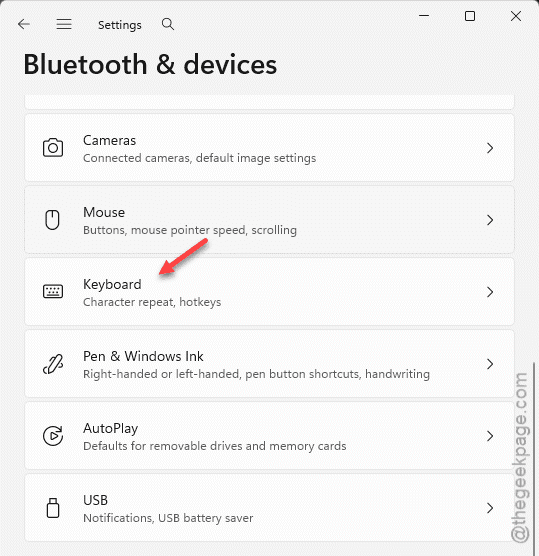
2 – Select Bluetooth & devices from the left panel.
3 – Scroll down and click Keyboard.
4 – Find the Shortcuts and hotkeys section.
5 – Toggle ON Use the Print screen key to open screen capture.
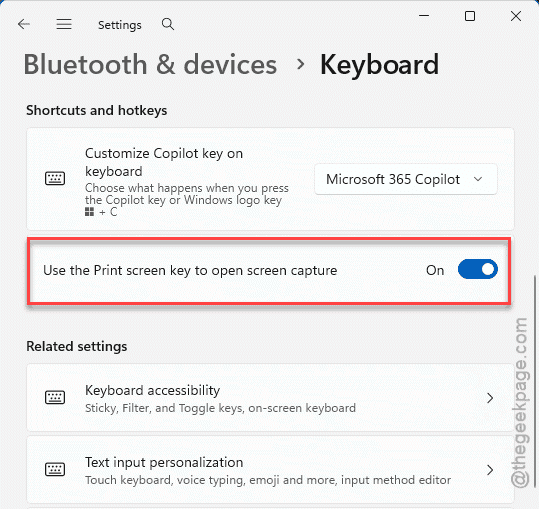
And that’s it. PrtScn should now open the capture overlay. (An accessibility setting controlling a basic key — sure, Windows. Makes total sense.)
Fix 4 – Re-register the Snipping Tool With PowerShell
When the app’s registry link is broken, repairing won’t help. You have to force Windows to re-index the package.
1 – Right-click the Start button and select Terminal (Admin) — or PowerShell (Admin) on older builds.
2 – Paste this command and hit Enter:
Get-AppxPackage -allusers Microsoft.WindowsSnippetTools | Foreach {Add-AppxPackage -DisableDevelopmentMode -Register "$($_.InstallLocation)\AppXManifest.xml"}
3 – Wait for it to finish, then try Windows + Shift + S again.
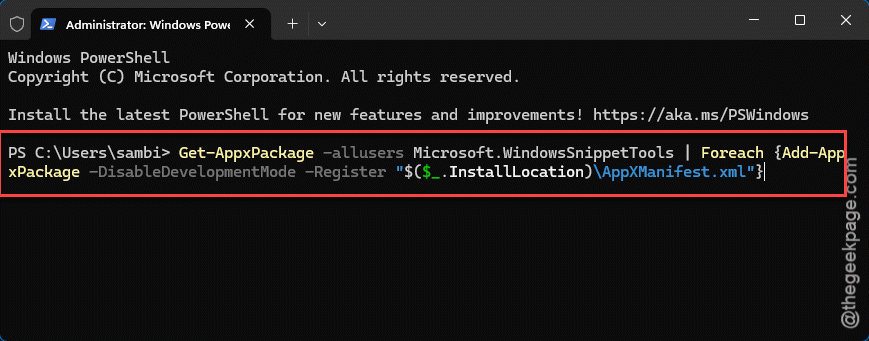
Looks scary. It isn’t. It just tells Windows to re-read the app’s manifest and hook everything back up.
Fix 5 – Check the Screenshots Folder
Plot twist: your screenshots might already exist. Windows + PrtScn saves silently — no dialog, no sound, nothing on screen except a quick dim. People assume it failed when it worked perfectly.
Open File Explorer, go to Pictures, and look for the Screenshots folder. Snips can land in Pictures automatically too, even when no save window ever popped up. Found a folder full of “missing” screenshots? Yeah. You’re not the first.
Fix 6 – Clear Out the Temp Folder
Background clipboard locks can stall screenshot exports. Clearing temp files shakes those loose.
1 – Press Windows + R, type this in the box, and hit Enter.
%temp%
2 – Press Ctrl + A to select everything, then press Delete. Skip anything Windows says is locked by a running program.
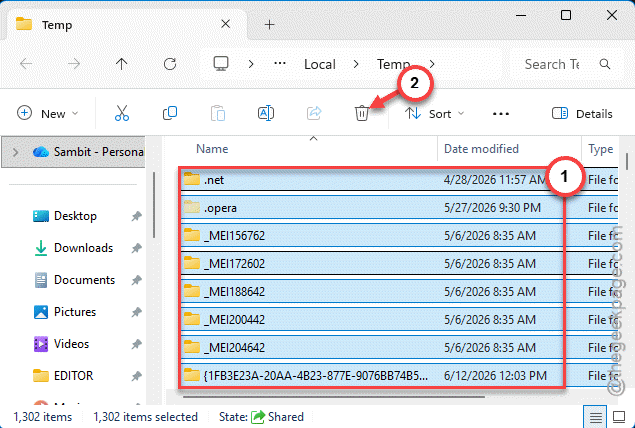
3 – Restart your computer.
Takes two minutes. And it clears out junk you didn’t need anyway.
Fix 7 – Reinstall the Snipping Tool
If the app is straight-up missing from your PC, grab a fresh copy.
1 – Open the Microsoft Store.
2 – Search for Snipping Tool.
3 – If it shows as not installed, click Get or Install.
Fresh download, clean slate. Test your shortcuts once it finishes.
How to Prevent This
- Learn where each shortcut saves. Windows + PrtScn goes to Pictures > Screenshots. Windows + Shift + S goes to the clipboard. Big difference.
- Don’t run three screenshot apps at once. They fight over the same keys, and somebody loses.
- Try Repair before Reset when the tool acts up. Repair keeps your settings. Reset wipes them.
- Keep Windows updated. A lot of these breakages arrive with one update and quietly get patched in the next.
People Also Ask
Why is Windows 11 screenshot not working?
Two usual suspects. Either the Snipping Tool’s data got corrupted (Repair or Reset it from Installed apps), or its registration with Windows broke after an update. And check the Print Screen toggle in Accessibility settings — it turns itself off more than it should.
How do I enable screenshots in Windows 11?
You barely have to. Windows + Shift + S works out of the box, and Windows + PrtScn saves straight to your Pictures folder. Want the PrtScn key alone to open the capture overlay? Flip the toggle under Settings > Accessibility > Keyboard. One switch.