You added a boot command to wsl.conf. Saved the file. Restarted the terminal. And WSL acts like the file doesn’t exist — your network settings never kick in.
Maddening. But the cause is almost always one small thing. Let’s find yours.
Why This Happens
Short version: WSL2 has two different config files. And they don’t do the same job.
There’s wsl.conf, which lives inside your Linux distro. Then there’s .wslconfig, which sits in your Windows user folder. Put a setting in the wrong one? WSL skips right over it. It will not warn you. No error, not even a log entry.
Timing is the other trap. WSL keeps running in the background even after you close the terminal window. So your “restart” wasn’t really a restart. The old settings just kept on living.
And boot commands have their own quirk — they run very early, sometimes before the network inside WSL is even up. A network command that fires too soon does nothing.
Fix 1 – Make Sure You’re Editing the Right Config File
This one catches almost everybody. WSL2 splits its settings across two files, and they look confusingly similar.
wsl.conf lives inside your Linux distro, at /etc/wsl.conf. It handles per-distro stuff — boot commands, DNS file generation, hostname settings.
.wslconfig lives in your Windows user folder (usually C:\Users\YourName\.wslconfig). It handles global stuff — networking mode, memory limits, DNS tunneling.
So if you put networkingMode=mirrored inside wsl.conf? Ignored. That flag only works in .wslconfig. And a [boot] command pasted into .wslconfig gets skipped the same way. Wrong file, silent failure.
Quick check:
1 – Open your Linux terminal.
2 – Write down this code and press Enter. This prints everything in the file.
cat /etc/wsl.conf
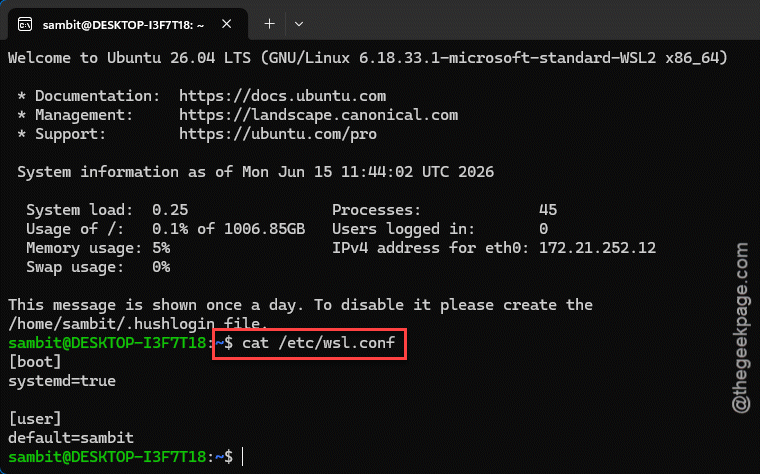
3 – Read through each setting. Boot commands and the generateResolvConf flag belong in this file.
4 – Press Windows + R, type %UserProfile%, and press Enter. Your Windows user folder opens.
5 – Look for a file called .wslconfig in that folder. Settings like networkingMode and memory limits belong in this one.
Move anything that’s sitting in the wrong file. That alone fixes this for most people.
Fix 2 – Shut Down WSL the Right Way
Here’s the thing nobody tells you. WSL keeps running in the background after you close your terminal. Sometimes for a minute or more.
So when you closed and reopened the window to apply your changes? You probably applied nothing. The old session was still alive the whole time.
1 – Close your Linux terminal windows.
2 – Open PowerShell from the Start menu.
3 – Type wsl --shutdownand press Enter.
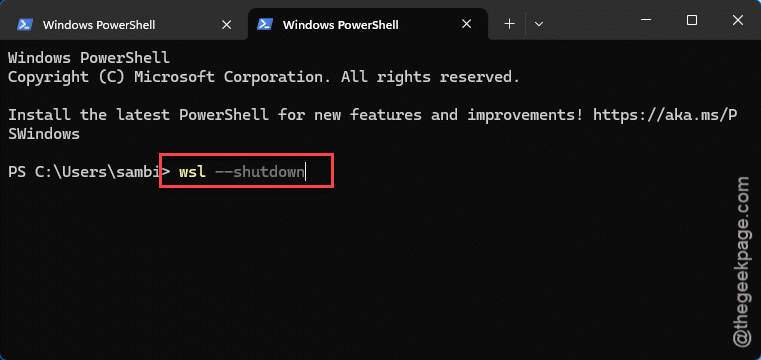
4 – Wait about 8 seconds. Microsoft’s own docs call for this exact gap before restarting (yes, really).
5 – Open your Linux terminal again.
Now test whether your settings applied. For a lot of people, this is the whole fix.
Fix 3 – Update WSL — Boot Commands Need a Newer Version
The [boot] command feature isn’t ancient. It needs WSL version 0.67.6 or newer. Older installs just skip the whole section without a word.
1 – Open PowerShell.
2 – Typewsl --version and press Enter.
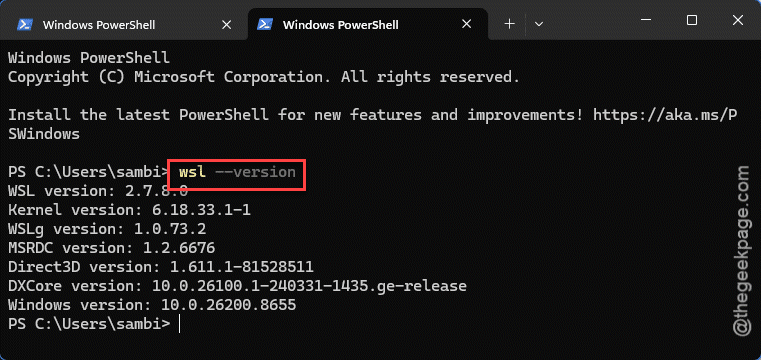
3 – Look at the first line of the output. Compare that number to 0.67.6.
But if that command throws an error instead of a version? You’re on the old built-in copy of WSL. That one does not support boot commands at all.
4 – Type wsl –update and press Enter. This grabs the latest version from the Microsoft Store.
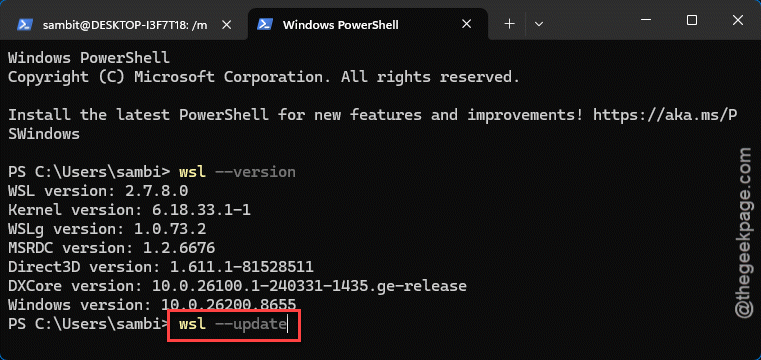
5 – When it finishes, run wsl –shutdown, wait 8 seconds, and reopen your terminal.
Fix 4 – Stop WSL From Overwriting Your DNS File
Maybe your boot command runs fine — and then WSL undoes it. This happens with DNS settings constantly.
By default, WSL rebuilds /etc/resolv.conf (the file that tells Linux which DNS server to use) every time it starts. Your boot command edits the file, then WSL stomps over it a second later. Fun.
1 – Open your Linux terminal.
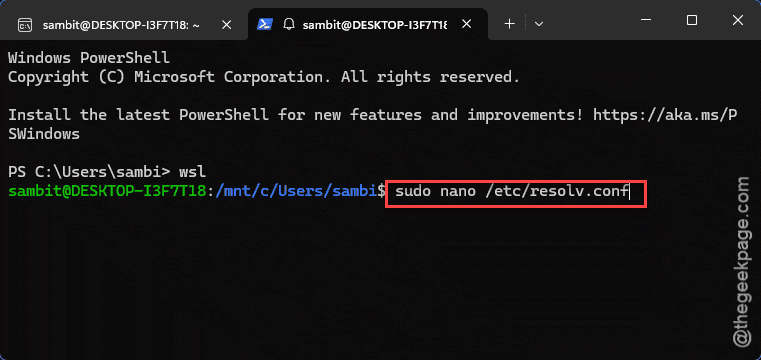
2 – Type this and press Enter. Enter your password if it asks.
sudo nano /etc/wsl.conf
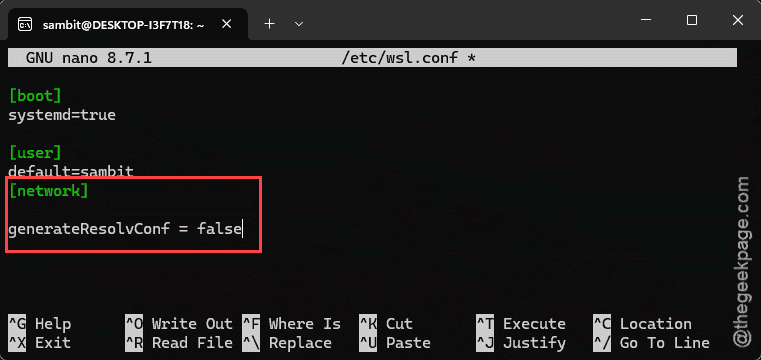
3 – Add these two lines at the bottom of the file:
[network]
generateResolvConf = false
4 – Press Ctrl + O, then Enter to save. Press Ctrl + X to exit.
5 – In PowerShell, run wsl –shutdown and wait 8 seconds.
6 – Open Linux again and type sudo rm /etc/resolv.conf to remove the old auto-generated file.
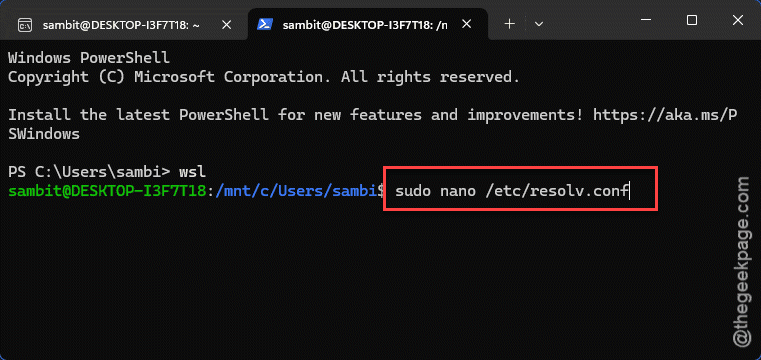
7 – Type this and add one line: nameserver 8.8.8.8 (or whatever DNS server you actually want). Save and exit the same way as before.
sudo nano /etc/resolv.conf
Now WSL leaves the file alone. Your settings finally stick.
Fix 5 – Check wsl.conf for Silent Syntax Mistakes
wsl.conf is picky. And it never complains — a typo just makes WSL skip that setting quietly.
A few things worth checking:
– The section header has to be exactly [boot] on its own line. Square brackets included.
– Only one command= line counts per file. Got two? The later one wins and the first gets dropped. Chain commands with && instead, like: command = service cron start && touch /tmp/boot-ran
– Boot commands run as root through /bin/sh. So bash-only tricks can fail quietly.
– Don’t wrap the whole command in quotes. The quotes get passed along and break it.
Fix the syntax, run wsl –shutdown, wait 8 seconds, and test again.
Fix 6 – Using systemd? Move the Command to a Service
If you turned on systemd in wsl.conf (the systemd=true line under [boot]), there’s a timing trap. Boot commands fire before most of the system is ready — including the network. A network command that runs that early just fails, and nothing tells you.
A systemd service fixes this. Because a service can be told to wait for the network first.
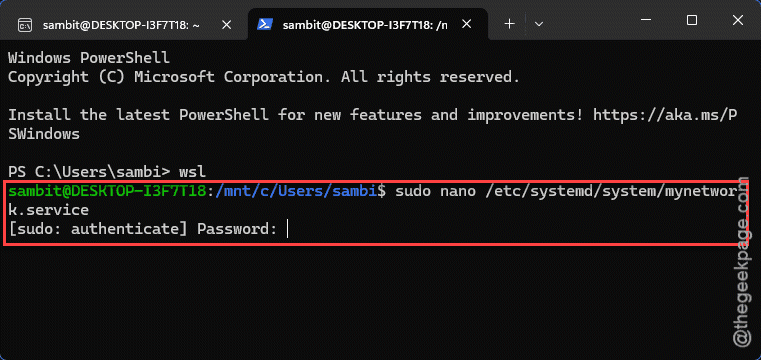
1 – In your Linux terminal, type and press Enter.
sudo nano /etc/systemd/system/mynetwork.service
2 – Paste this in, and put your real command on the ExecStart line:
[Unit]

Description=My network setup

After=network-online.target

Wants=network-online.target

[Service]

Type=oneshot

ExecStart=/path/to/your/command

[Install]

WantedBy=multi-user.target
3 – Press Ctrl + O, then Enter to save. Press Ctrl + X to exit.
4 – Type sudo systemctl enable mynetwork.service and press Enter.
5 – From PowerShell, run wsl –shutdown, wait 8 seconds, and open Linux again.
Your command now waits for the network instead of racing it.
How to Prevent This
– Keep one rule in your head: wsl.conf for inside-Linux settings, .wslconfig for Windows-side settings. Saves so much pain.
– Always run wsl –shutdown after a config change, then wait 8 seconds. Closing the window does nothing.
– Run wsl –update every couple of months. Old versions silently skip newer settings, and you’ll never know.
– Test a new boot command with something visible first — like touching a file in /tmp. Then you know the section actually runs before you trust it with network setup.
People Also Ask
Why isn’t my wsl.conf file being read at all?
Usually it’s the restart. WSL keeps running in the background, so closing the terminal changes nothing. Run wsl –shutdown from PowerShell, wait 8 seconds, then reopen. Also check the file sits at /etc/wsl.conf — not your home folder — and uses plain INI formatting.
What’s the difference between wsl.conf and .wslconfig?
Two files, two jobs. wsl.conf sits inside each Linux distro and controls that distro alone — boot commands, DNS generation, mounts. .wslconfig sits in your Windows user folder and controls all of WSL2 — memory, networking mode, swap. Settings in the wrong file get ignored. Silently.
Do I need to restart Windows to apply WSL config changes?
No — a full Windows reboot works, but it is overkill. Running wsl –shutdown in PowerShell does the same job in seconds. Just wait about 8 seconds before launching your distro again. WSL needs that pause to shut everything down properly.