You click the Widgets button. Nothing happens. Or the panel opens, but it’s blank. Or it shows a loading spinner that never stops. Common Windows 11 issue. Usually a stuck process or corrupted web experience pack.
Why This Happens
Basically? Widgets in Windows 11 are powered by something called the Windows Web Experience Pack. It’s a separate Store app that handles the widget panel. When it crashes, gets outdated, or conflicts with an update? Widgets stop working.
Group Policy can block widgets too. And third-party tools like ExplorerPatcher are known to break them completely. For some reason, Microsoft built widgets as a web app bolted onto the shell. So it breaks a lot. So yeah.
Fix 1 – Uninstall ExplorerPatcher
If you have ExplorerPatcher installed, it is probably the cause. Known conflict.
1 – Press Windows + I to open Settings.
2 – Click Apps from the left sidebar.
3 – Click Installed apps on the right side.
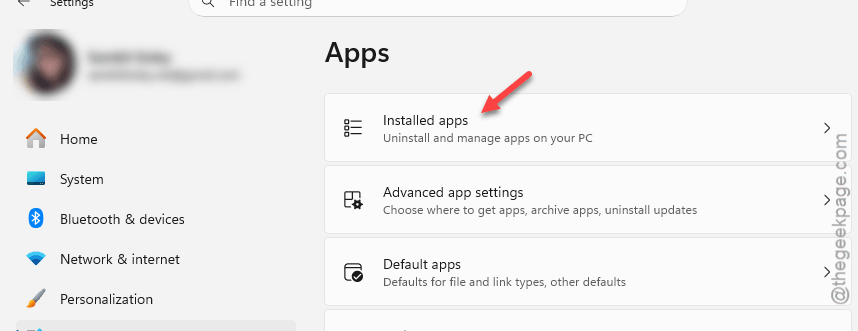
4 – Type “ExplorerPatcher” in the search box at the top.
5 – Click the three dots (⋯) next to it.
6 – Click Uninstall.
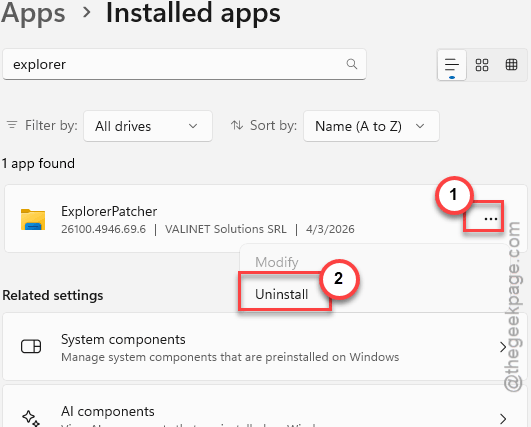
7 – Restart.
Widgets come back. The latest ExplorerPatcher versions conflict with Windows 11 widgets. For now, you have to choose one or the other. Annoying, but that’s how it is.
Fix 2 – End the Widgets Process
Quick fix. Kill the stuck process and let it restart.
1 – Press Ctrl + Shift + Esc to open Task Manager.
2 – In the Processes tab, look for Windows Widgets (or widgets.exe). Type “widgets” in the search box at the top to find it faster.
3 – Right-click it.
4 – Click End task.
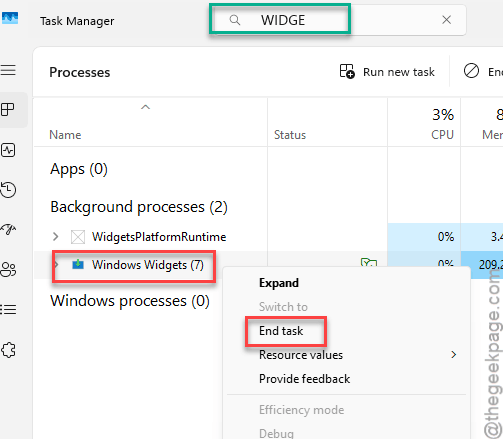
5 – Wait a few seconds. It should restart automatically.
6 – Click the Widgets button in the taskbar again.
Fix 3 – Restart Windows Explorer
Sometimes Explorer is the problem, not Widgets itself.
1 – Press Ctrl + Shift + Esc to open Task Manager.
2 – Find Windows Explorer in the Processes tab.
3 – Right-click it.
4 – Click Restart.
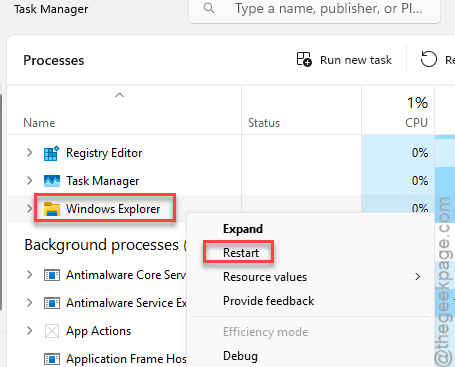
Taskbar refreshes. Try Widgets now.
Fix 4 – Reinstall the Web Experience Pack
This is the component that powers Widgets. Reinstalling it fixes most issues.
1 – Click Start and type cmd in the search bar.
2 – Right-click Command Prompt in the results.
3 – Click Run as administrator.
4 – Type this command and press Enter:
winget uninstall "Windows Web Experience Pack"
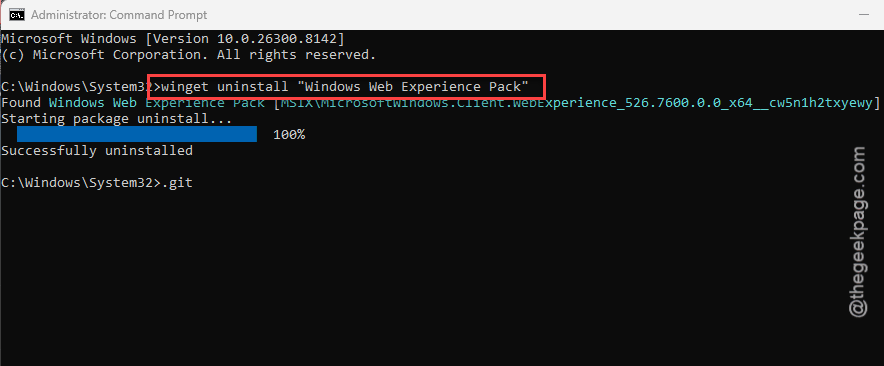
5 – Wait for it to finish uninstalling.
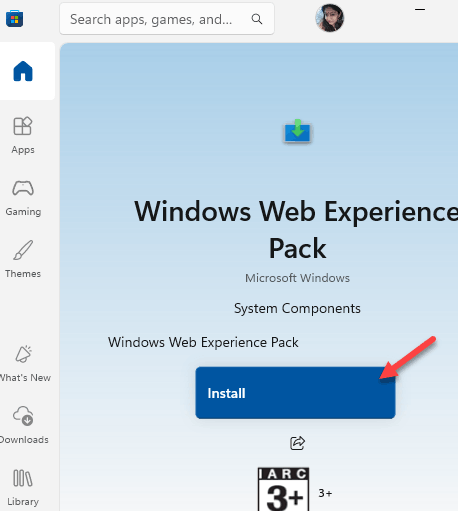
6 – Now open the Microsoft Store (click Start, type “Store”).
7 – In the Store search bar at the top, type Windows Web Experience Pack.
8 – Click Install.
9 – Restart your PC.
And Widgets should work again. This is the fix that resolves most persistent widget issues.
Fix 5 – Check Group Policy
A policy might be blocking Widgets entirely.
1 – Press Windows + R to open Run.
2 – Type gpedit.msc and press Enter.
3 – In the left panel, go to Computer Configuration.
4 – Expand Administrative Templates.
5 – Expand Windows Components.
6 – Click Widgets.
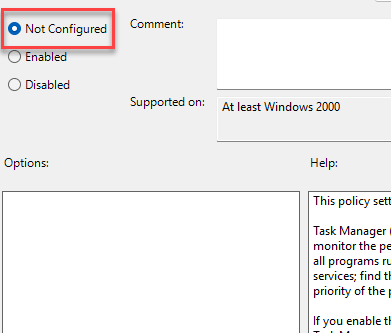
7 – On the right side, make sure the setting says Not Configured or Enabled.
8 – If it was set to Disabled, change it.
9 – Click Apply.
10 – Restart.
How to Prevent This
- Keep the Web Experience Pack updated through the Microsoft Store.
- Do not use ExplorerPatcher if you rely on Widgets.
- After Windows updates, test Widgets immediately.
- If Widgets stop, kill the process first. It often auto-fixes on restart.
People Also Ask
Why are my Widgets not working on Windows 11?
Usually a broken or outdated Web Experience Pack. Uninstall it using the winget command in an admin Command Prompt, then reinstall it from the Microsoft Store. Also check if you have ExplorerPatcher installed — it conflicts with Widgets.
How to repair Windows 11 Widgets?
Reinstall the Windows Web Experience Pack from the Microsoft Store. Check Group Policy to make sure Widgets aren’t disabled. And uninstall ExplorerPatcher if you have it. One of these fixes it in most cases.
How to fix Widgets not working?
Kill the Widgets process in Task Manager first — it often auto-restarts and works again. If that’s only temporary, reinstall the Web Experience Pack. That’s the underlying component and reinstalling it is the most reliable fix.