Does your Windows 11 machine keeps disconnecting from Wi-Fi automatically after waking up from sleep? This is an issue where the user have to manually reconnect to the Wi-Fi whenever they pull their device up from slumber. This is extremely annoying and peculiar, because the Wi-Fi module should be automatically activated and connected to the network as soon as the device wakes up. This is linked to the power settings on your device, and tweaking the Wi-Fi adapter power settings should help you resolve the issue.
Fix 1 – Don’t let the computer turn off the Wi-Fi adapter
Windows does automatically turn off several items like, Wi-Fi adapters to save power. This way, the Wi-Fi turns off as soon as you put the computer to sleep mode.
Step 1 – Open a Run box, using Win+R buttons together.
Step 2 – Next, paste this code and click OK to open the Network and Sharing Center.
ncpa.cpl
Step 3 – Detect which network adapter you are currently using.
Step 4 – Then, right-tap the Windows button, and tap the Device Manager.
Step 5 – Next, expand the Network Adapters section.
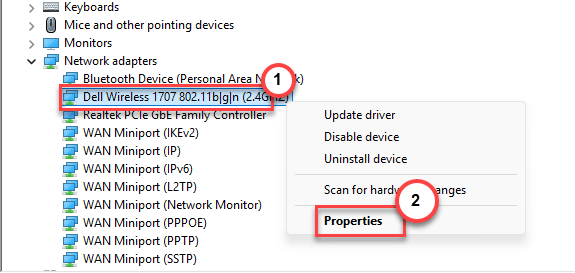
Step 6 – Now, right-click the network adapter you are using.
Step 7 – Proceed to the Power Management tab. Then, uncheck the Allow the computer to turn off this device to save power option in there.
Step 8 – Finally, tap OK to save the change.
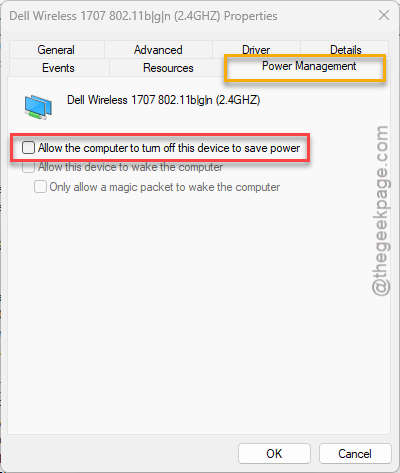
This way, Windows won’t turn off the Wi-Fi device even when the computer is sleeping. This will allow a seamless function of the Wi-Fi module after you wake up the device from sleep.
Fix 2 – Switch to High Performance power plan mode
The High Performance power plan mode automatically disables such power saving provisions. So, the Wi-Fi module should be functional as soon as the device wakes up.
Step 1 – Write this in a Run box and hit Enter.
powercfg.cpl
Step 2 – Wait for the Power Options console to load up.
Step 3 – Then, choose the High Performance mode from there.
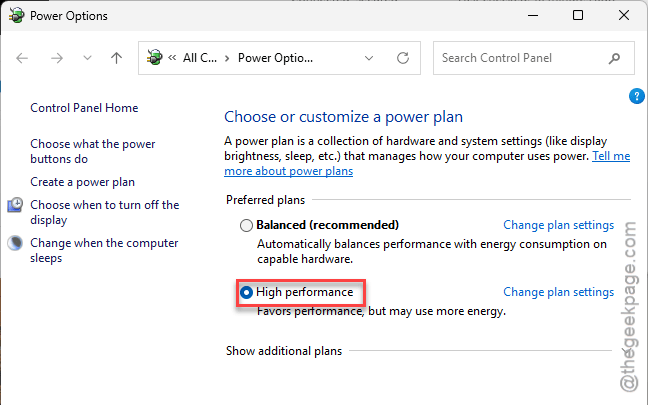
It will eliminate this issue with the Wi-Fi module still inactive after sleep.
Fix 3 – Tone down the Link State Power Management
Sometimes, the link state power management system on the laptop’s power system can limit the power to the Wi-Fi module during sleep mode in battery power.
Step 1 – Open the Power Options panel using this code in the Run box.
powercfg.cpl
Step 2 – Next, look which power plan you are currently using. Tap the Change Plan settings option.
Step 3 – Later, click the Change advanced power settings option.
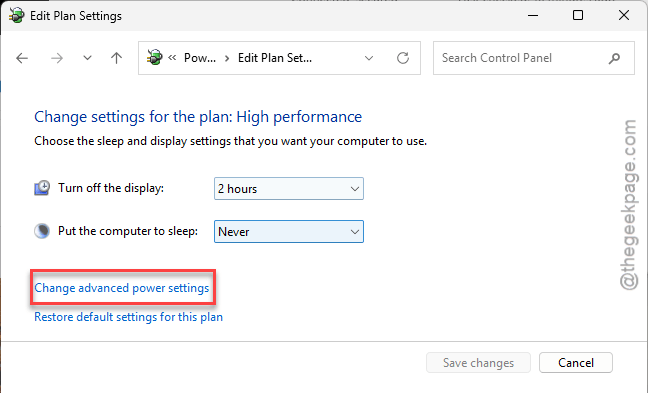
Step 4 – Find the PCIe Express -> Link State Power Management option there.
Step 5 – Set the On battery option to Off or Moderate Power Saving mode.
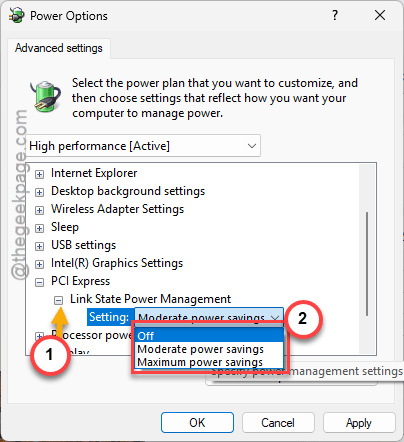
Step 6 – Finally, save the changes using the Apply and OK function.
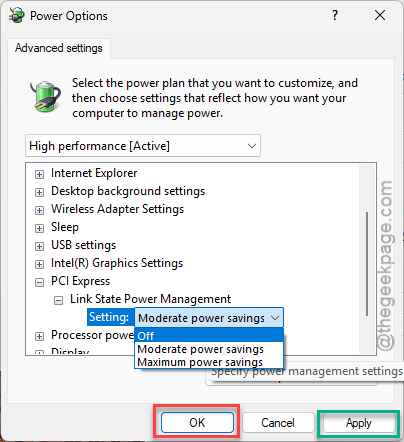
After applying these changes, restart your computer once.
Then, put the device to sleep and check whether the change has taken effect or not.
Fix 4 – Public Wi-Fi May Get Disconnected
The public Wi-Fi’s, like the hotel or Airport Wi-Fi, does use web-based authentication system. This lets you connect to the Wi-Fi for a fixed time. It automatically disconnects after that fixed time lapses. So, if you are experiencing such issues, there is nothing to worry. Re-authenticate using the web portal, and you can reconnect to the Wi-Fi.
Why the Wi-Fi is not working after the computer wakes up from sleep?
Windows on laptops automatically turns off the peripherals like Wi-Fi, Bluetooth while the device is hibernating or sleeping. The power management system of the Wi-Fi module is responsible and can be fixed with a simple modification in the Device Manager console.
Should I connect to any public Wi-Fi?
No. You should not connect your devices to open public Wi-Fi as it may expose you to cyberattacks. Hacker often uses unprotected Wi-Fi access points to commit various types of illegal tasks such as phishing, malware, keylogger injection, personal information stealing, etc.