Windows cuts power to your dock’s video lanes during sleep. That’s the usual culprit. The handshake that should re-light your monitors never happens, so the screens stay black while the PC itself hums along fine.Sometimes it’s the cable instead. Passive USB-C cables can drop the wake signal. And a few dock-monitor combos just refuse to talk to each other after a nap. Seven fixes below. Start at the top — the first four are free (the last three need a bit of hardware).
Fix 1 – Restart the Graphics Stack
Quick one. Press Windows + Ctrl + Shift + B — all four keys at once. You’ll hear a beep and the screen flashes for a second. That’s Windows forcing the GPU to re-detect everything plugged in (monitors included).

Takes two seconds. And it wakes dead ports more often than you’d think. If the monitors light up, you’ve confirmed the problem is the wake handshake, not your hardware.
Fix 2 – Turn Off PCIe Link State Power Management
Windows powers down the USB4 lanes during sleep to save a few watts. But then it fails to renegotiate the video connection when you come back. Turning this setting off keeps the lanes alive.
1 – Press the Windows key and type “edit power plan”.
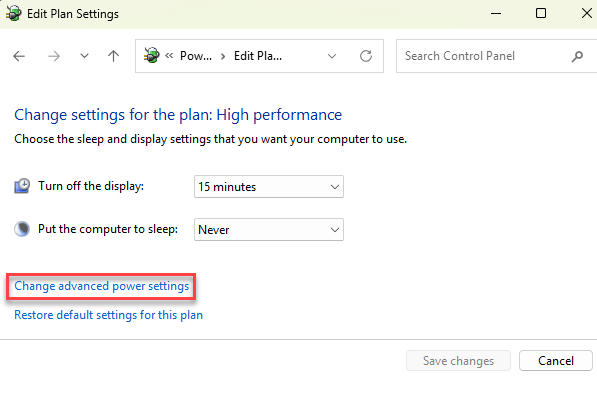
2 – Open Edit power plan, then click Change advanced power settings. A small window pops up.
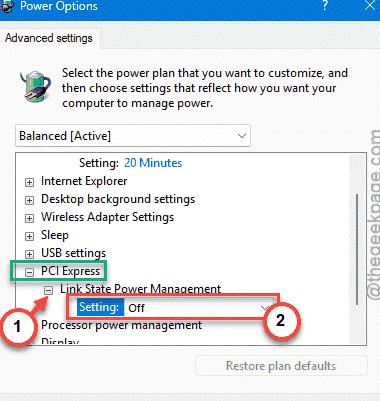
3 – Scroll down the list and expand PCI Express.
4 – Expand Link State Power Management.
5 – Set it to Off.
6 – Click Apply, then OK.
Your laptop battery takes a tiny hit from this. Worth it.
Fix 3 – Disable USB Selective Suspend
Same window as Fix 2. This setting lets Windows suspend individual USB hubs — including the ones inside your dock.
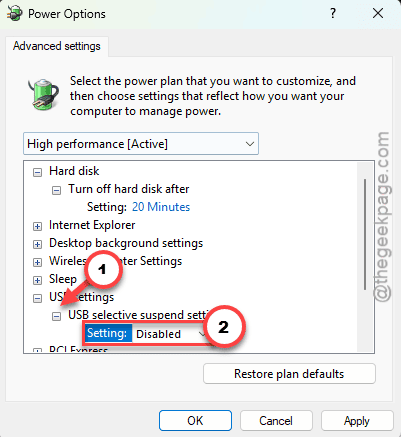
1 – In the same Advanced settings window, expand USB settings.
2 – Expand USB selective suspend setting.
3 – Set it to Disabled.
4 – Click Apply, then OK.
Now the dock’s hubs stay powered through sleep.
Fix 4 – Stop Windows From Powering Off the USB4 Router
Here’s the annoying part. Device Manager can override your power plan for core devices. So even with Fixes 2 and 3 done, Windows might still cut power to the dock’s root connection.
1 – Right-click the Start button and choose Device Manager.
2 – Expand System devices. It’s near the bottom of the list.
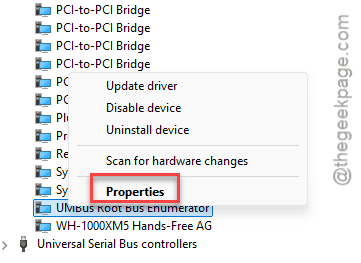
3 – Right-click USB4 Root Router and choose Properties.
4 – Click the Power Management tab at the top of the window.
5 – Uncheck Allow the computer to turn off this device to save power.
6 – Click OK.
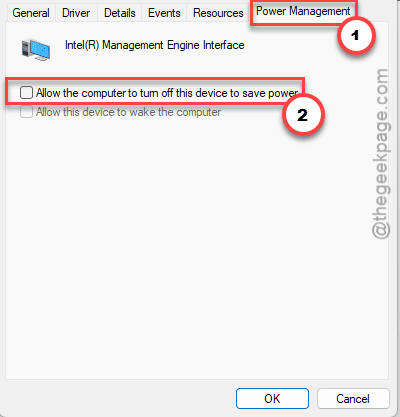
If more than one USB4 Root Router shows up, repeat this for each of them.
Fix 5 – Swap In an Active Thunderbolt 4 Cable
Still black screens? Look at the cable. Passive USB-C cables — the kind that ship with most docks — do not always pass the wake signal after the USB4 controller sleeps. An active cable has a chip inside that keeps the connection negotiated.
1 – Unplug the cable running from the dock to your PC.
2 – Replace it with one labeled Certified Active Thunderbolt 4 or Active USB4. The word “Active” is the part that matters. A standard passive 40Gbps cable won’t cut it.
3 – Reconnect the dock, put the PC to sleep, and wake it to test.
Not free, sadly. But cables cause a surprising share of these failures.
Fix 6 – Put an HDMI Dongle Between the Dock and Monitor
Sounds like a downgrade. It works, though. Some dock and monitor firmware simply disagree over USB-C wake signals. And a cheap adapter in the middle forces the link to start fresh every time.
1 – Unplug the monitor’s USB-C or DisplayPort cable from the dock.
2 – Plug a USB-C to HDMI adapter into the dock’s video output port on the back.
3 – Run a normal HDMI cable from the adapter to the monitor’s HDMI input.
Wake the PC and check. The adapter re-negotiates the connection on every wake, so the monitor can’t get stuck waiting.
Fix 7 – Run Two Cables to the Monitor
Odd trick for stubborn setups. Some dock and monitor pairs never trigger the port activation sequence on wake. A second connection forces the monitor to ping the active port.
1 – Keep your main display cable (say, DisplayPort) running from the dock to the monitor.
2 – Add a second cable — USB-C, or USB-A to USB-B — from the dock to the monitor’s USB hub port.
3 – Open the monitor’s own menu and set the input source to DisplayPort. Do not leave it on auto-detect.
Keep It From Coming Back
– Re-check the power settings from Fixes 2-4 after every big Windows update. And yes, updates really do reset them.
– Stick with certified active cables on USB4 docks. Passive ones are a gamble.
– Install dock firmware updates when the maker releases them. Boring, but wake bugs are exactly what those patches fix.
– Leave the monitor’s input set to a fixed source, not auto.
People Also Ask
Why do my monitors stay black after sleep when connected to a dock?
Usually power management. Windows powers down the USB4 lanes during sleep, and the video handshake fails when the PC tries to reconnect. Turning off PCIe Link State Power Management and USB selective suspend fixes most cases. Passive cables and dock firmware bugs cause the rest.
Do I need a special cable for a USB4 dock?
For reliable wake-from-sleep? Yes. Get a Certified Active Thunderbolt 4 or Active USB4 cable. Passive cables carry data fine but can drop the wake signal once the controller sleeps. That’s when monitors stay dark even though the computer is clearly running.