As the end of life support for Windows 10 drawing closer, many Windows users have opted for the upgrade to Windows 11. But, during this upgrade process with the Windows 11 Installation Assistant, some users have encountered the 0xc00000f0/0xc0000417 error code. According to many user reports, The Windows 11 installation process gets stuck in the main OS installation phase.
Here is a quick fix table that should be helpful for you~
| Issue Cause | Quick Fix | Time Needed |
|---|---|---|
| Windows Update component | Run the installer offline, choose ‘Not right now’ during ‘Change and Setup download updates’ | ~ |
| Lack of administrative permissions | Run the installer with administrative rights | ~ |
| Low free space | Disk Cleanup ⇾ Run the disk cleaner on Windows drive (C: drive) | 3-4 min |
Fix 1 – Skip the downloading updates during installation
These particular error codes 0xc00000f0/0xc0000417 appears when the Windows Update components fails to download/update.
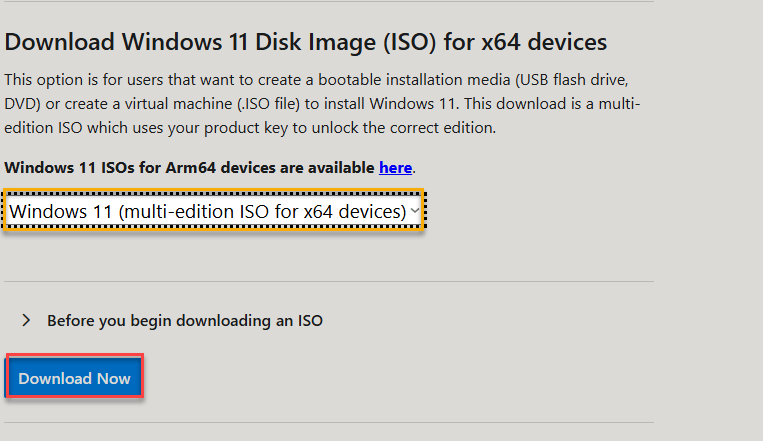
Step 1 – Go to the Windows 11 download section.
Step 2 – Select the Windows 11 (multi-edition ISO for x64 devices) from the drop-down.
Step 3 – Tap Download Now button there. Select the language and proceed to download the Windows 11 ISO file directly.
Step 4 – Once you have downloaded the ISO file, go offline. Turn off the Wi-Fi or detach the Ethernet cable, whichever you are using.
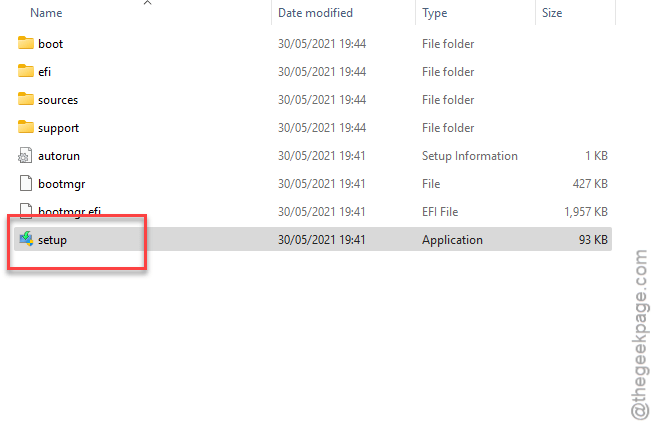
Step 5 – Next, mount the ISO file and run the Setup file.
Step 6 – Follow the on-screen steps and when you reach the ‘Change how Setup downloads updates’ screen, tap the Not right now option.
Step 7 – Select the Keep Personal files and apps option and continue to install Windows 11.
Opting out of the Windows update during the Windows 11 installation won’t show you the error code 0xc00000f0/0xc0000417.
Fix 2 – Run the Windows 11 Installation Assistant as an Administrator
Sometimes the lack of administrative rights may lead to such issues during the Windows Update process.
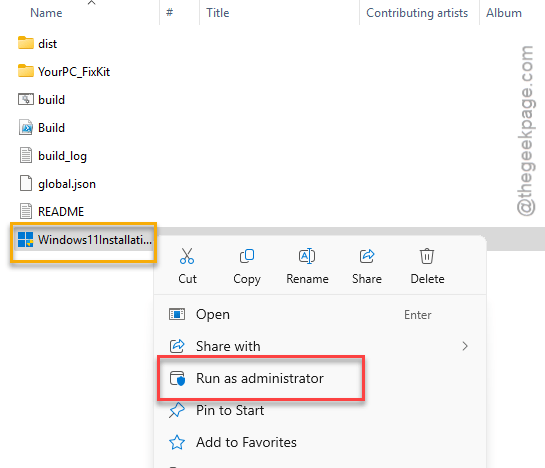
Step 1 – Go to the location of the Windows 11 Installation Assistant tool.
Step 2 – Then, right-click the Windows 11 Installation Assistant tool and, tap Run as administrator.
Step 3 – Tap Yes on the User Account Control.
Continue with the Windows 11 installation and complete it. Check whether this works out.
Fix 3 – Make sure you have enough free space
You need 10-20 GB of free space on the Local Disk C (Windows drive) for the update process to complete properly. If you are using the Windows 11 Installation Assistant tool, it will download the Windows 11 files on your device temporarily, which covers around 5-6 Gb space of the C drive.
Step 1 – Run the Disk Cleanup to clear the Local Disk drive. Search for disk cleanup in the search box. Tap to open up the Disk Cleanup from there.
Step 2 – After opening the Disk Cleanup program, select the Local Disk C and tap OK.
Step 3 – Then, check all the options there in the ‘Files to delete:’, like –
Recycle Bin
Temporary Internet Files
DirectX Shader Cache
Temporary files
Step 4 – Tap OK to run the Disk Cleanup operation.
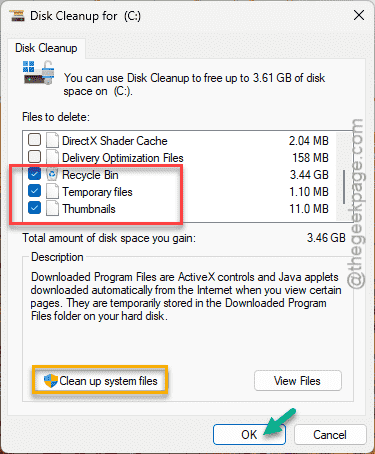
After running this tool, it will delete unnecessary and unused files, folder and leaving you enough free space to upgrade to Windows 11.
NOTE – This method does not delete any big, unused apps or app data of significant size from your system. You can free up a lot of space this way. You can track the apps which apps are taking too much space this way –
Apps > Installed Apps
Fix 4 – Create or Use Windows 11 Disk Image or Bootable drive
If you are facing this problem using the Windows 11 Assistant tool, you can download the Windows 11 ISO file and use it to upgrade or install Windows 11 on your machine.
Step 1 – Go to the Windows 11 Software Download page.
Step 2 – Now, select the Windows 11 (multi-edition ISO for x64 devices) from the drop-down.
Step 3 – Tap Download Now button there. Select the language and proceed to download the Windows 11 ISO file directly.
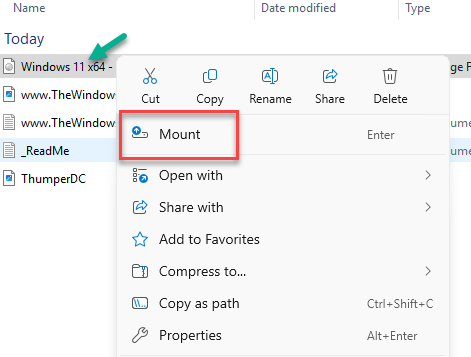
Step 4 – After downloading the ISO File, mount it from the File Explorer.
Step 5 – Now, run the Setup file on your system and go through the installation process.
This way, there are very low chances that you will encounter the Error Code 0xc00000f0/0xc0000417 again.