Does your iPhone have started to stutter a lot after the getting the iOS 18 update? There are many user reports where users have started to encounter this problem after updating the iOS update. You can easily solve these particular laggy animation effects with basic counteractions like restarting the iPhone or installing the latest version of iOS.
| Quick Fixes | Time needed |
|---|---|
| Turn off the iPhone. Wait for 2–3 minutes. Then, restart the iPhone. | 5 mins |
| Update the iOS. Settings ⇾ General ⇾ Software Update |
3-4 mins |
Fix 1- Turn off the iPhone and restart after 2–3 minutes
Users have solved this issue simply by switching off the iPhone, and then restarting the iPhone later.
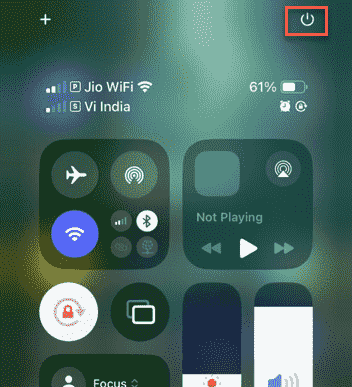
Step 1 – Switch off your iPhone. To do that, press the Power button on the Control Centre.
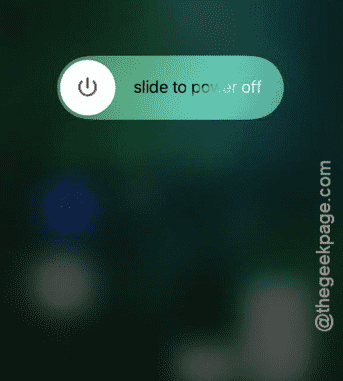
Step 2 – Next, tap the ‘Slide to power off‘ option to switch off the device.
Step 3 – After switching off the iPhone, wait for 2–3 minutes.
Step 4 – Now, switch on the iPhone.
You will notice considerable improvement in the animation speed, less laggy experience and app responsiveness.
NOTE – We recommend you exercise this method at least once a week on your iPhone. User report suggests, this particular routine has shown very positive results.
Fix 2 – Update the iPhone to the Latest Version
If the recent iOS updates, like iOS 18.4 or iOS 26 has caused this problem, updating the device to the latest version should help you fix the issue.
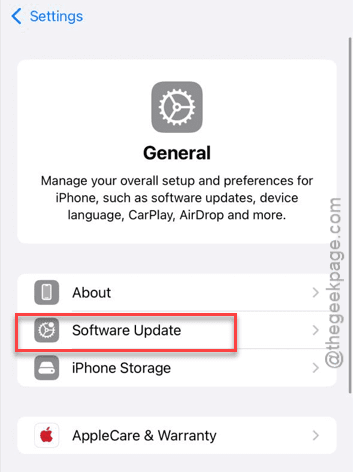
Step 1 – Go to the iPhone Settings page. Then, open up the General section. Later, go to the Software Update section.
Step 2 – In the Software Update section, wait for a pending update to show up.
Step 3 – Tap the Install Now button to download and install the update on the iPhone.
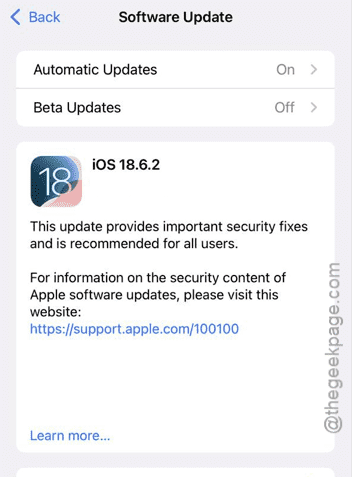
Once you have updated to the latest version of the iOS, iOS 18.6 or iOS 26, it will definitely feel less laggy.
Fix 3 – Free up space on the iPhone
The lack of free space on the iPhone may lead to such stuttering issues on the device.
Step 1 – To free up space on the iPhone, head on to the Settings page.
Step 2 – Next, go this way –
General > iPhone Storage
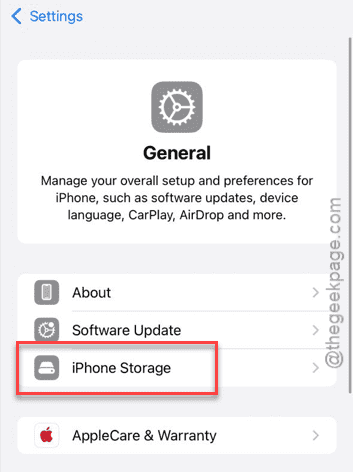
Step 3 – You will see the amount of free space you have on your iPhone, along with a bar view of which category (Applications, Photos, Mails) has maximum occupancy.
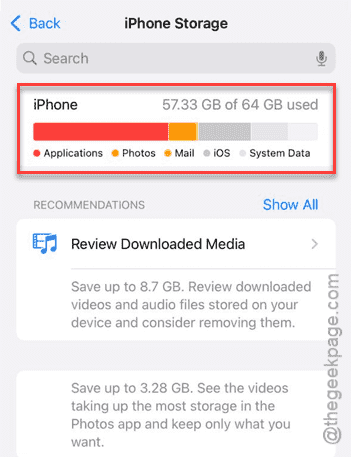
Step 4 – Deleting some of large applications from your iPhone should free up considerable amount of space.
Otherwise, you may remove some of the big video files, log files or documents that are taking up too much space.
Once you have 10+GB of free space, check again. The lag should be gone.
Fix 4 – Update the apps on your iPhone
Does some of the apps feels laggy? If you are experiencing slow responsiveness in only some of the apps, updating those apps might help.
Step 1 – Open up the App Store on your iPhone.
Step 2 – Next, tap the profile icon in the top-left corner.
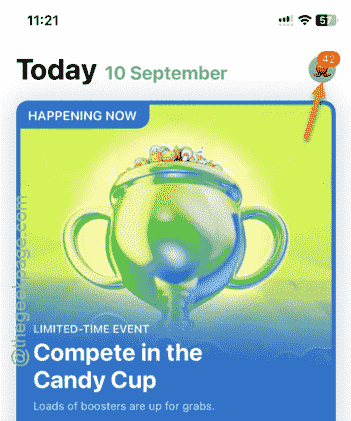
Step 3 – Start scrolling through that page, and you shall find the list of apps with their updates pending on your device.
Step 4 – Look for any of the updates pending for the app. Use the Update option for the app that you want to update the app.
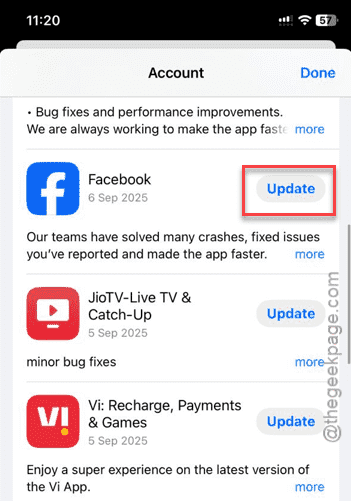
Updating the apps should help you resolve the issue at your end.