NVIDIA updates their GeForce Experience app on a regular basis to optimize the games on a regular basis. But, during the installation of such a driver version, you may get this “Installation can’t continue” message on the NVIDIA package installer page. This happens if you download the driver package in parts. The users tend to face this problem while updating the graphics driver. If you are also facing this problem, these fixes will take care of it.
NOTE – NVIDIA has replaced the GeForce Experience app with NVIDIA app. We have used the NVIDIA app and shown the steps there. If you have the GeForce Experience app, get the new NVIDIA App.
Fix 1 – Download the software afresh
You have to download the software afresh on the GeForce Experience app.
Step 1 – Search for the “GeForce Experience” app from the search box.
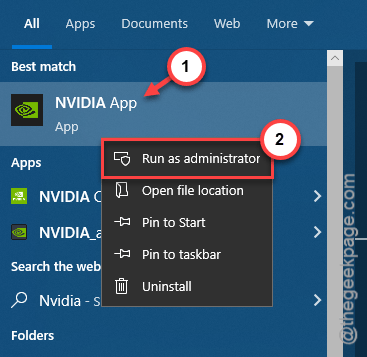
Step 2 – Next, right-tap the “GeForce Experience” in there and tap that “Run as administrator“. Or, you can run the “NVIDIA App” as the administrator as well.
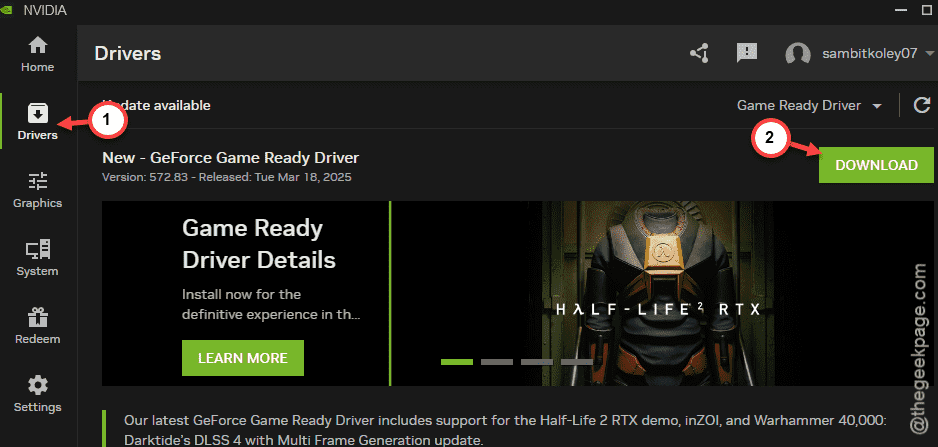
Step 3 – Once it opens up, go to the “Drivers” tab.
Step 4 – On the right-hand tab, find the GeForce Game Ready Driver there. Tap “Download” to download the driver.
Step 5 – Then, tap the “Install” button to install the driver update package on your computer.
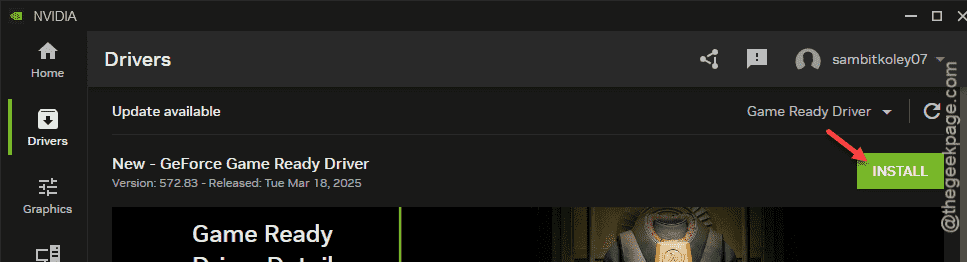
The time of this installation may vary device to device. So, after the driver is installed, there will be a step to restart your device.
Do that and the driver will be updated.
Fix 2 – Install the downloaded driver manually
You can install the graphics driver manually.
Step 1 – At first, load up the Nvidia App.
Step 2 – Go to the “Drivers” tab once more.
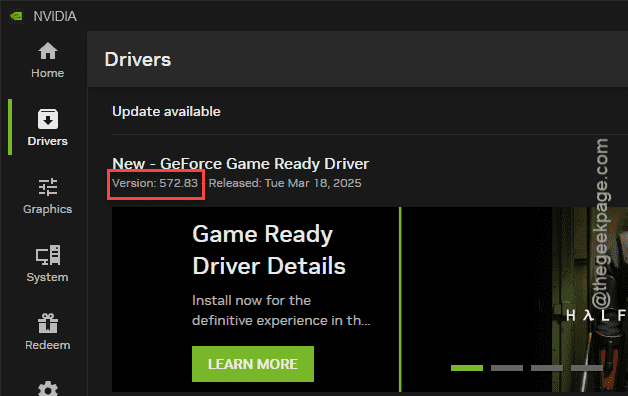
Step 3 – Wait for a few seconds for the driver information to load up. Note down the version information. Like, in our case, the display driver version is 572.83.
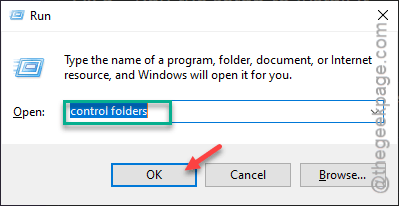
Step 4 – Now, press the Win+R keys together.
Step 5 – Type this term and hit Enter.
control folders
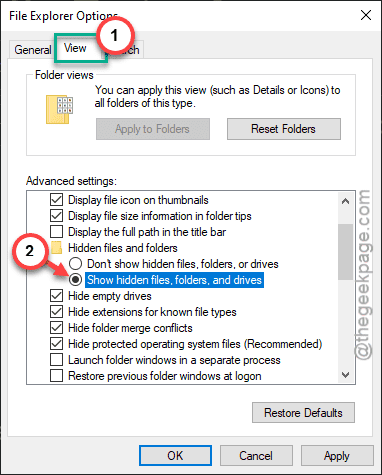
Step 6 – In the Folder Options page, go to the “View” tab.
Step 7 – Then, enable the “Show hidden files, folders and drives” option.
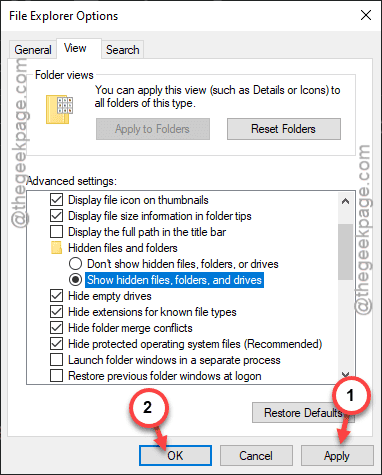
Step 8 – Tap “Apply” and “OK” to save it.
Step 9 – Then, go to this location –
C:\ProgramData\NVIDIA Corporation\NVIDIA App\UpdateFramework\ota-artifacts\
Step 10 – Now, there will be a lot of folders here. These folders contain the driver update package.
Step 11 – You have to investigate each and every folder, and find the NVIDIA package file.
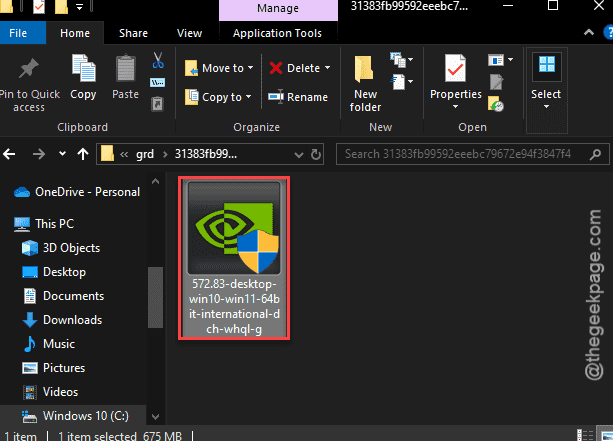
Step 12 – The driver file should have the driver version number that you have seen on the NVIDIA app. In our case, it was in this location –
grd\31383fb99592eeebc79672e94f3847f4
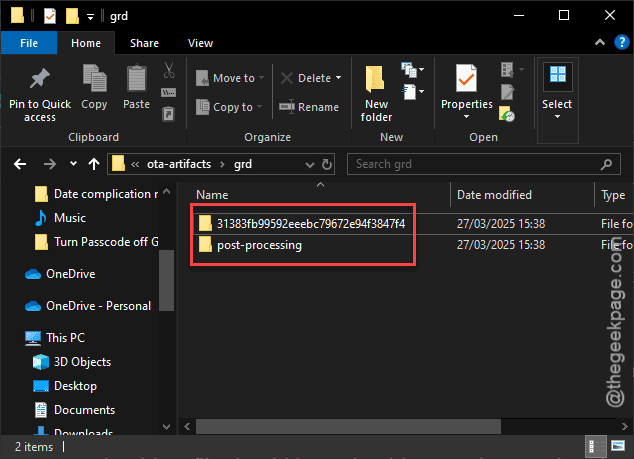
Step 13 – You just have to run this installer file and complete the installation following the on-screen steps.
Once the driver is installed, a simple system reboot is necessary.
Fix 3 – Run the setup to install it
The last solution in our list is to run the NVIDIA App Setup file directly on your device.
Step 1 – Hit the Win+E keys together.
Step 2 – Then, reach this location straightaway ~
C:\ProgramData\NVIDIA Corporation\
Step 3 – Perform a search for “Setup” in the search box.
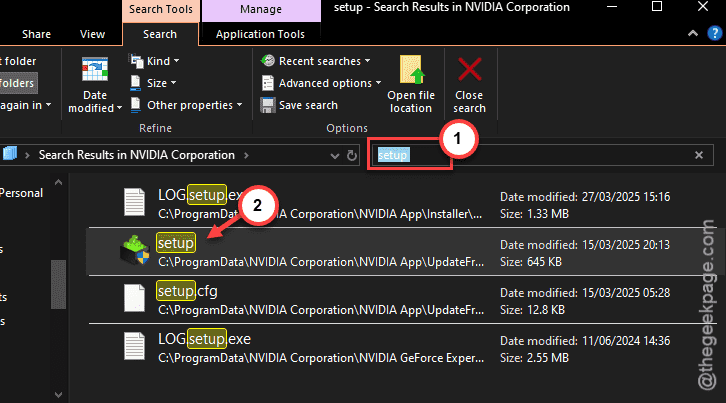
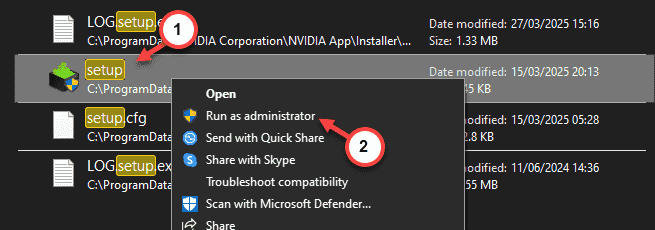
Step 4 – Once you have searched it, right-click the “Setup” utility and tap “Run as Administrator” there.
Follow the steps on the NVIDIA Setup like the first time that you have done to set up the device driver. Once you have installed the graphics driver, a system restart is needed. Check if this works.