Can’t find the MMS Messaging option on your iPhone? This feature allows you to transfer images or videos or any other format in the multimedia files. If you are not able to find the MMS Messaging option on your device, these solutions can be helpful. Start from the basic solutions and later, try these solutions.
Why the MMS Messaging option is not showing up on the iPhone?
The MMS technology is present on the most primitive iPhone versions. Unlike the iMessage services, MMS is offered by the carrier that you are using on the device. So, it is possible that the carrier network doesn’t provide the MMS service. It also depends upon the region or location from where you are trying to access the service.
In the most cases, iPhone discloses this option only when you get an MMS on the device. You can just ask one of your friends to send a demo MMS from their device. We have discussed this in details. So, follow these steps and the MMS option will be visible in no time.
Fix 1 – Tell a friend to send an MMS
You may ask your friend to send a demo MMS to your number. The MMS feature entirely depends upon the carrier network on your area. Basically, all the network providers supports the MMS feature. It doesn’t have to be an iPhone to send the MMS, as an android device would do the same trick.
When you get the MMS on the iPhone, you will find the MMS settings in the iPhone Settings again. You can find it from here –
iPhone Settings > Apps > Phone
Fix 2 – Reset All Settings
The absence of MMS option can be linked to the misconfigured iPhone settings.
[NOTE – When you reset the iPhone settings, it just deletes the modifications. It does delete all the network-related information from the device. But, it won’t touch any of the app data or any documents stored on your device.]
Step 1 – You can just reset all the device settings to the factory default settings. Get to the home settings of the iPhone.
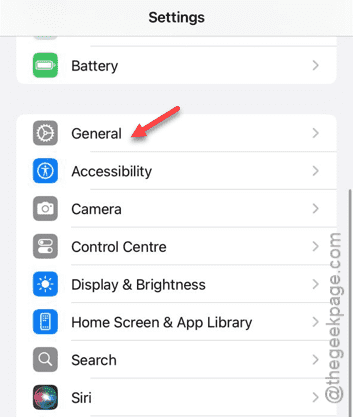
Step 2 – So, when you are there, open up the “General” tab on your iPhone.
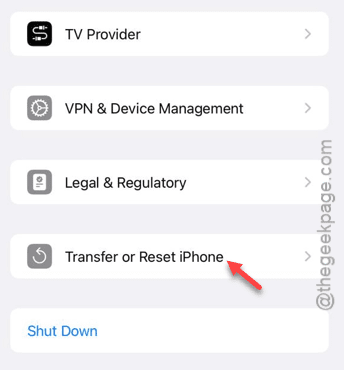
Step 3 – Next, slide down and find the “Transfer or reset iPhone” option there. Tap it once.
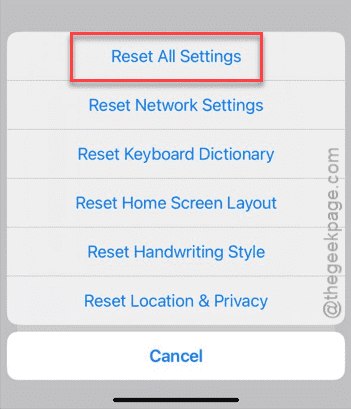
Step 4 – On the subsequent step, tap the “Reset” feature.
Step 5 – You will find the “Reset All Settings” option right there.
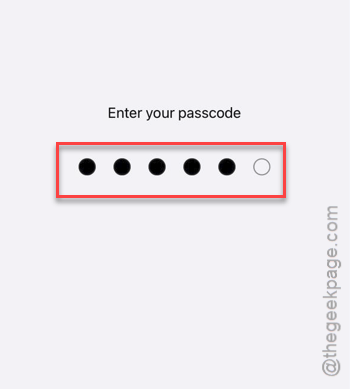
Step 6 – Next, you must go through the verification step.
Step 7 – Once you are through, you will be greeted with a warning message. So, tap the “Reset settings” option to finally confirm the process.
iPhone will reset the settings through a system reboot process. MMS settings will be visible in the iPhone settings page.
Check if this helps.