Can’t access the keyboard on your iPhone? There can be some situations where the keyboard may not show up on your screen, even when you tap the active part of the app. Sometimes this type of bugs appear on the iOS and there are several workarounds that can fix the issue. Without wasting any more time, follow these steps.
Fix 1 – Disable the auto-rotate feature
Sometimes, the keyboard app may disappear when you try to use that in the landscape mode.
Step 1 – Swipe down to access the Control Center.
Step 2 – Disable the “Auto Rotate” function from there.

Step 3 – After disabling the auto rotate function, come back to the same screen.
Step 4 – Tap the same part of the screen to reactivate the feature on the iPhone.
Check whether the keyboard is visible or not.
Fix 2 – Turn off the Bluetooth
The keyboard won’t appear on your screen if your iPhone is connected to a Bluetooth keyboard. So, disable the Bluetooth to clear any potential conflicts.
Step 1 – Disable any Bluetooth keyboard or touch input devices that may get connected to your iPhone.
Step 2 – Next, just swipe down and disable the Bluetooth.
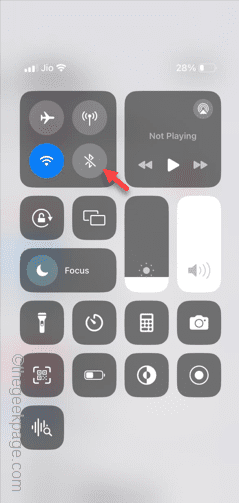
This way, you can stop any possibility of interference from an external keyboard.
Fix 3 – Add at least one language keyboard
No keyboard will show up if there are no language keyboards added to the list of iPhone keyboards.
Step 1 – Open the Settings and get to the “General” tab.
Step 2 – Get access to the “Keyboard“.

Step 3 – After opening the Keyboard’s tab, open the “Keyboards” option.

Step 4 – If you can’t see any keyboard, tap the “Add New Keyboard…” option.
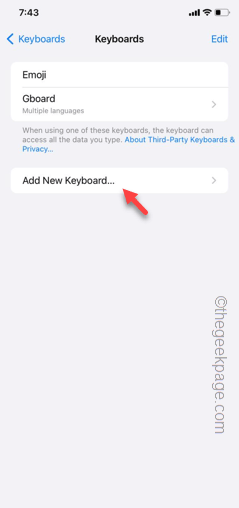
Step 5 – Search for the keyboard in the search box and add that keyboard to your iPhone.
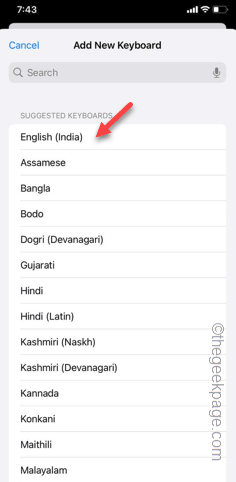
Step 6 – After adding the keyboard to the list of keyboards, you will return to the main keyboard page.
Step 7 – You have to adjust the precedent of the keyboards on your phone.
Step 8 – Tap “Edit“.
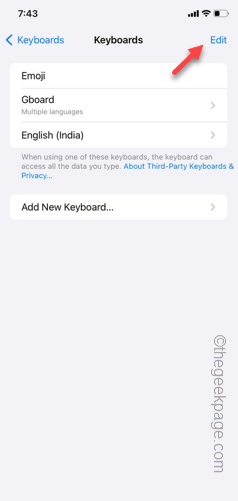
Step 9 – So, hold the bar icon beside the new keyboard to drag it to the top of the chart.
Step 10 – Finally, tap the “Done” button at the right-top corner to save the change.
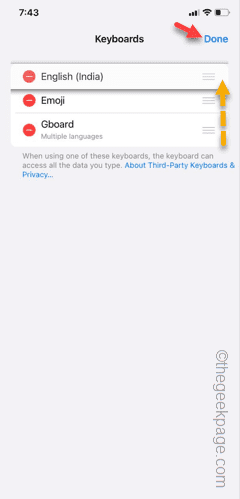
Return to the same page and retry using the keyboard.
Fix 4 – Disable One-handed keyboard
Disabling the One-Handed keyboard may help you fix it.
Step 1 – In your iPhone Settings, touch the “General” option.
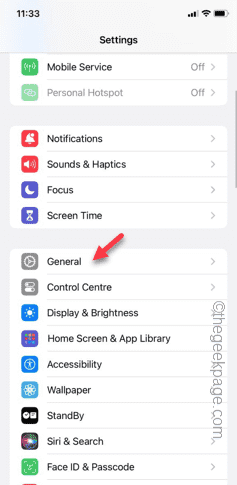
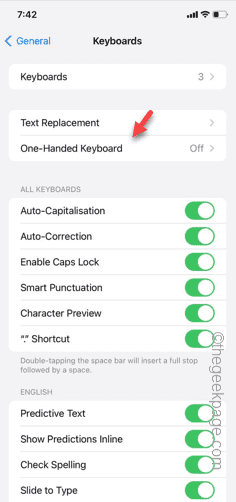
Step 2 – Later, open the “Keyboards” feature.
Step 3 – Open the “One-Handed Keyboard” option.
Step 4 – Switch this to “Off” mode.
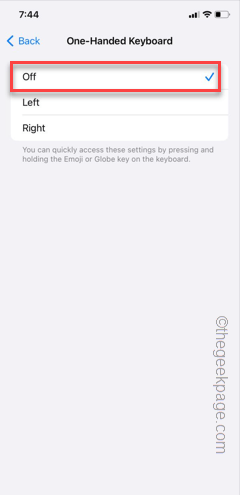
After disabling the One-Handed keyboard mode, you can use the keyboard once again.
Try doing that.
Fix 5 – Reset your iPhone’s keyboard dictionary
When you use the iPhone’s keyboard, the dictionary gets configured. So, resetting the iPhone’s dictionary may help you resolve the issue.
Step 1 – Go to the Settings.
Step 2 – Open the “General” settings, next.
Step 3 – Later, scroll down and tap the “Transfer or reset iPhone“.
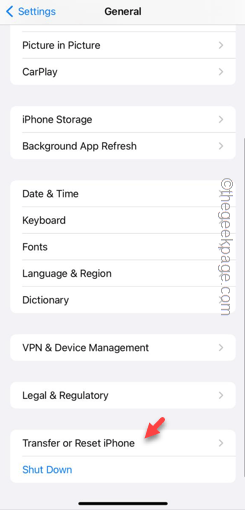
Step 4 – This time, open the “Reset” option.
Step 5 – Later, tap the “Reset Keyboard Dictionary” feature.
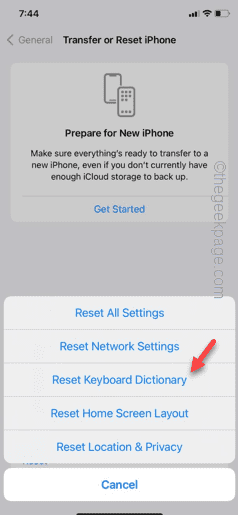
You have to manually verify your access using your Apple ID passcode.
Step 6 – Do that and you are through. After that, just tap “Reset Dictionary” option.
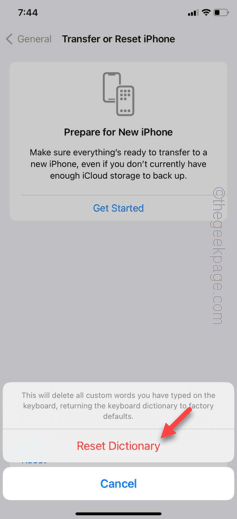
Once you have reset the keyboard dictionary, you can use the keyboard once again. Type something to test this out.
Fix 6 – Restart the iPhone and check
Still nothing with the keyboard on your iPhone? Just restart the iPhone and check it out. Restarting the iPhone can fix this keyboard issue.
So, just restart the device and retry using the keyboard.
Fix 7 – Reset all the iPhone Settings
Misconfigured keyboard setting may lead to this issue. So, you may reset the iPhone settings to solve the missing keyboard issue.
Step 1 – When you are in the iPhone Settings, go to “General” tab.
Step 2 – Scroll up and access the “Transfer or reset iPhone“.
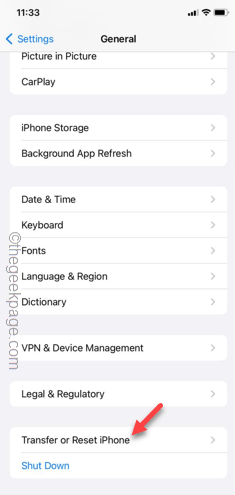
Step 3 – Open the “Reset” settings.
Step 4 – Now, you have to touch the “Reset All Settings” option.

Hope these fixes your problem!