Does the Sunrise/Sunset complication shows blank on your Apple Watch? It also shows up in the complication on the customized watch faces of the device. But, some users are having problem seeing the Sunrise/Sunset information on their Apple Watch. This information is vital for the users who tend to follow a routine of their daily tasks and optimize their activity according to it. So, if you are also having the same problem, here is the reason behind followed by the absolute fix.
Why the Sunrise/Sunset not working on the Apple Watch?
Sunrise/Sunset data is accessible from the clock settings of your Apple Watch. This particular metric is dependent on your current location. The Sunrise/Sunset information changes automatically based on the location where you are on the Earth. So, the Clock app needs the location permission to fetch your current city location and, thus, to retrieve the sunrise/sunset information accordingly.
Fix – Allow the location permission for the Clock app
You have to do this from your iPhone. Follow these steps~
Step 1 – Open the iPhone Settings from the ⚙icon.
Step 2 – Then, go ahead and open up the Privacy & Security feature.
Step 3 – Later, open up the Location Services settings.
Step 4 – Finally, find the Clock app and open it up.
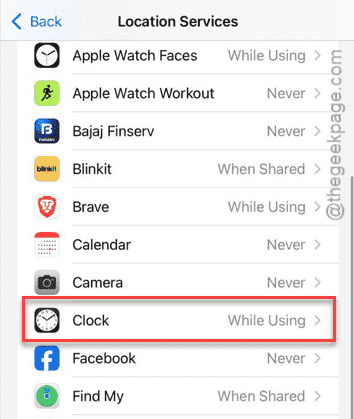
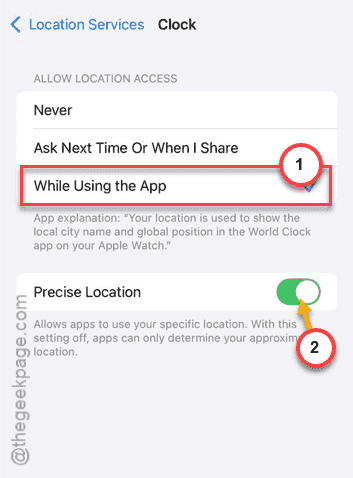
Step 5 – Set the ‘Allow location access‘ permission of the clock app to While using the App option.
Step 6 – Turn on the Precise Location option from there as well.
Now, you will see the sunrise/sunset information directly from your Apple Watch. This will fix the issue for you.
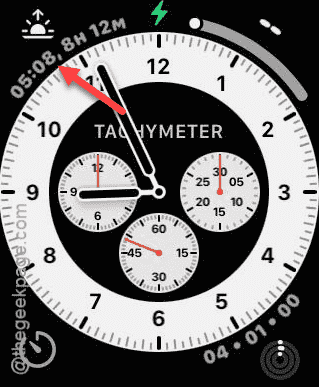
NOTE – Keep in mind that all the watch face does not offer the Sunrise/Sunset complications. Chronograph style or only the special informatics watch faces do offer such novelties. Here are the steps to add your city on the watch to see the Sunrise/Sunset complication information there.
Step 1 – Tap the Sunrise/Sunset complication on the watch face.
Step 2 – Next, tap the three-bar button on the world clock page.
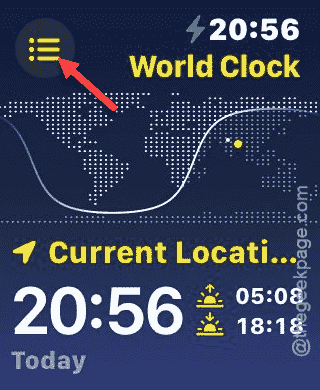
Step 3 – Later, tap the + button there to add the new location.
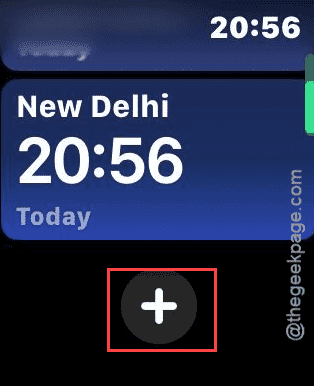
Step 4 – Just scroll down to search for the city from the search box and add it there.
This way, you can set to reveal the Sunrise/Sunset information for your specific city.
Fix 2 – Add the Sunrise/Sunset from Watch app
You can add the Sunrise/Sunset complication directly from your Watch app as well.
Step 1 – Open the Watch app and go to the Face Gallery.
Step 2 – Choose a compatible watch face from there. Now, tap any one of the complications to edit it.
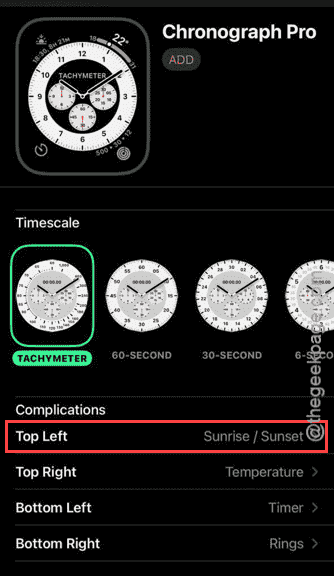
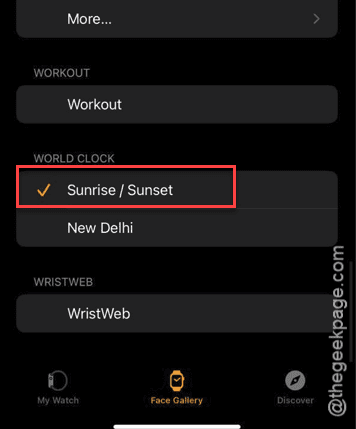
Step 3 – Now, scroll all the way down to the World Clock section and choose the Sunrise/Sunset complication.
Step 4 – On the watch screen, it will throw up a prompt for you to allow the location services permission.

Step 5 – Tap Allow While using the app option on your watch.
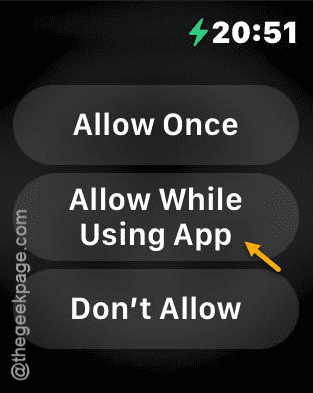
After allowing this, you can finally see it there on your watch.
Hope this has helped you!