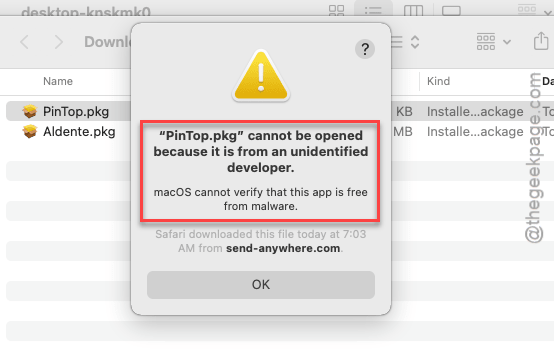
Not getting the ‘Unidentified Developer. Open Anyway‘ choice while loading up third-party application packages on your macOS? This particular prompt provides the user the liberty to choose whether to run the package or not. But, absence of this choice can be detrimental, because users can’t run the packages even if they want it to. We have procured these user-friendly solutions that have been working for others in the same situation.
Quick Fix Table (If you just want a brief rundown of the solutions) ~
| Steps to fix | Time Required for resolution |
|---|---|
| System Settings > Privacy & Security > (Search package name) > Open Anyway > Run the package > Apple Password for confirmation | 3 min |
| Open the Terminal > Modify and run the code | 2 min |
But, if you want to take a deep dive into the more detailed version of solutions, follow these steps –
Fix 1 – Provide Permission to Open the package Anyway
Your macOS does block any suspicious package from unknown developers to running on the system. This is by design to protect the devices against ill intentions.
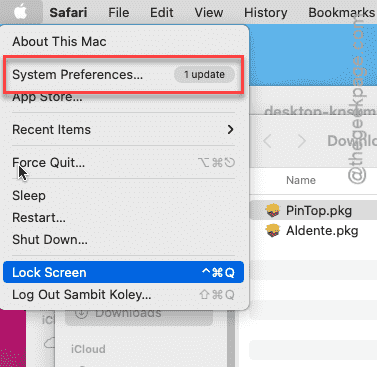
Step 1 – To do this, tap the Apple logo in the menu bar. Tap the System Settings there.
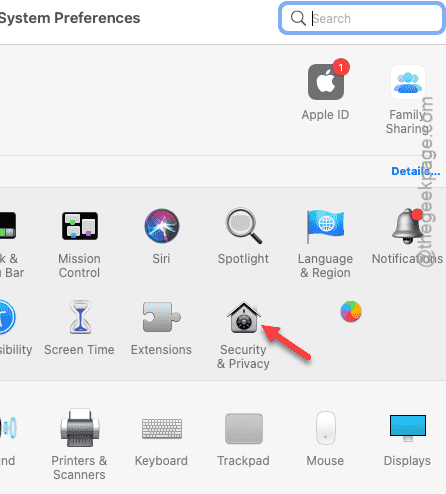
Step 2 – Then, go to the Privacy & Security settings.
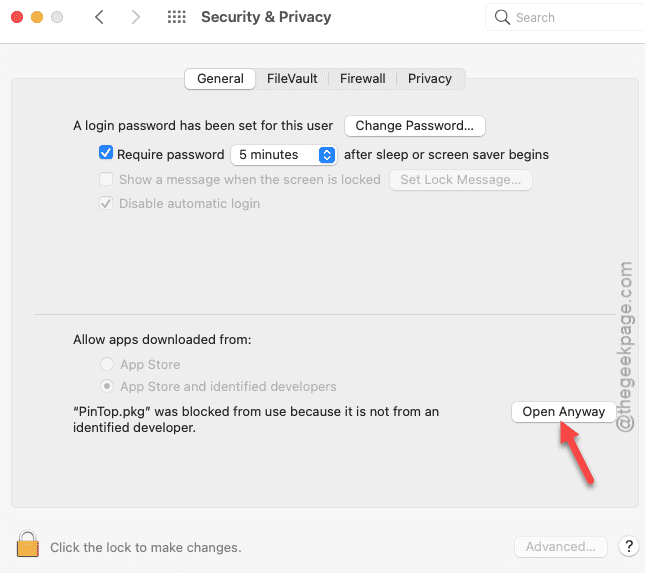
Step 3 – Find the Security settings in the following window. You will see the name of the package file with this message~
'<package.pkg>' was blocked from use because it is not from an identified developer.
Step 4 – Tap the Open Anyway option.
Step 5 – Mac will now show you a statutory warning message. Tap the Open option to run the package.
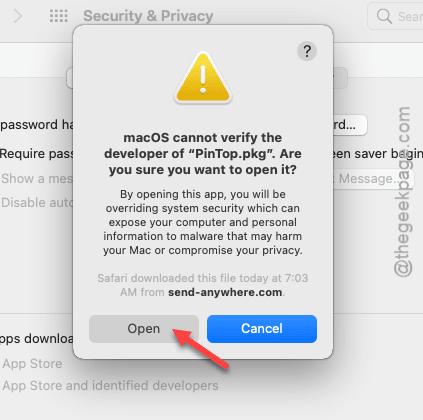
If it doesn’t run automatically, run it from the download location.
This way, you can run the application package and complete the installation on your own.
Fix 2 – Force Run the package from Terminal
You can use the terminal to revoke the quarantine restrictions from a particular package file.
Step 1 – Tap the Launchpad from the dock on the Mac.
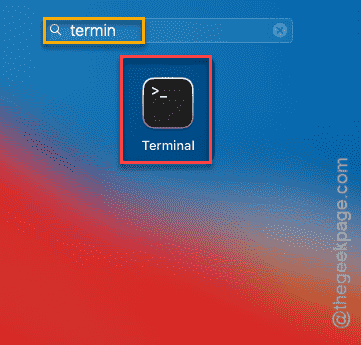
Step 2 – Next, search for Terminal and open it up from there.
Step 3 – Now, make sure to locate the package file in the Finder. Don’t minimize it.
Step 4 – Paste this code in the terminal, add a space at the end of the line of the code, and drag the package file from the Finder to the terminal.
xattr -d com.apple.quarantine
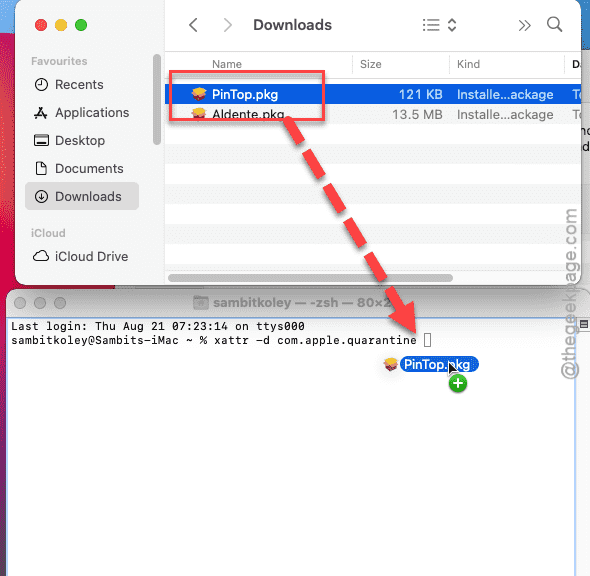
This way, the full package path will be declared in the terminal.
Step 5 – Hit Enter to execute the code.
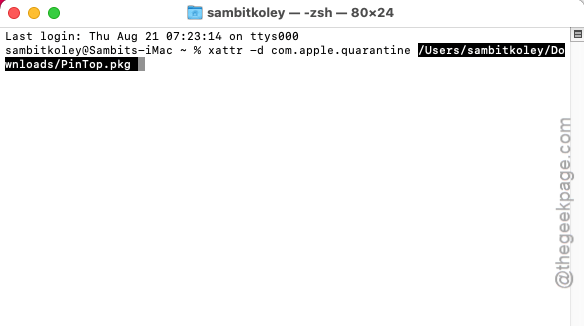
After executing the code, you may close the terminal and run the package file directly on your Mac. You will see the warning prompt again, but this time, you will have the choice to bypass and run the package file.
Hope these fixes have worked out for you!
FAQs–
Here are some frequently asked question for the users who are stuck with this absence issue of ‘Unidentified Developer. Open Anyway’ message ~
1. Why there is no ‘Run anyway’ option on my Mac?
Apple does not allow third-party app packages from untrusted sources to run on the macOS. Apple blocks the access to the package and omit the ‘Run anyway’ toggle to run the app package on the device. You have to manually allow it from the Privacy & Security page to run it on your system.
2. Is running unknown developer packages safe on my Mac?
No. Running an unknown developer package is never safe on any device, let alone your office or personal Mac. It may contain some Trojan, malware or keylogger that may lead to several data security issues like, leaking personal information, banking, social security credentials, etc. You should never run packages from unknown sources or downloaded from the internet.