Getting the microphone paused pop up in iPhone can be a frustrating experience for the users. If you are an affected user facing this issue on your iPhone, you must know the reason why you are getting this prompt, followed by the recommended solutions that should put a plug on this topic. This problem originates from enabling Live Captions in iPhone Settings. But, if you want to get a better overlook, feel free to dive in!
Quick Fix table –
| Issue Cause | What to Do | Time Required |
|---|---|---|
| Live Captions is keeping the mic open in paused mode | Settings > Live Captions > Off | 1-2 min |
| Temporary iOS bug or glitch | Restart iPhone, check,
else: |
4-5 min |
Why am the microphone paused pop up is coming up on my iPhone?
Microphone paused notification generally shows up when you are using the Live Captions feature in the FaceTime app. The captions automatically generates the transcription of the spoken audio inputs. So, it demands the microphone permission to perform properly. The solution to this microphone permission lies in the FaceTime app, where the Live Captions is provided as a beta feature. Disable it and this particular prompt should go away along with it.
These fixes should rectify the microphone paused pop up in your iPhone ~
Fix – Turn off the Live Captions feature
The Live Captions feature is available in the main FaceTime settings page on your iPhone.
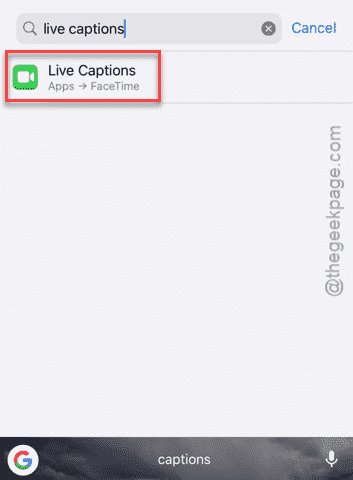
Step 1 – Open the iPhone Settings. Then, you can just search for the Live Caption from the search bar and disable it from there.
Step 2 – Otherwise, open up the Apps tab.
Step 3 – Next, load up the FaceTime app.
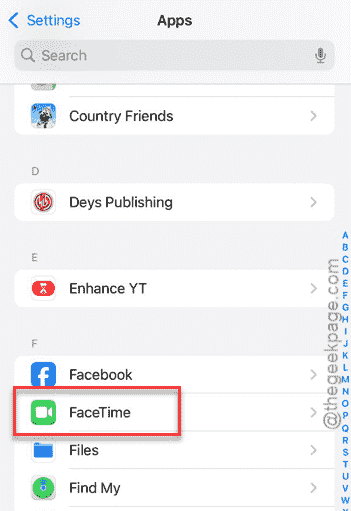
Step 4 – Then, look for the Live Captions feature and, turn it off from there.
NOTE – If you can’t find Live Captions option in Face Time settings, you may find it in the Accessibility settings.
After turning it off from there, the issue with the microphone getting paused will be resolved.
Fix 2 – Restart/Force-restart the iPhone or update the iOS
This sudden microphone pause issue can arise from some glitches or bugs in iOS as well.
Step 1 – We recommend you restart the device once. Like, tap the power button at the top of the Control Centre.
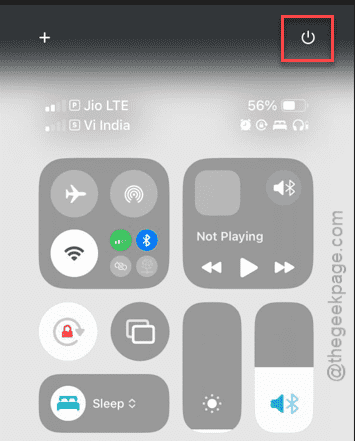
Step 2 – Then, use the slider that says ‘Slide it to power off‘ to power off the device.
After switching off the iPhone, restart it. The microphone sudden pause issue will be gone.
But if this doesn’t work, look for any pending iOS update for your device and install it.
Step 1 – Open the General tab and go to the Software Update section, in the iPhone Settings page.
Step 2 – Just wait for 10 seconds or so. Then, you will see the pending update waiting for you to install on the iPhone.
Step 3 – Tap the Update Now button to install the iPhone update.
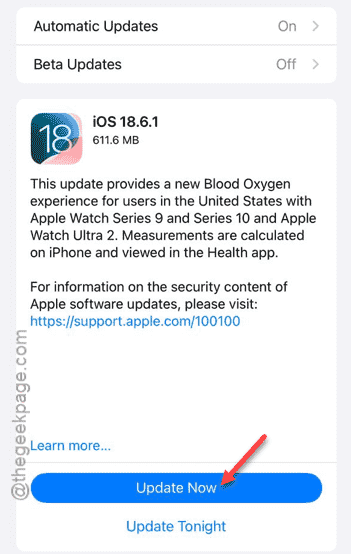
This should fix the microphone pause issue that you are having at your end.
FAQs –
Here are some frequently asked questions that may further clarify your doubt~
1. Why is this ‘Microphone paused’ bubble is appearing on my iPhone?
The Live Captions feature on iPhone’s FaceTime may sometimes glitch out to show this ‘Microphone paused’ bubble on your iPhone. Users can easily solve this problem just by disabling Live Captions from their iPhone Settings.
2. Should I restart the iPhone to get rid of ‘Microphone paused’ error?
Yes. Temporary glitches like this can be resolved with simpler resolution like restarting the iPhone. A system restart refreshes all the native resources, and fixes this kind of bugs or glitches. Sometimes, a force-restart measure may be required to solve the issue completely.