Having some problems logging into the Fortnite game on your PC or console? A handful of users have reciprocated their frustrations across various forums while getting the following error message, “Unable to log in to Fortnite servers. Please try again later“. This error clearly indicates an issue with the network or the local Fortnite game files . These solutions will help you resolve the issue at your end.
Fix 1 – Delete the Config, Logs folder
Clearing out the logs and certain other Fortnite folders can help you resolve this issue.
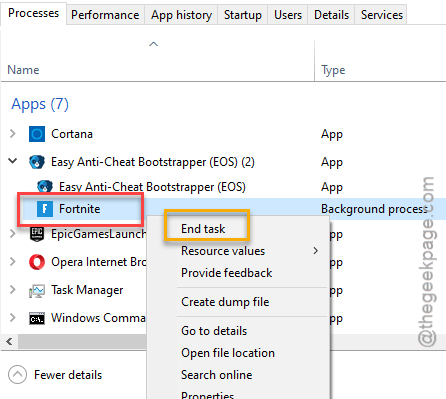
Step 1 – At first, right-click the Windows button on the taskbar and tap the Task Manager option.
Step 2 – When the Task manager page loads up, look for the Fortnite game executable there and right click that, and tap End task.
Step 3 – This way, kill any other Fortnite processes from there.
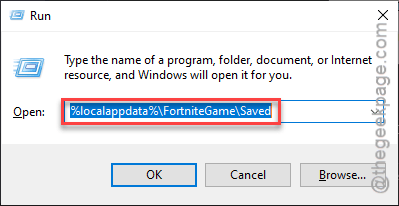
Step 4 –Now, open up a fresh run dialogue box Using Windows+R keys together. Paste this in that Run window and click OK.
%localappdata%\FortniteGame\Saved
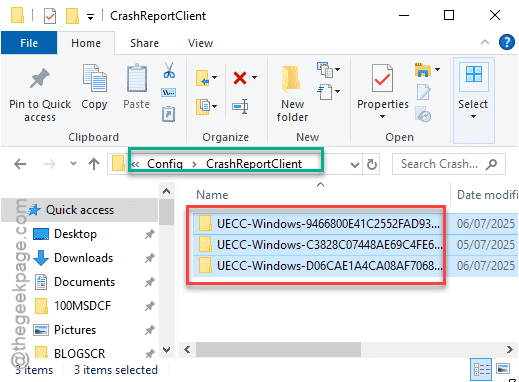
Step 5 – In the Saved folder, go this way –
Config\CrashReportClient
Step 6 – Delete everything that you can find in the CrashReportClient folder.
Step 7 – After this, get back to the Logs folder in the Saved folder.
Step 8 – Clear out everything in there.
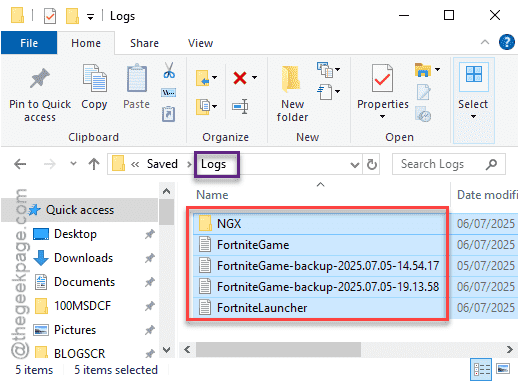
After you have removed contents of these particular folders, relaunch Fortnite and test it yourself.
Fix 2 – Refresh the network configurations
If there are any issues with the network configuration on your system, it can cause problems logging you in to your Fortnite account.
Step 1 – You need to access off a command prompt window with elevated privileges, so search for CMD from the search box.
Step 2 – Then right-click the Command Prompt utility and tap Run as administrator.
Step 3 – Now, once you have opened up the terminal, use these commands to flush the network configurations and refresh them.
netsh winsock reset
netsh int ip reset
ipconfig /release
ipconfig /renew
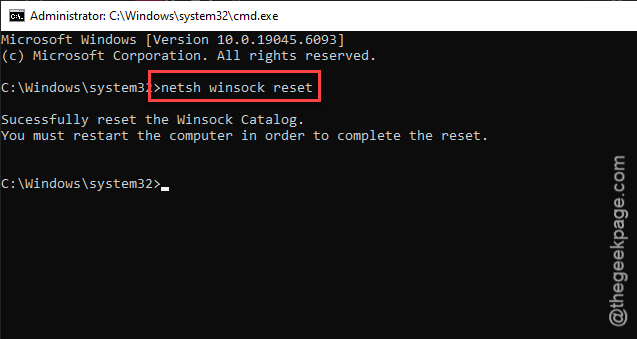
Once you have executed all four of the commands, you may close the terminal and restart the system once. Try to launch and play Fortnite once again.
Fix 3 – Check the router
You must check your outer ones to make sure check whether any issues are there or not. See whether you are facing any network problems. You can power reset the router –
Step 1 – Power off the router. Disconnect it from the power cable.
Step 2 – Leave it alone for a while.
Step 3 – Then, connect the router to power source and turn it back on.
Later, reconnect your system and try to play Fortnite. You will be able to enjoy Fortnite once again.
Fix 4 – Verify the Fortnite files
Run a verification check on all the Fortnite game files.
Step 1 – Close the Fortnite game. Load up the Epic Games Launcher.
Step 2 – Head on to the Library section.
Step 3 – Find the Fortnite there. Tap the three-dot button next to Fortnite and tap Manage.
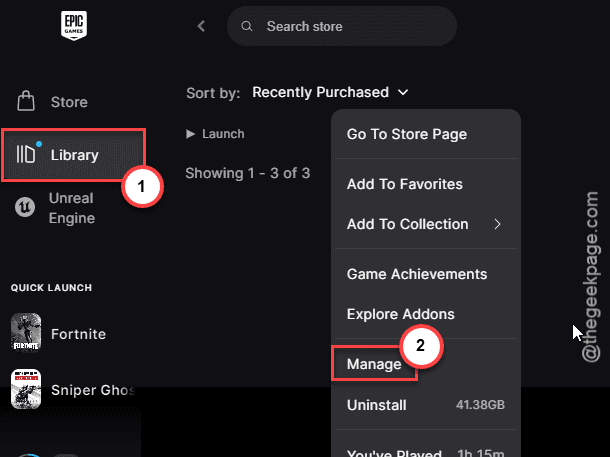
Step 4 – Tap the Verify files option to start verifying the Fortnite files there.
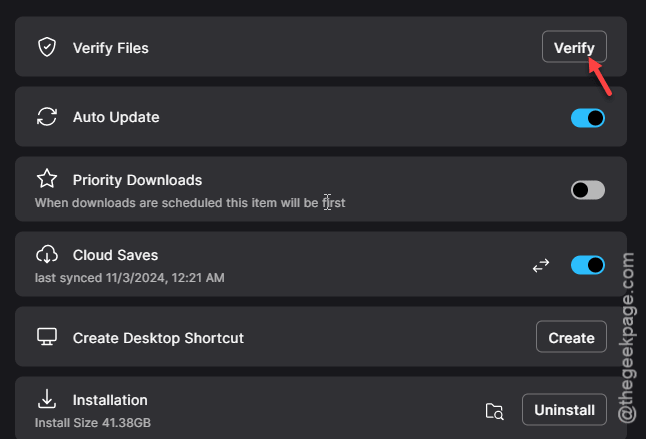
This verification check will scan all the Fortnite game files and repair them, if it is required.
After this, you can enjoy Fortnite once again. Check if this works out for you.