Can’t save new contacts on your iPhone? The contacts on your iPhone take an insignificant amount of space on the device. So, you can not blame the lack of empty space for this problem. In that case, the discussion on the root of the issue is imminent. We have gone through the cause of the problem and presented the best solution to address the problem.
Why I can’t save contacts on my iPhone?
The problem that you are having with the contacts seems to be linked to your iCloud account. When you save a new contact, iCloud save it in the server. Later, you can sync all of your contacts at once while setting up a new Apple device. While this system was designed to ease the iPhone user experience, it can be a bit tricky sometimes.
A bug can stop you from saving the contacts on the iPhone. The best resolution for this is to disable the iCloud contacts at once and, later, re-enable the iCloud contacts. This way, even if the bug has caused the problem, doing this will re-synchronize all the contacts on the device/server.
Fix – Disable the Contacts
iCloud is linked to your Apple ID, and the Apple ID is linked to your main Apple account. iCloud maintains the link between the server and your device. But, if the connection breaks down, you can’t save the contacts.
Step 1 – At first, open up the Settings.
Step 2 – On your iPhone Settings, go straight to the “Apple ID” bar.
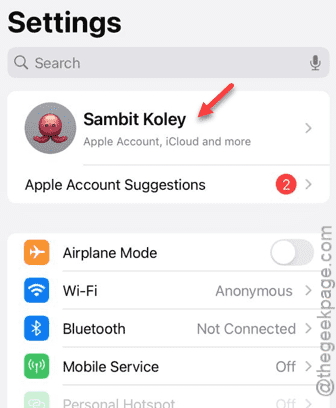
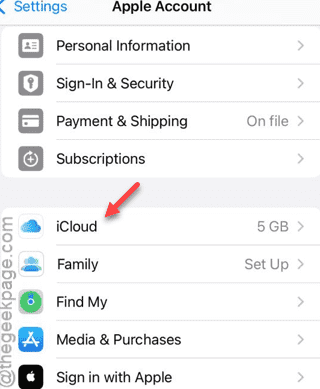
Step 3 – In that Apple ID settings page, click the “iCloud” section.
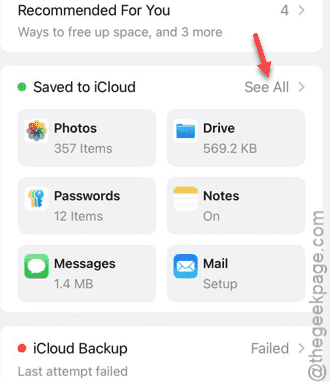
Step 4 – On the following page, you can view all the iCloud settings by tapping the “See All” button.
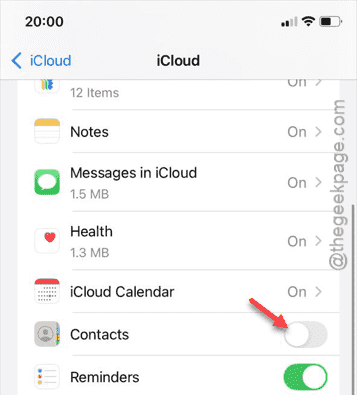
Step 5 – Among all the other settings, check the status of the “Contacts” settings.
Step 6 – If it is turned on, you must disable it.
Step 7 – When you see the prompt of whether to save or not save the contacts from the iPhone. In that case, tap the “Keep on my iPhone” option.
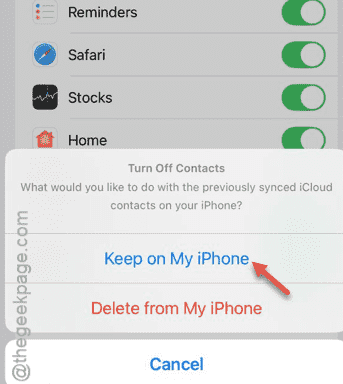
Once the contacts are loaded on your iPhone, the iCloud Contacts toggle will be disabled.
Step 8 – Give the iPhone a few seconds.
Step 9 – Later, re-enable the “Contacts” toggle from the same page.
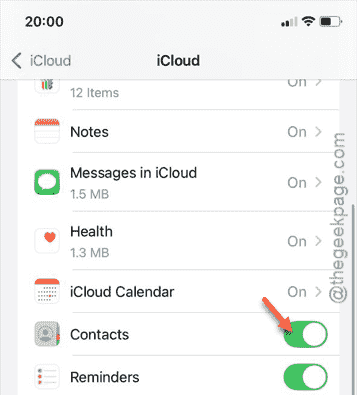
Once you have executed the whole procedure, the problem with the contacts on your iPhone will be gone. You can test this out by saving a new random contact on the device.
Check if this helps!